> ## Documentation Index
> Fetch the complete documentation index at: https://docs.gurubase.ai/llms.txt
> Use this file to discover all available pages before exploring further.
# Agents
> Orchestrate multiple tools and actions with AI agents that can make intelligent decisions
## Overview
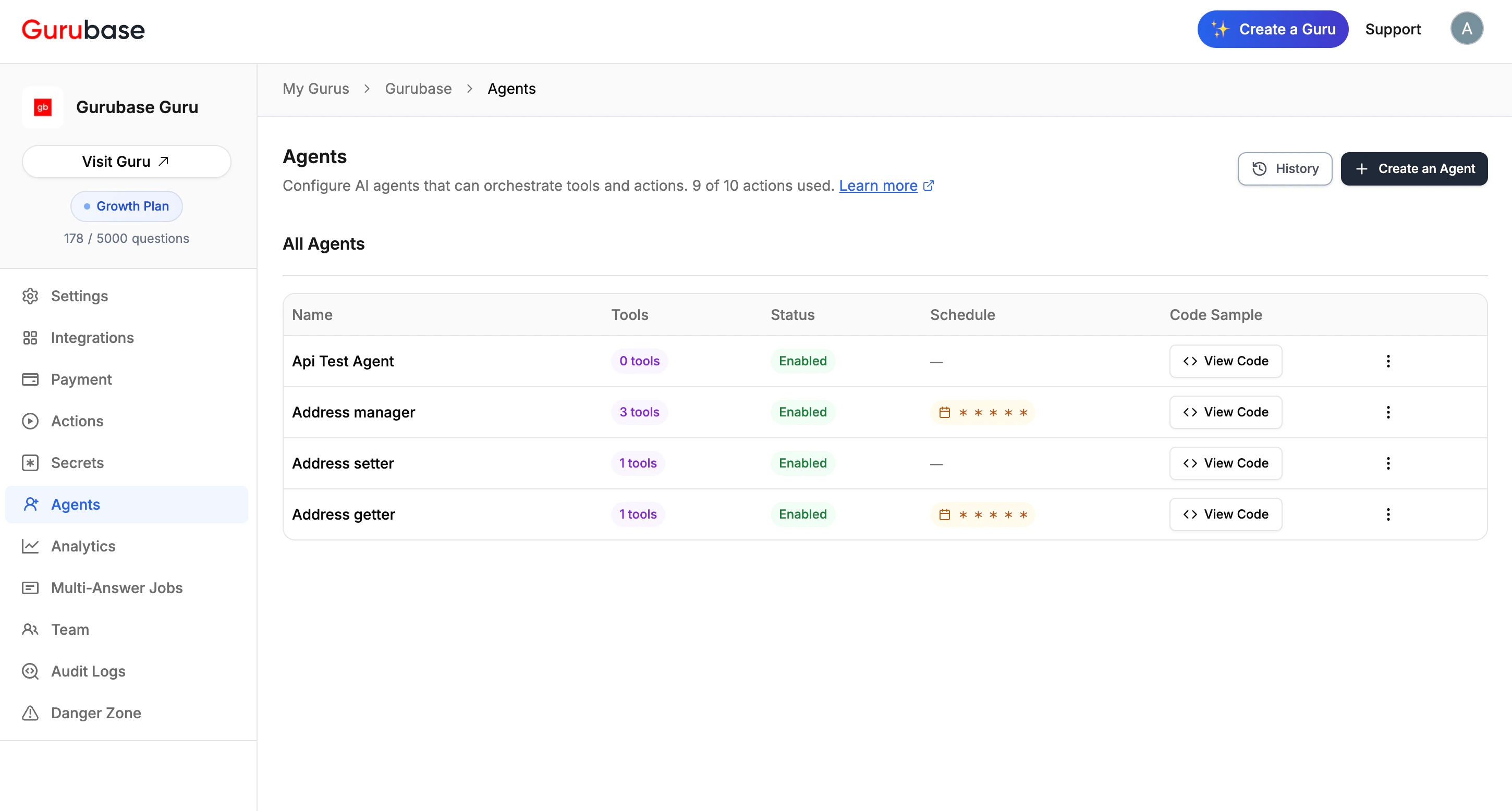
Agents are AI-powered orchestrators that can intelligently decide which tools and actions to use based on user questions. Unlike actions that execute a single task, agents can chain multiple tool calls together, make decisions, and handle complex workflows autonomously.
 Agents transform your Guru into an intelligent assistant that can:
* orchestrate multiple tools and actions
* make autonomous decisions about which tools to use
* chain tool calls together for complex workflows
* handle nested agent calls (agents calling other agents)
* process structured or free-form responses
Each Guru has a limit on the number of agents (e.g., "9 of 10 agents used").
## How Agents Work
Agents use an intelligent orchestration system:
1. **When to Trigger This Agent**: The Guru checks if the user's question matches your defined conditions
2. **Tool Selection**: The agent selects from its available tools (actions or other agents) based on the task
3. **Execution**: The agent makes autonomous decisions about which tools to call and in what order
4. **Nested Execution**: Agents can call other agents, creating nested execution chains
5. **Response Handling**: The **Usage Instructions** guide the AI on how to interpret and present the agent's response
## Creating an Agent
The agent creation process consists of four main steps:
1. Basic Information
2. Tool Selection
3. Agent Configuration
4. Usage Instructions, Scheduling, and Testing
### Basic Information
Agents transform your Guru into an intelligent assistant that can:
* orchestrate multiple tools and actions
* make autonomous decisions about which tools to use
* chain tool calls together for complex workflows
* handle nested agent calls (agents calling other agents)
* process structured or free-form responses
Each Guru has a limit on the number of agents (e.g., "9 of 10 agents used").
## How Agents Work
Agents use an intelligent orchestration system:
1. **When to Trigger This Agent**: The Guru checks if the user's question matches your defined conditions
2. **Tool Selection**: The agent selects from its available tools (actions or other agents) based on the task
3. **Execution**: The agent makes autonomous decisions about which tools to call and in what order
4. **Nested Execution**: Agents can call other agents, creating nested execution chains
5. **Response Handling**: The **Usage Instructions** guide the AI on how to interpret and present the agent's response
## Creating an Agent
The agent creation process consists of four main steps:
1. Basic Information
2. Tool Selection
3. Agent Configuration
4. Usage Instructions, Scheduling, and Testing
### Basic Information
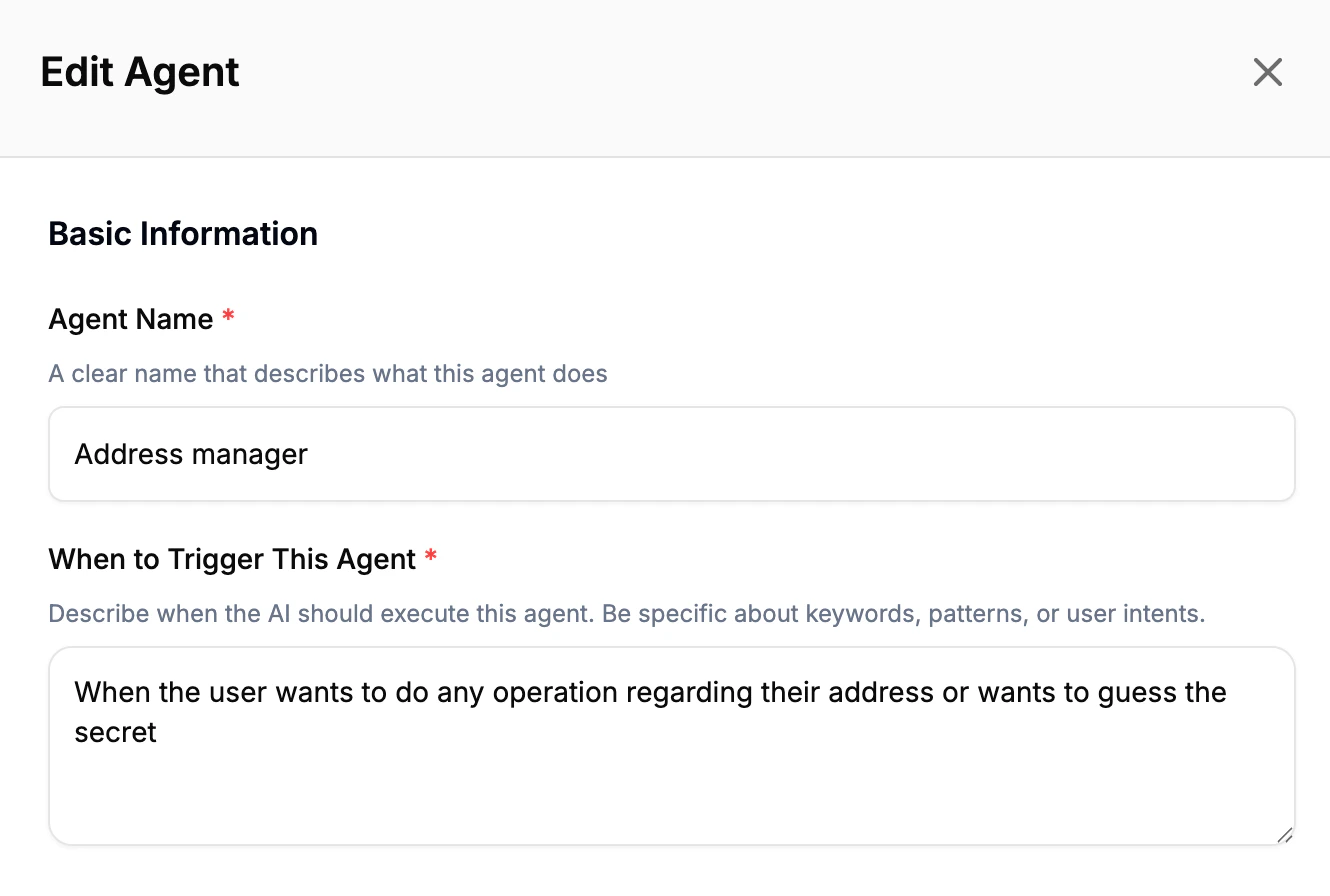 * **Agent Name**: Provide a descriptive name that appears in your agents list (e.g., "Address manager")
* **When to Trigger This Agent**: Be specific about keywords, patterns, or user intents to ensure it only runs when appropriate
* Example: "When the user wants to do any operation regarding their address or wants to guess the secret"
### Agent Configuration
* **Agent Name**: Provide a descriptive name that appears in your agents list (e.g., "Address manager")
* **When to Trigger This Agent**: Be specific about keywords, patterns, or user intents to ensure it only runs when appropriate
* Example: "When the user wants to do any operation regarding their address or wants to guess the secret"
### Agent Configuration
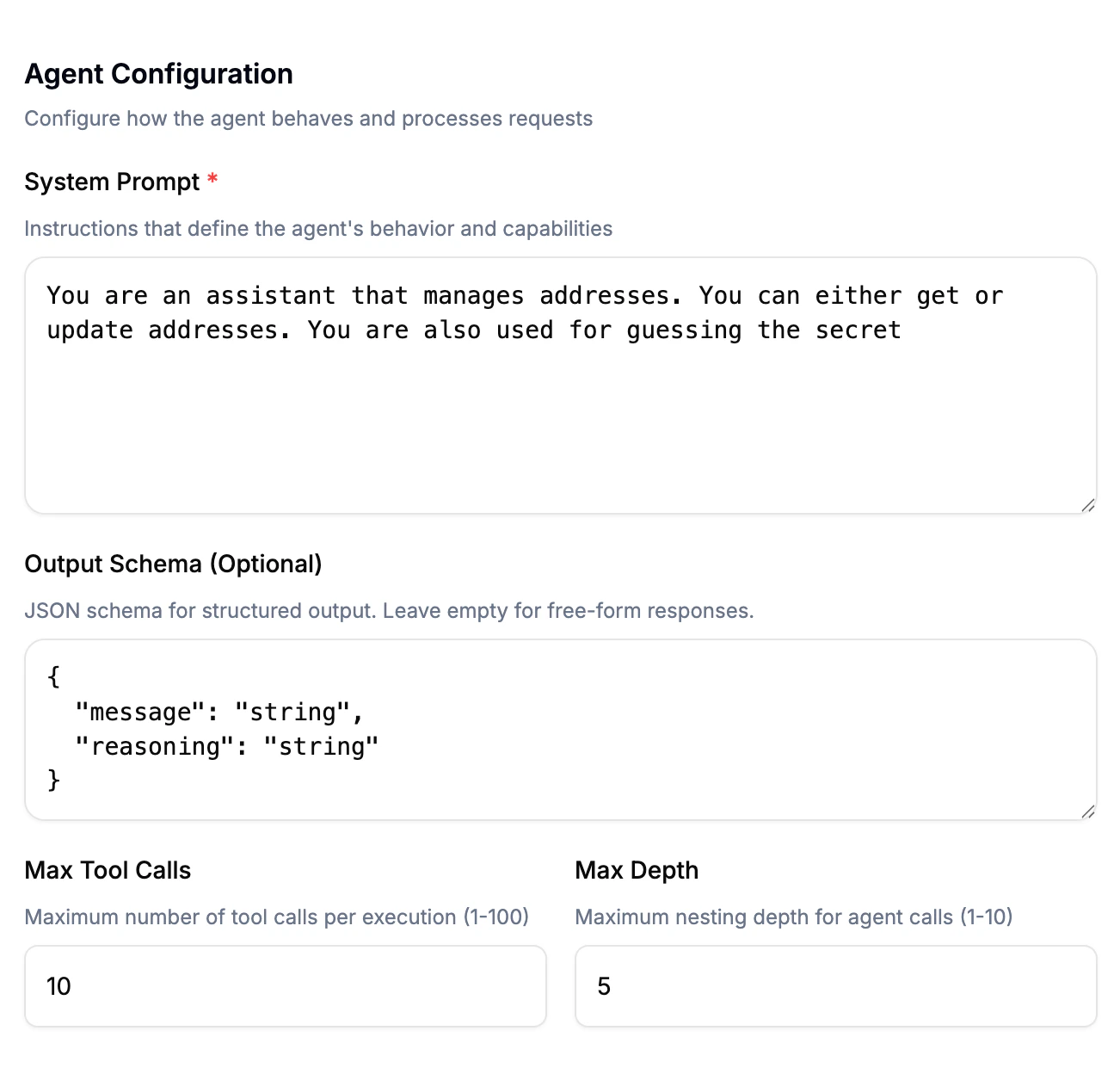 Configure how the agent behaves and processes requests:
* **System Prompt**: Required instructions that define the agent's behavior and capabilities
* Example: "You are an assistant that manages addresses. You can either get or update addresses. You are also used for guessing the secret"
* **Output Schema (Optional)**: JSON schema for structured output. Leave empty for free-form responses
* Example:
```json theme={null}
{
"message": "string",
"reasoning": "string"
}
```
* **Max Tool Calls**: Maximum number of tool calls per execution (1-100)
* Limits how many tools the agent can call in a single execution
* Default: 10
* **Max Depth**: Maximum nesting depth for agent calls (1-10)
* Controls how deeply agents can call other agents
* Default: 5
* Prevents infinite recursion in nested agent scenarios
### Tool Selection
Configure how the agent behaves and processes requests:
* **System Prompt**: Required instructions that define the agent's behavior and capabilities
* Example: "You are an assistant that manages addresses. You can either get or update addresses. You are also used for guessing the secret"
* **Output Schema (Optional)**: JSON schema for structured output. Leave empty for free-form responses
* Example:
```json theme={null}
{
"message": "string",
"reasoning": "string"
}
```
* **Max Tool Calls**: Maximum number of tool calls per execution (1-100)
* Limits how many tools the agent can call in a single execution
* Default: 10
* **Max Depth**: Maximum nesting depth for agent calls (1-10)
* Controls how deeply agents can call other agents
* Default: 5
* Prevents infinite recursion in nested agent scenarios
### Tool Selection
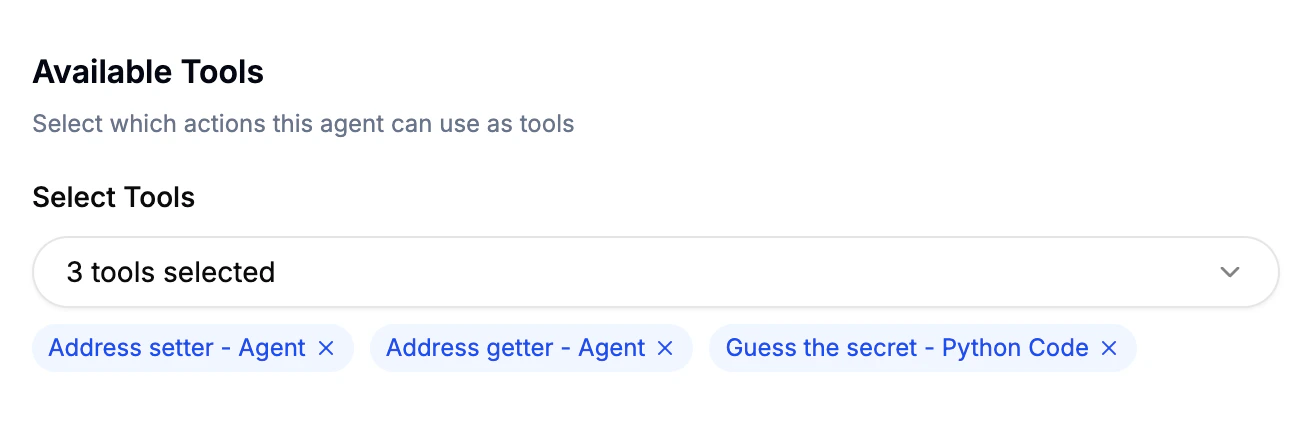 Select which actions and agents this agent can use as tools. Available tools include:
* **Actions**: Python Code and API Call actions you've created
* **Other Agents**: Other agents in your Guru (enabling nested agent calls)
Select which actions and agents this agent can use as tools. Available tools include:
* **Actions**: Python Code and API Call actions you've created
* **Other Agents**: Other agents in your Guru (enabling nested agent calls)
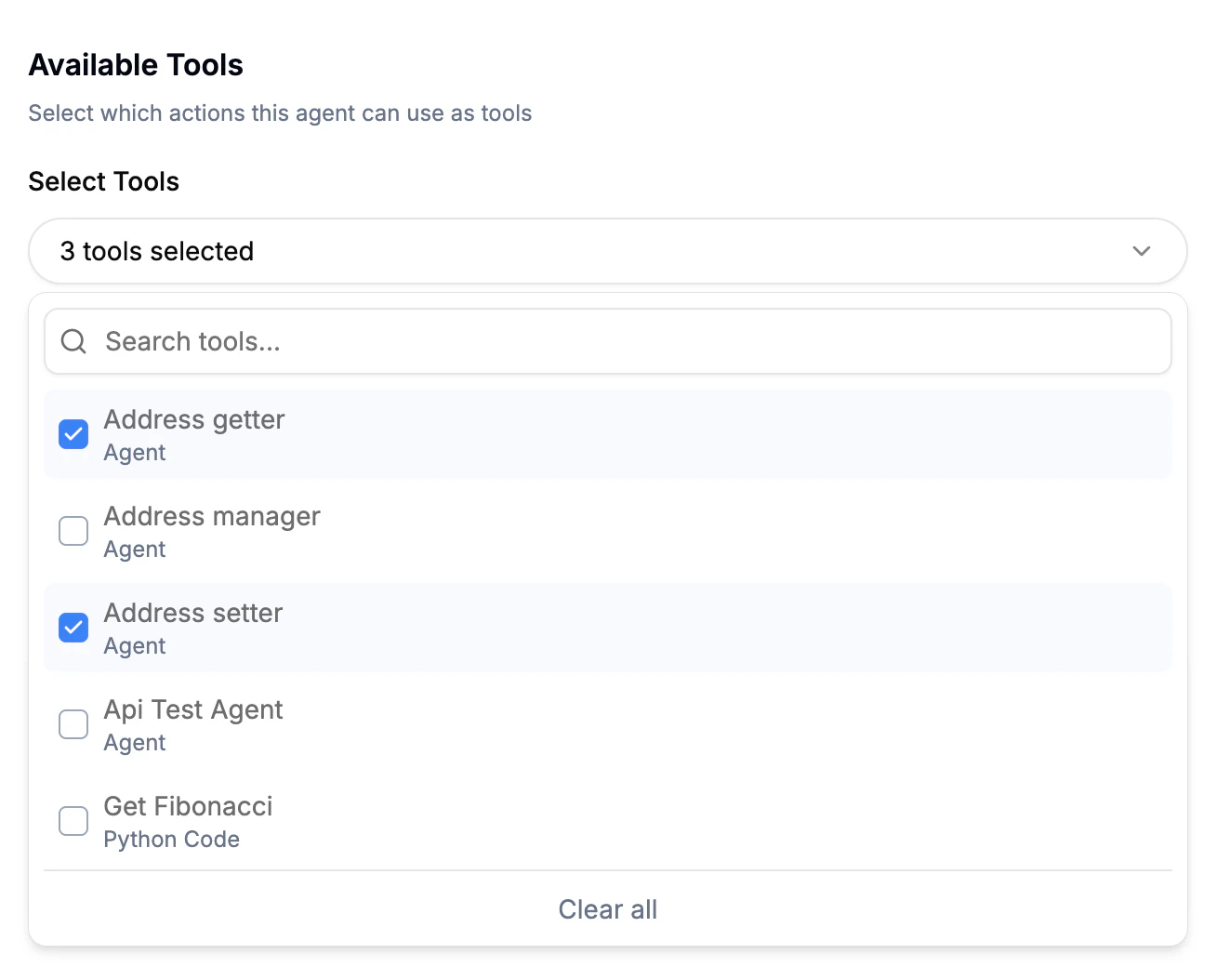 * Use the search bar to filter available tools
* Selected tools appear as tags that can be removed individually
* Use "Clear all" to deselect all tools
* The agent will intelligently choose which tools to use based on the user's question
### Usage Instructions and Testing
* Use the search bar to filter available tools
* Selected tools appear as tags that can be removed individually
* Use "Clear all" to deselect all tools
* The agent will intelligently choose which tools to use based on the user's question
### Usage Instructions and Testing
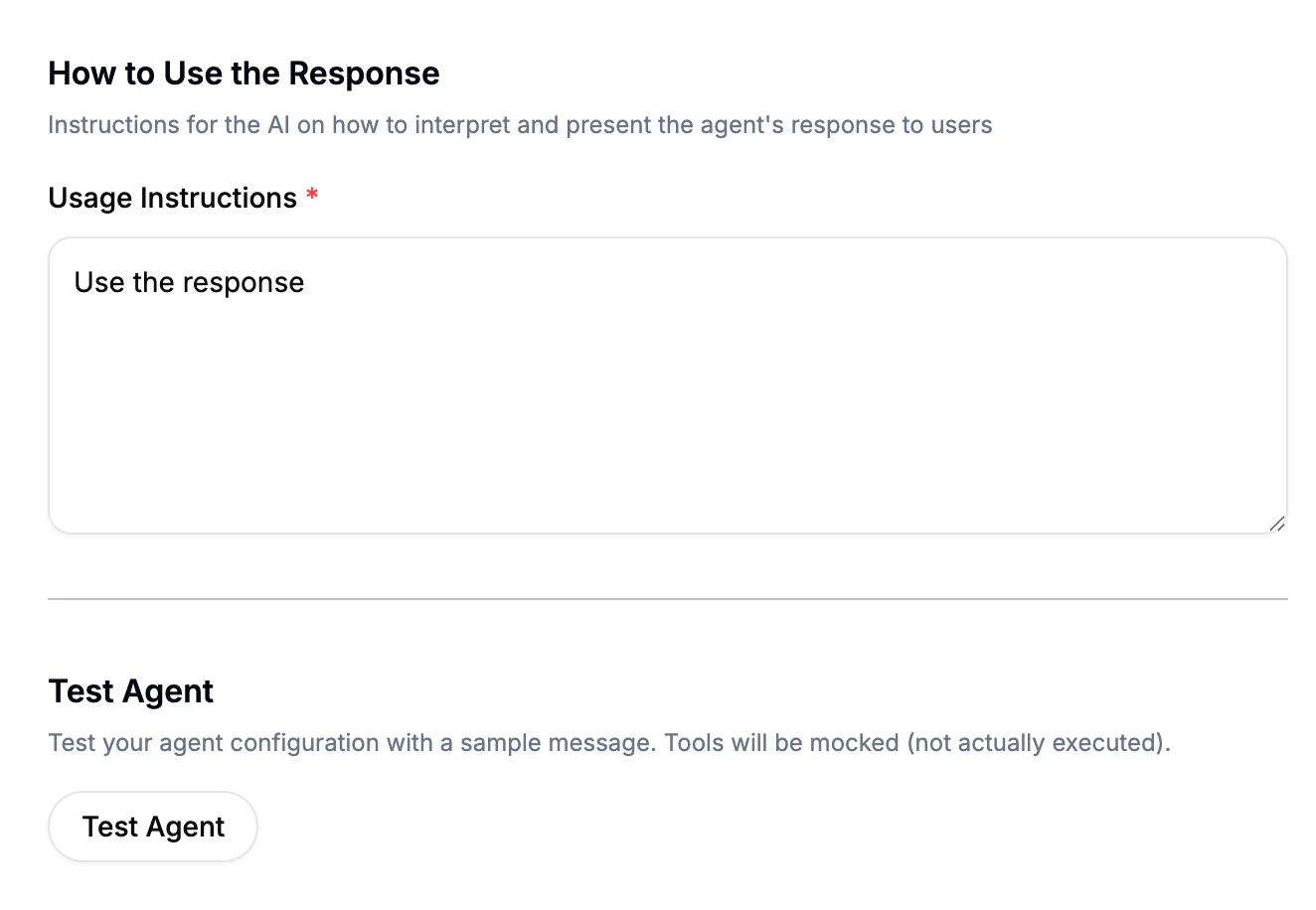 * **Usage Instructions**: Provide instructions for how the AI should interpret and present the agent's response to users
* Example: "Extract the message and reasoning from the JSON response and present them in a clear format"
**Testing:**
* Use the "Test Agent" button to verify your configuration
* Tools will be mocked (not actually executed) during testing
* Test results show the agent's decision-making process and tool selection
### Scheduling
* **Usage Instructions**: Provide instructions for how the AI should interpret and present the agent's response to users
* Example: "Extract the message and reasoning from the JSON response and present them in a clear format"
**Testing:**
* Use the "Test Agent" button to verify your configuration
* Tools will be mocked (not actually executed) during testing
* Test results show the agent's decision-making process and tool selection
### Scheduling
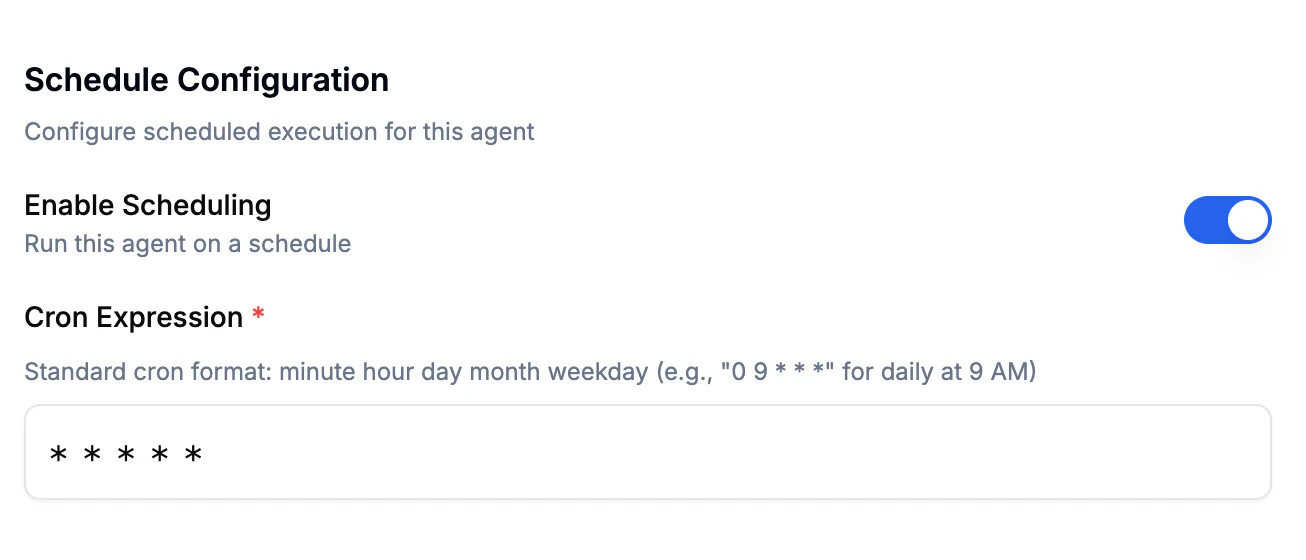 **Scheduling Agents:**
* Enable scheduling using the toggle switch
* Configure the execution schedule using a cron expression in standard format: `minute hour day month weekday`
* Example: `0 9 * * *` runs daily at 9 AM
* Example: `*/5 * * * *` runs every 5 minutes
* Scheduled agents display their cron expression in the agents list
## Managing Agents
* View all configured agents with their name, number of tools, status (Enabled/Disabled), and schedule (cron expression if scheduled)
* Click the menu icon (⋮) next to any agent to:
* **Edit**: Modify the agent's configuration
* **Disable**: Temporarily disable without deleting
* **Delete**: Permanently remove the agent
* Click "View Code" to see integration code samples for the agent
* Enable or disable agents at any time
* Disabled agents won't be triggered by user questions
* **Note**: If a tool (action or agent) used by an agent is deleted, that agent will be automatically disabled
## Agent History
**Scheduling Agents:**
* Enable scheduling using the toggle switch
* Configure the execution schedule using a cron expression in standard format: `minute hour day month weekday`
* Example: `0 9 * * *` runs daily at 9 AM
* Example: `*/5 * * * *` runs every 5 minutes
* Scheduled agents display their cron expression in the agents list
## Managing Agents
* View all configured agents with their name, number of tools, status (Enabled/Disabled), and schedule (cron expression if scheduled)
* Click the menu icon (⋮) next to any agent to:
* **Edit**: Modify the agent's configuration
* **Disable**: Temporarily disable without deleting
* **Delete**: Permanently remove the agent
* Click "View Code" to see integration code samples for the agent
* Enable or disable agents at any time
* Disabled agents won't be triggered by user questions
* **Note**: If a tool (action or agent) used by an agent is deleted, that agent will be automatically disabled
## Agent History
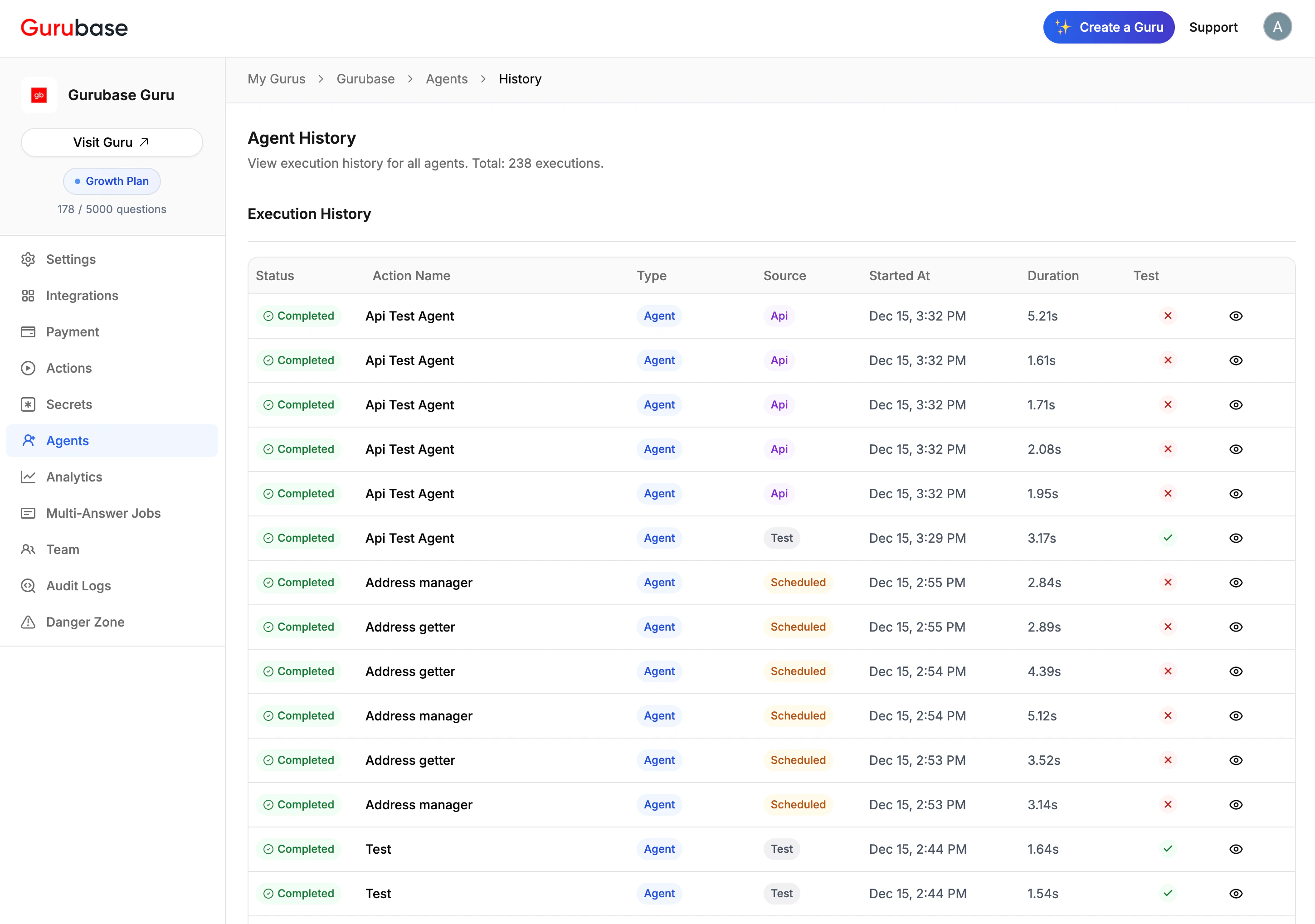 View the execution history for all agents from the Agents page by clicking the "History" button. The history table displays:
* **Status**: Execution outcome (Completed or Failed)
* **Action Name**: Name of the executed agent
* **Type**: Always "Agent" for agent executions
* **Source**: How the agent was triggered (Api, Scheduled, Test, etc.)
* **Started At**: Date and time when execution began
* **Duration**: Execution time in seconds
* **Test**: Whether the execution was a test run
View the execution history for all agents from the Agents page by clicking the "History" button. The history table displays:
* **Status**: Execution outcome (Completed or Failed)
* **Action Name**: Name of the executed agent
* **Type**: Always "Agent" for agent executions
* **Source**: How the agent was triggered (Api, Scheduled, Test, etc.)
* **Started At**: Date and time when execution began
* **Duration**: Execution time in seconds
* **Test**: Whether the execution was a test run
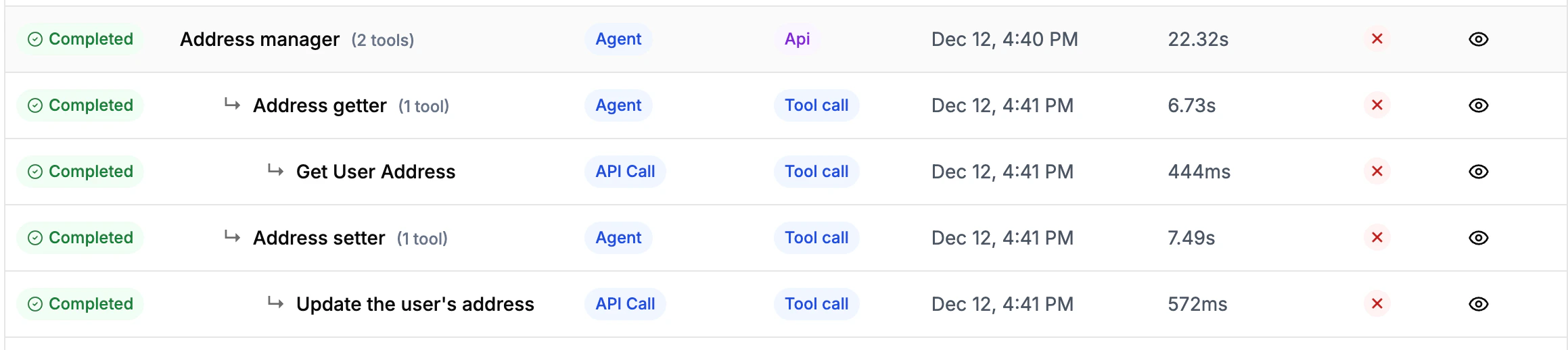 **Nested Execution View:**
The execution details page shows a hierarchical view of nested tool calls:
* Top-level agent execution
* Indented tool calls showing which tools were called
* Further indentation for nested agent calls
* Each level shows its own status, duration, and type
This table helps you understand the agent's decision-making process, debug failed executions, and optimize tool selection.
Click the eye icon on any row to view detailed execution information.
**Nested Execution View:**
The execution details page shows a hierarchical view of nested tool calls:
* Top-level agent execution
* Indented tool calls showing which tools were called
* Further indentation for nested agent calls
* Each level shows its own status, duration, and type
This table helps you understand the agent's decision-making process, debug failed executions, and optimize tool selection.
Click the eye icon on any row to view detailed execution information.
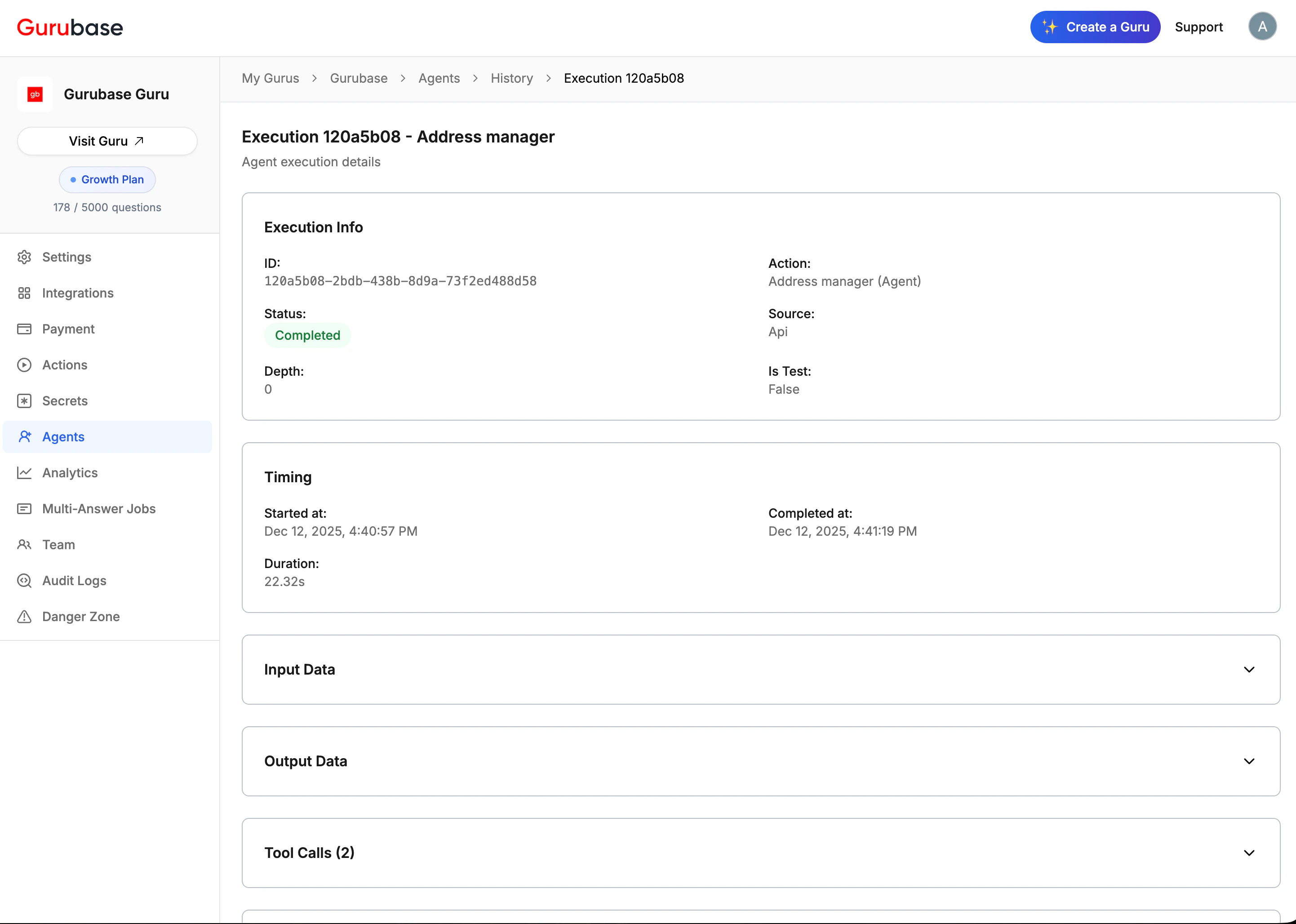 **Execution Details Page:**
* **Execution Info**: Unique execution ID, status, depth, agent name, source, and test flag
* **Timing**: Start time, duration, and completion time
* **Input Data**: Parameters and values used during execution (collapsible)
* **Output Data**: Agent's response data (collapsible)
* **Tool Calls**: List of all tool calls made during execution (collapsible)
* **Nested Executions**: Immediate childrens of the agent (collapsible)
## Integration
**Execution Details Page:**
* **Execution Info**: Unique execution ID, status, depth, agent name, source, and test flag
* **Timing**: Start time, duration, and completion time
* **Input Data**: Parameters and values used during execution (collapsible)
* **Output Data**: Agent's response data (collapsible)
* **Tool Calls**: List of all tool calls made during execution (collapsible)
* **Nested Executions**: Immediate childrens of the agent (collapsible)
## Integration
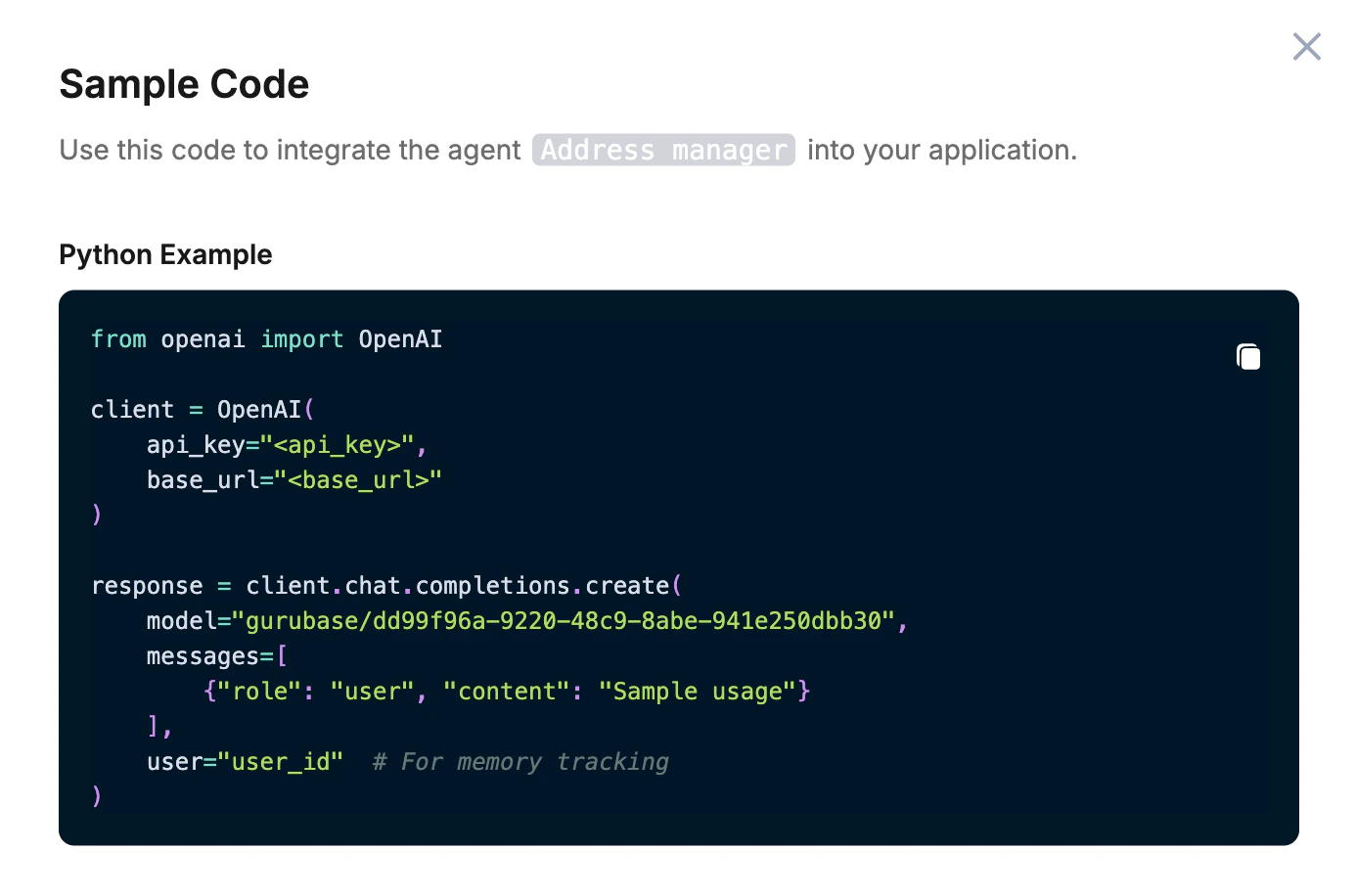 Agents can be integrated into your application using the OpenAI SDK. Each agent has a unique model identifier that you can use with any OpenAI-compatible client.
**Python Example:**
```python theme={null}
from openai import OpenAI
client = OpenAI(
api_key="",
base_url=""
)
response = client.chat.completions.create(
model="gurubase/dd99f96a-9220-48c9-8abe-941e250dbb30",
messages=[
{"role": "user", "content": "Sample usage"}
],
user="user_id" # For memory tracking
)
```
Click "View Code" on any agent to see its specific integration code.
## Common Mistakes to Avoid
**Vague Trigger Conditions**: ❌ "When asking about data" → ✅ "When the user wants to do any operation regarding their address"
**Inadequate System Prompts**: ❌ "You are a helpful assistant" → ✅ "You are an assistant that manages addresses. You can either get or update addresses. You are also used for guessing the secret"
**Too Many Tools**: ❌ Selecting 20+ tools for a single agent → ✅ Select only the tools relevant to the agent's specific purpose
**Incomplete Usage Instructions**: ❌ "Use the response" → ✅ "Extract the message and reasoning from the JSON response and present them in a clear, formatted summary"
**Not Testing Agents**: ❌ Enabling agents without testing them first → ✅ Always test agents with various scenarios before enabling
**Excessive Nesting Depth**: ❌ Setting max depth to 10 without considering complexity → ✅ Start with lower depth (3-5) and increase only if needed
**Missing Output Schema**: ❌ Not defining output schema when structured data is needed → ✅ Define a clear JSON schema for consistent, parseable responses
## Next Steps
Learn how to create actions that agents can use as tools
Explore our API documentation for advanced integrations
Learn how to create and configure your first Guru
Learn how to customize your Guru's responses and behavior
Agents can be integrated into your application using the OpenAI SDK. Each agent has a unique model identifier that you can use with any OpenAI-compatible client.
**Python Example:**
```python theme={null}
from openai import OpenAI
client = OpenAI(
api_key="",
base_url=""
)
response = client.chat.completions.create(
model="gurubase/dd99f96a-9220-48c9-8abe-941e250dbb30",
messages=[
{"role": "user", "content": "Sample usage"}
],
user="user_id" # For memory tracking
)
```
Click "View Code" on any agent to see its specific integration code.
## Common Mistakes to Avoid
**Vague Trigger Conditions**: ❌ "When asking about data" → ✅ "When the user wants to do any operation regarding their address"
**Inadequate System Prompts**: ❌ "You are a helpful assistant" → ✅ "You are an assistant that manages addresses. You can either get or update addresses. You are also used for guessing the secret"
**Too Many Tools**: ❌ Selecting 20+ tools for a single agent → ✅ Select only the tools relevant to the agent's specific purpose
**Incomplete Usage Instructions**: ❌ "Use the response" → ✅ "Extract the message and reasoning from the JSON response and present them in a clear, formatted summary"
**Not Testing Agents**: ❌ Enabling agents without testing them first → ✅ Always test agents with various scenarios before enabling
**Excessive Nesting Depth**: ❌ Setting max depth to 10 without considering complexity → ✅ Start with lower depth (3-5) and increase only if needed
**Missing Output Schema**: ❌ Not defining output schema when structured data is needed → ✅ Define a clear JSON schema for consistent, parseable responses
## Next Steps
Learn how to create actions that agents can use as tools
Explore our API documentation for advanced integrations
Learn how to create and configure your first Guru
Learn how to customize your Guru's responses and behavior