> ## Documentation Index
> Fetch the complete documentation index at: https://docs.gurubase.ai/llms.txt
> Use this file to discover all available pages before exploring further.
# Create Your First Guru
> Step-by-step guide to creating and configuring your AI agent.
A Guru is a hallucination-resistant AI agent that grounds every answer in the knowledge sources you provide, cites those sources, scores its own confidence, and refuses when context is too weak. With [Actions](/guides/actions) and [MCP](/guides/mcp-client) wired up, your Guru can also pull live data and take real action across your tools, not just answer questions.
## Quick Start
Go to [app.gurubase.io](https://app.gurubase.io) and create an account with
Google or GitHub.
Click **Create Guru** and configure: - **Name**: A descriptive name for your
AI agent - **Logo**: Upload an image (PNG/JPEG, max 1MB) - **Topics**:
Keywords that define your Guru's expertise (e.g., "kubernetes, devops,
cloud")
Build your knowledge base by adding content. See [Supported Data
Sources](#supported-data-sources) below.
Click **Publish Guru** to start indexing. Once complete, your Guru is ready
to answer questions.
## Supported Data Sources
Crawl sites or import via sitemap
Upload documents and spreadsheets
Index repositories and code
Import tickets and KB articles
Sync spaces and pages
Index issues and projects
Sync knowledge articles and CRM content
Connect docs and files
Import conversations
Transcribe video content
You can also add **custom text snippets** directly for FAQs, playbooks, or any custom content.
## Deploy Your Guru
Once created, deploy your Guru across multiple channels:
Embed on your website
AI copilot for support
Answer in Slack channels
Community support bot
AI on GitHub issues
AI on Jira issues
Expose your Guru to Claude Desktop, Cursor, and MCP clients
Build custom integrations
## Self-Hosted (Enterprise)
Self-hosted deployments are available under the Enterprise plan. [Contact
us](https://gurubase.io/contact/) to get started.
For self-hosted deployments, access your dashboard at your deployment's URL and follow the same creation steps. All features work identically to the cloud version.
## Managing Your Guru
Once deployed, use these tools to maintain and optimize your Guru.
### Source Management
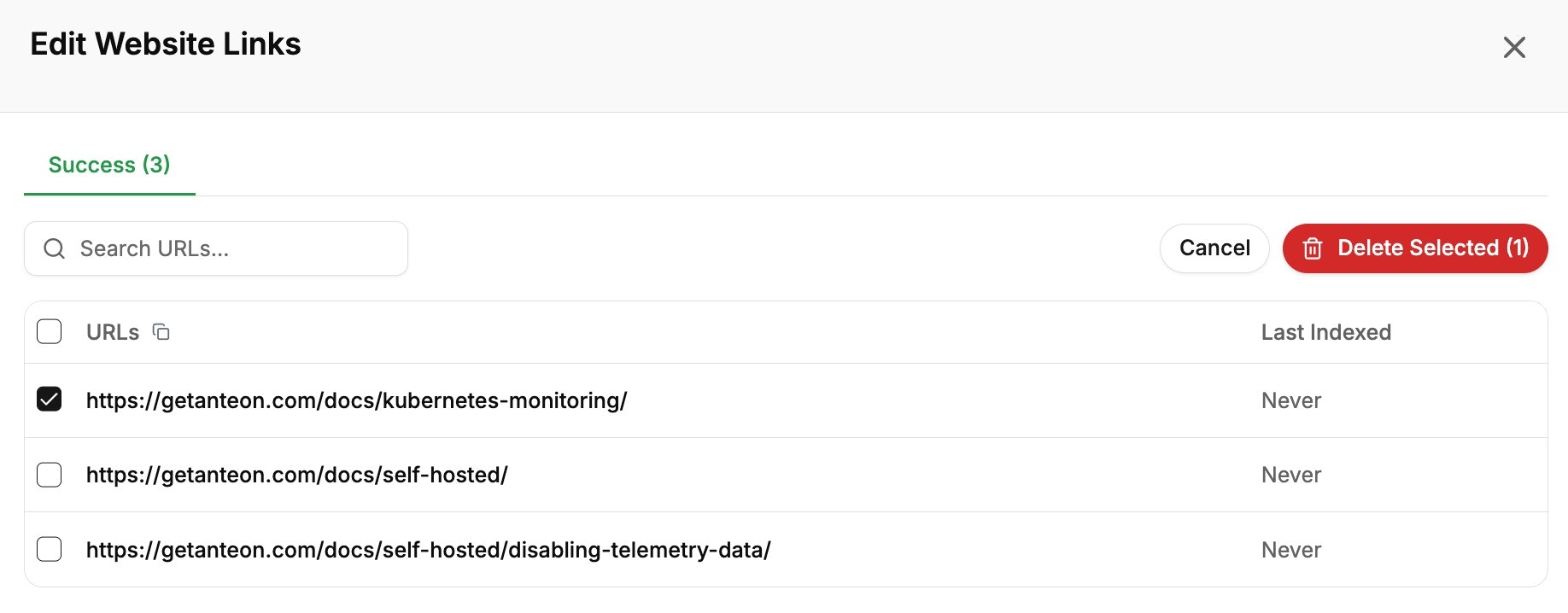
Click the menu icon (⋮) next to any source to access management options:
| Action | Description |
| ----------- | ------------------------------------------------------------------------------------- |
| **Edit** | Search, add, or remove specific URLs from website sources |
| **Reindex** | Fetch the latest content and refresh your knowledge base |
| **Delete** | Remove sources that are no longer needed |
| **Privacy** | Toggle documents (PDF, Docx, Excel) between Public (visible in citations) and Private |
 ### Keeping Content Fresh
**Best Practice**: Reindex sources regularly, especially for frequently
updated websites and documentation. This ensures your Guru provides current,
accurate information.
For automated syncing, set up **backfill jobs** on integrations like [Zendesk](/integrations/ingestion/zendesk), [Confluence](/integrations/ingestion/confluence), and [Jira](/integrations/ingestion/jira) to periodically sync new content. For websites, use **[Sitemap Sync Jobs](/guides/data-sources#sitemap-sync-job)** to automatically keep your knowledge base in sync with your sitemap.
### Additional Settings
* **Profile Updates** - Modify name, logo, and topics
* **Advanced Settings** - Configure example questions, KB editor presets, and more
* **Team Management** - Add team members and manage access
* **Trust Score Threshold** - Adjust answer confidence requirements for your domain ([contact us](https://gurubase.io/contact/) to configure)
## Next Steps
Monitor how users interact with your Guru
Learn about all supported data sources
Configure suggested questions for your widget
Build custom integrations
### Keeping Content Fresh
**Best Practice**: Reindex sources regularly, especially for frequently
updated websites and documentation. This ensures your Guru provides current,
accurate information.
For automated syncing, set up **backfill jobs** on integrations like [Zendesk](/integrations/ingestion/zendesk), [Confluence](/integrations/ingestion/confluence), and [Jira](/integrations/ingestion/jira) to periodically sync new content. For websites, use **[Sitemap Sync Jobs](/guides/data-sources#sitemap-sync-job)** to automatically keep your knowledge base in sync with your sitemap.
### Additional Settings
* **Profile Updates** - Modify name, logo, and topics
* **Advanced Settings** - Configure example questions, KB editor presets, and more
* **Team Management** - Add team members and manage access
* **Trust Score Threshold** - Adjust answer confidence requirements for your domain ([contact us](https://gurubase.io/contact/) to configure)
## Next Steps
Monitor how users interact with your Guru
Learn about all supported data sources
Configure suggested questions for your widget
Build custom integrations