> ## Documentation Index
> Fetch the complete documentation index at: https://docs.gurubase.ai/llms.txt
> Use this file to discover all available pages before exploring further.
# Multi-Answer Jobs
> Answer 100+ questions at once from Excel files — perfect for RFPs, compliance, and security questionnaires
Upload an Excel file with questions, get AI-generated answers for all of them — across one or more sheets in the same workbook. Multi-Answer Jobs process hundreds of questions in minutes, using your Guru's knowledge base to provide accurate, source-backed responses.
Answers are generated through the same pipeline as the Guru's chat interface — the same prompt, model configuration, Agentic Actions, source visibility rules, and Trust Score settings — so a question answered in a Multi-Answer job matches what you would get by asking the Guru directly. Only the formatting differs: answers are written as plain text so they fit cleanly into Excel cells.
## Why Multi-Answer?
Complete 100+ vendor questionnaires in hours instead of weeks
Answer SOC 2, ISO 27001, and vendor security assessments at scale
Handle GDPR, HIPAA, PCI-DSS questionnaires with consistent answers
Respond to investor or M\&A questionnaires quickly
## Real-World Use Cases
**The problem:** Your sales team receives a 150-question RFP with a 1-week deadline. Manually researching and writing each answer takes days.
**With Multi-Answer:**
1. Export the RFP questions to Excel
2. Upload to Multi-Answer Jobs
3. Get draft answers in minutes, backed by your 100+ real customer RFP documents, playbooks, and product docs
4. Review, refine, and submit
**Result:** RFP response time reduced from 5 days to 1 hour.
**The problem:** Enterprise customers send security questionnaires (SOC 2, VSA, CAIQ) with 200+ questions. Your security team is overwhelmed.
**With Multi-Answer:**
1. Upload your security policies, SOC 2 report, and compliance docs as data sources
2. Import the customer's questionnaire
3. Generate answers that reference your actual policies
4. Security team reviews instead of writes from scratch
**Result:** Security questionnaire turnaround reduced by 80%.
**The problem:** During fundraising or M\&A, you receive extensive due diligence questionnaires covering legal, financial, and technical details.
**With Multi-Answer:**
1. Upload relevant internal documentation
2. Process the due diligence questionnaire
3. Get consistent, accurate answers across all categories
4. Legal/finance teams review and approve
**Result:** Due diligence response completed in days instead of weeks.
**The problem:** You want to test if your knowledge base can answer the most common customer questions accurately.
**With Multi-Answer:**
1. Export your top 100 support questions
2. Run them through Multi-Answer
3. Review trust scores and identify gaps
4. Add missing content to your knowledge base
**Result:** Proactively identify and fix KB gaps before customers hit them.
***
## Getting Started
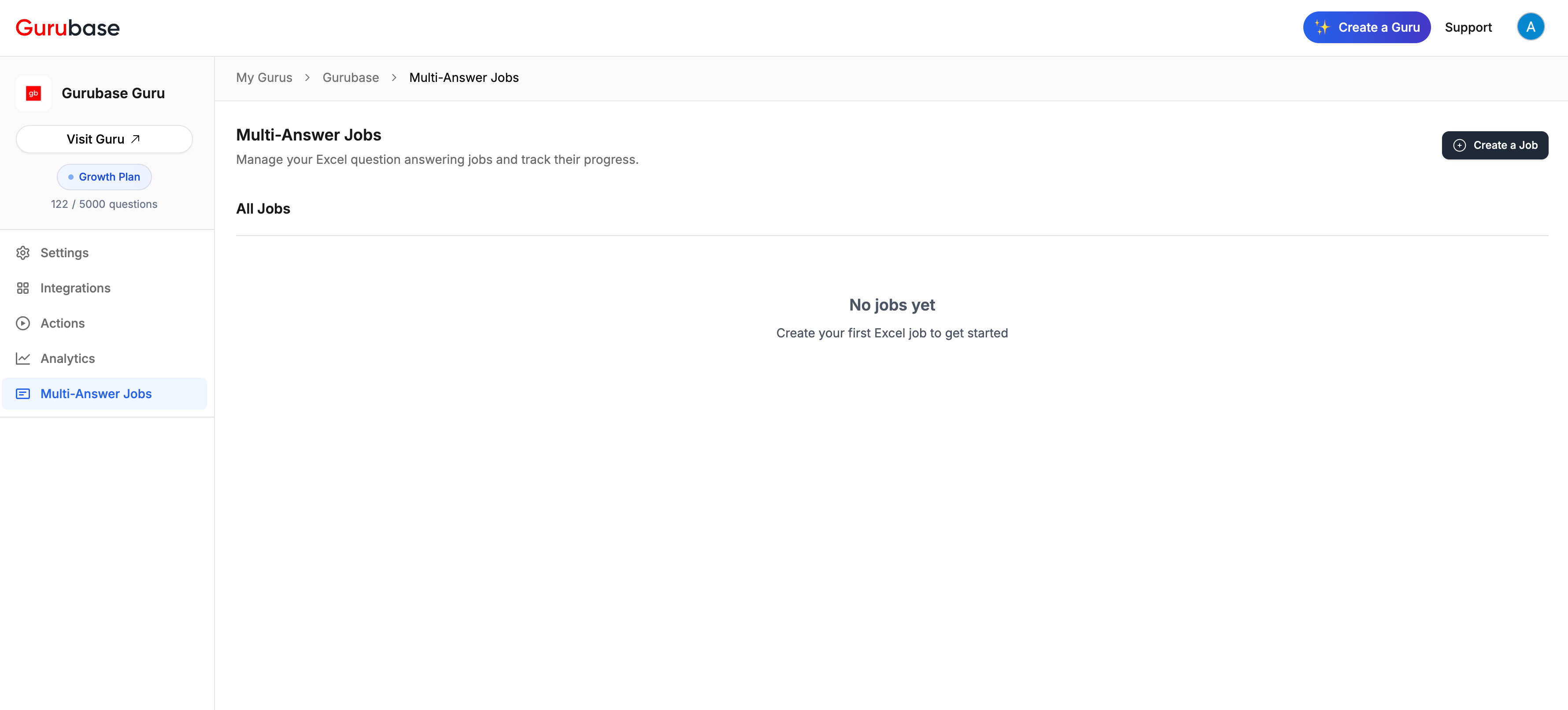 When you first access Multi-Answer Jobs, you'll see an empty state. Click "Create a Job" to begin.
## Creating a Multi-Answer Job
Creating a job has two parts: first choose which sheets to answer, then map the columns for each of those sheets. Job-wide settings — the general instruction, Answer Tools, and source/label filters — are set once and apply to every selected sheet.
### Step 1: Upload Excel File
When you first access Multi-Answer Jobs, you'll see an empty state. Click "Create a Job" to begin.
## Creating a Multi-Answer Job
Creating a job has two parts: first choose which sheets to answer, then map the columns for each of those sheets. Job-wide settings — the general instruction, Answer Tools, and source/label filters — are set once and apply to every selected sheet.
### Step 1: Upload Excel File
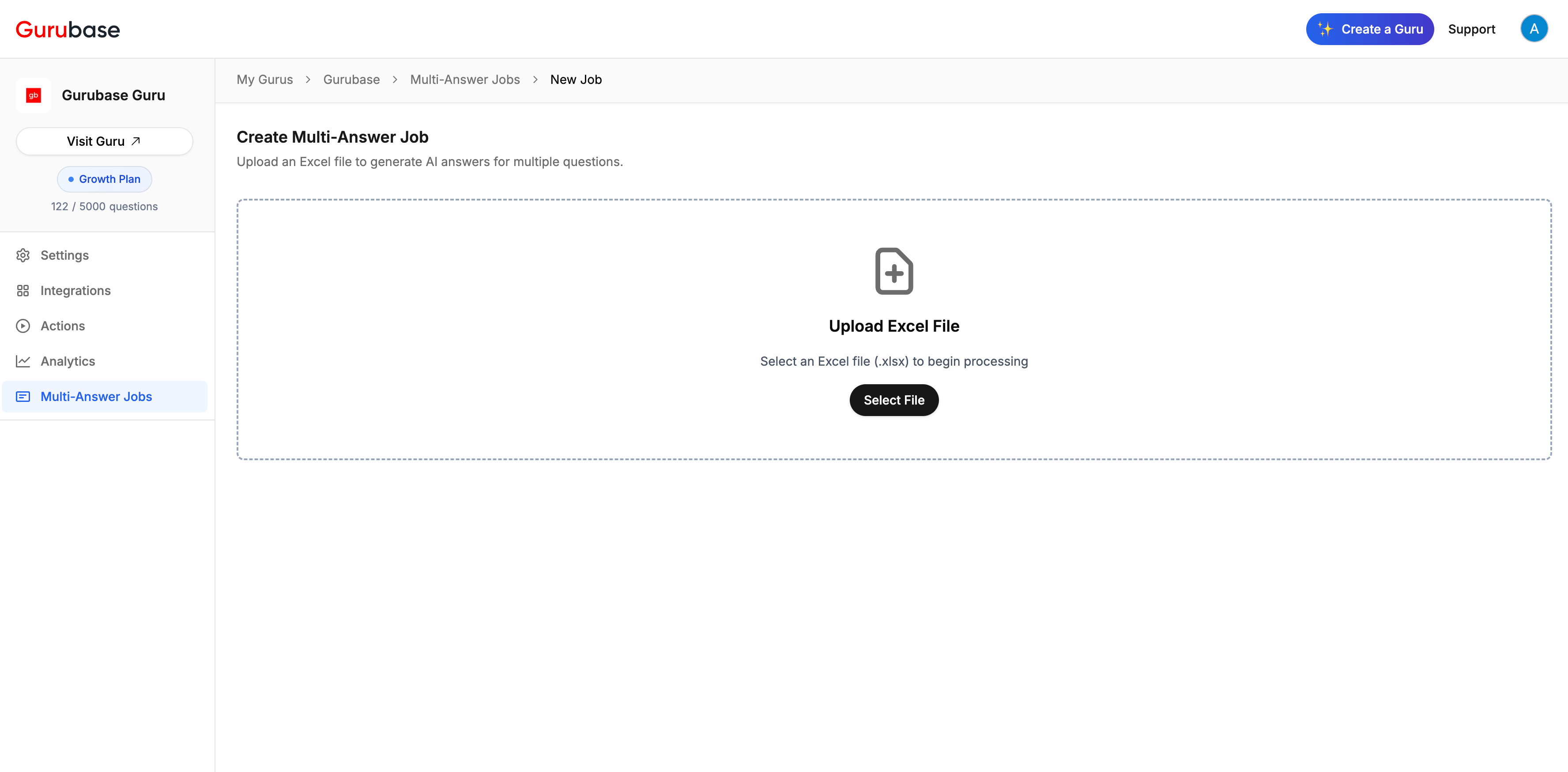 Upload your Excel file (`.xlsx` format). Click "Select File" to choose the workbook containing the questions you want to process.
### Step 2: Choose the sheets to answer
Upload your Excel file (`.xlsx` format). Click "Select File" to choose the workbook containing the questions you want to process.
### Step 2: Choose the sheets to answer
 A workbook can hold many sheets, and a single job can answer as many of them as you like. After upload, Gurubase lists every worksheet with a checkbox and a live, read-only preview so you can see what each one contains before selecting it.
* Tick the sheets you want to process, or use **Select all visible** to select them at once.
* **Hidden sheets** appear with a `hidden` badge and are left unchecked by default — they are usually scratch or archive data. Check them explicitly if you do want them answered.
* The preview opens on the first visible sheet; click any sheet to preview it.
When you're done, click **Continue to mapping**.
If the workbook has only one sheet, this step is skipped and you go straight to mapping.
### Step 3: Map each selected sheet
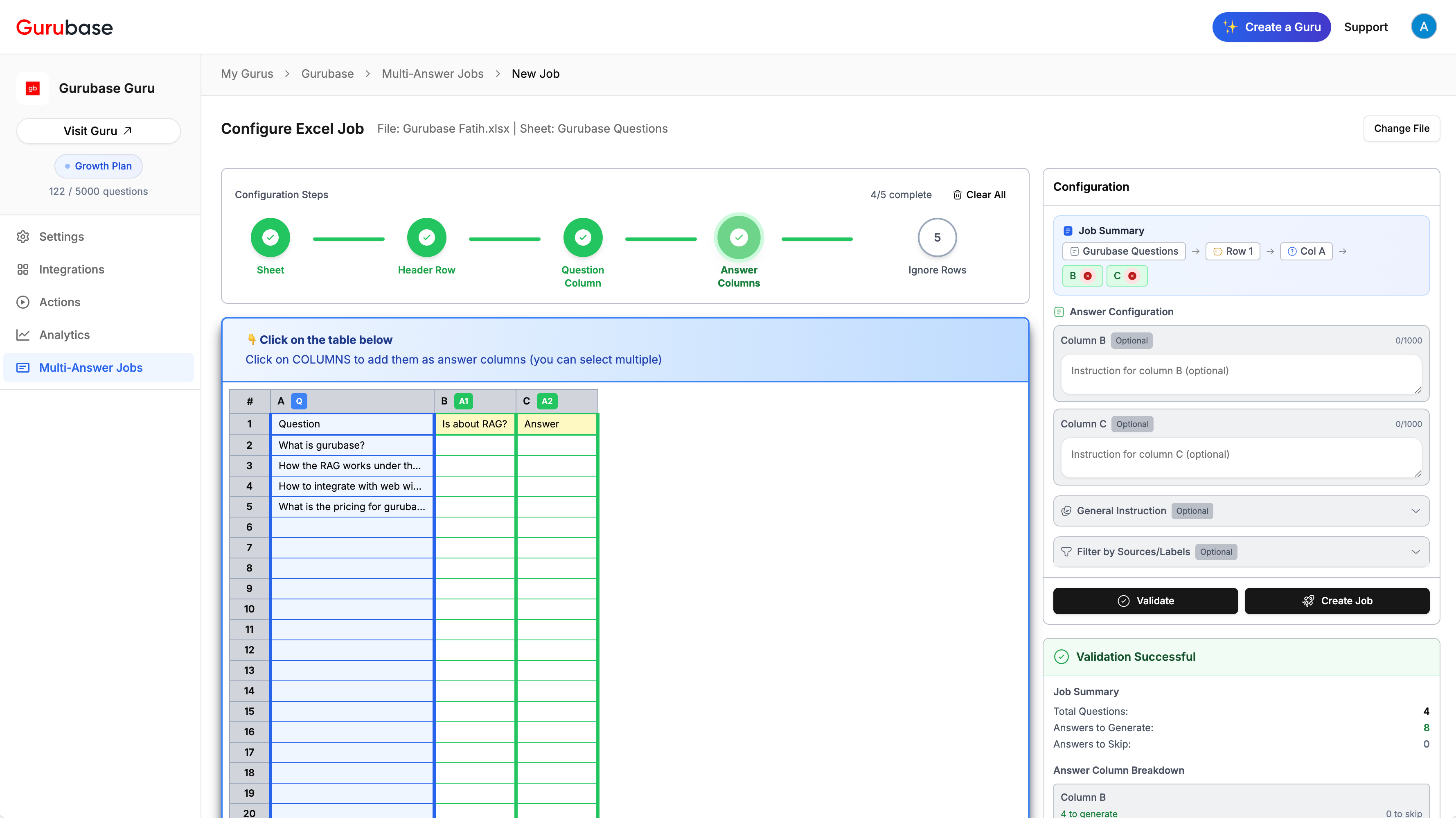
Each sheet is mapped independently, so sheets with completely different layouts can run in the same job. A rail lists your selected sheets with a per-sheet status: **●** currently mapping, **✓** fully mapped, and **!** still needs mapping. Work through each sheet and set the four mappings below; the job can't start until every selected sheet shows **✓**.
Header row, question column, and answer columns are set **per sheet**, so sheets with completely different layouts can run in the same job.
A per-sheet status indicator (● / ✓ / !) shows which sheets are fully mapped and which still need setup. The **Run** button stays disabled until every selected sheet is fully mapped, so a sheet is never silently skipped.
#### Header Row
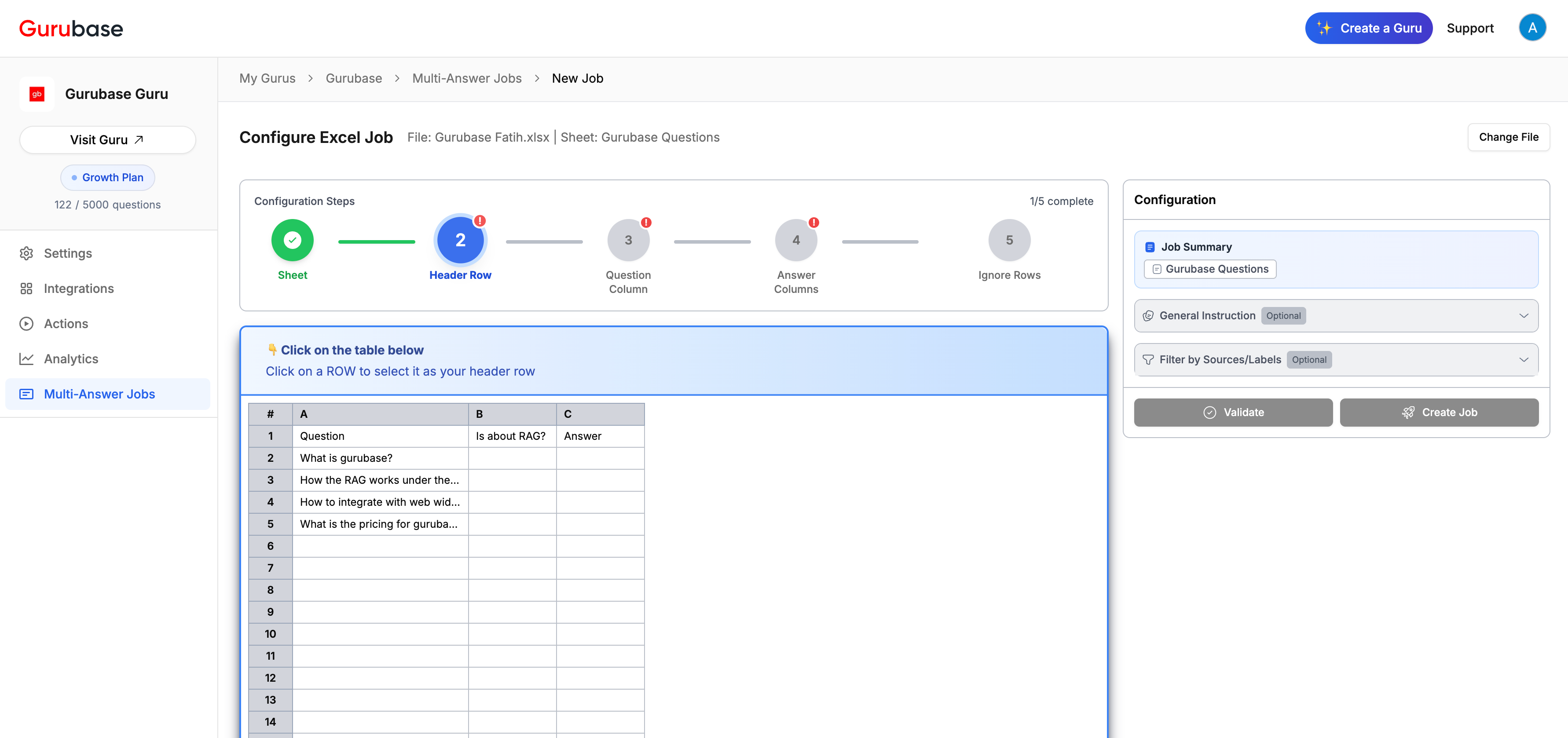
Click the row that contains this sheet's column headers. Typically row 1, but you can select any row with column labels.
#### Question Column
Click the column header (e.g., column A) to designate it as the question column. All rows below the header row are processed as questions.
#### Answer Columns
A workbook can hold many sheets, and a single job can answer as many of them as you like. After upload, Gurubase lists every worksheet with a checkbox and a live, read-only preview so you can see what each one contains before selecting it.
* Tick the sheets you want to process, or use **Select all visible** to select them at once.
* **Hidden sheets** appear with a `hidden` badge and are left unchecked by default — they are usually scratch or archive data. Check them explicitly if you do want them answered.
* The preview opens on the first visible sheet; click any sheet to preview it.
When you're done, click **Continue to mapping**.
If the workbook has only one sheet, this step is skipped and you go straight to mapping.
### Step 3: Map each selected sheet
Each sheet is mapped independently, so sheets with completely different layouts can run in the same job. A rail lists your selected sheets with a per-sheet status: **●** currently mapping, **✓** fully mapped, and **!** still needs mapping. Work through each sheet and set the four mappings below; the job can't start until every selected sheet shows **✓**.
Header row, question column, and answer columns are set **per sheet**, so sheets with completely different layouts can run in the same job.
A per-sheet status indicator (● / ✓ / !) shows which sheets are fully mapped and which still need setup. The **Run** button stays disabled until every selected sheet is fully mapped, so a sheet is never silently skipped.
#### Header Row
Click the row that contains this sheet's column headers. Typically row 1, but you can select any row with column labels.
#### Question Column
Click the column header (e.g., column A) to designate it as the question column. All rows below the header row are processed as questions.
#### Answer Columns
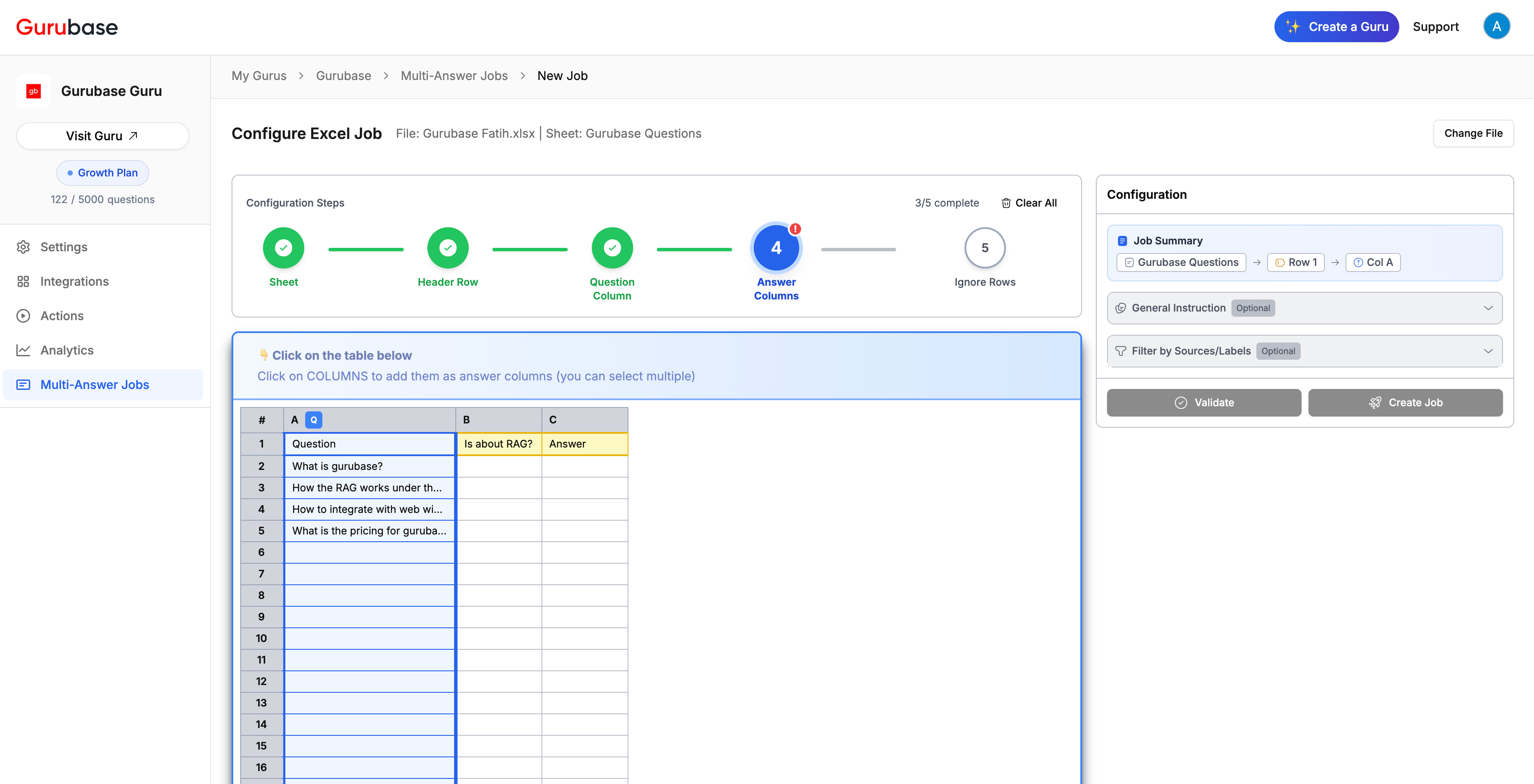 Select one or more columns where generated answers should be written. Selecting multiple columns generates a separate answer for each — useful for different formats or lengths of the same question.
Only the answer cells of the sheets you processed are written. Every other sheet, cell, formula, and format in the original workbook is preserved untouched in the output file.
Select one or more columns where generated answers should be written. Selecting multiple columns generates a separate answer for each — useful for different formats or lengths of the same question.
Only the answer cells of the sheets you processed are written. Every other sheet, cell, formula, and format in the original workbook is preserved untouched in the output file.
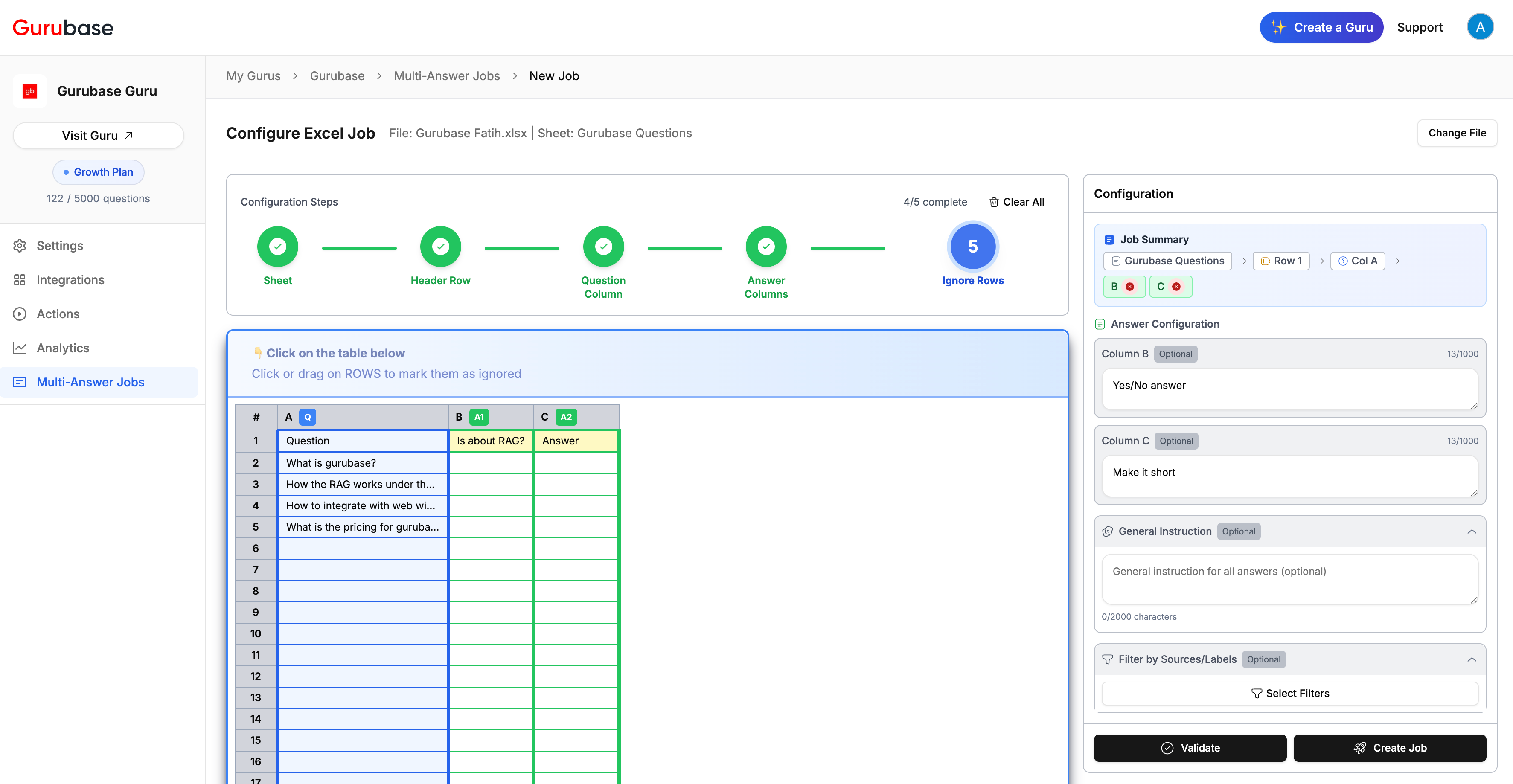
 #### Ignore Rows (Optional)
Mark specific rows to be skipped for this sheet — useful for test questions, examples, or invalid entries. Click or drag on ROWS to mark them as ignored.
#### Ignore Rows (Optional)
Mark specific rows to be skipped for this sheet — useful for test questions, examples, or invalid entries. Click or drag on ROWS to mark them as ignored.
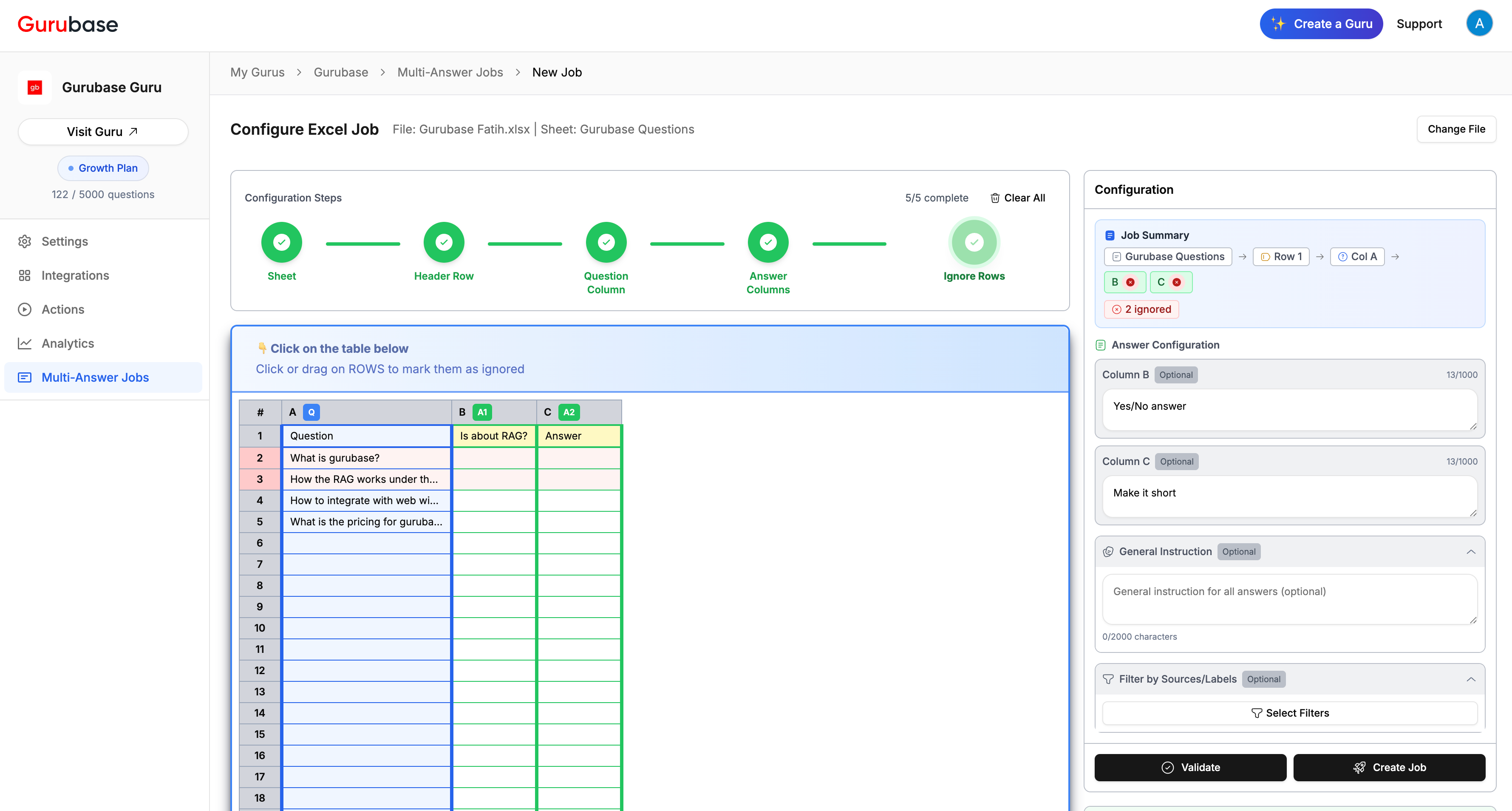 The per-sheet summary shows how many rows are ignored, and those rows are excluded from processing.
### Step 4: Job-wide settings
The per-sheet summary shows how many rows are ignored, and those rows are excluded from processing.
### Step 4: Job-wide settings
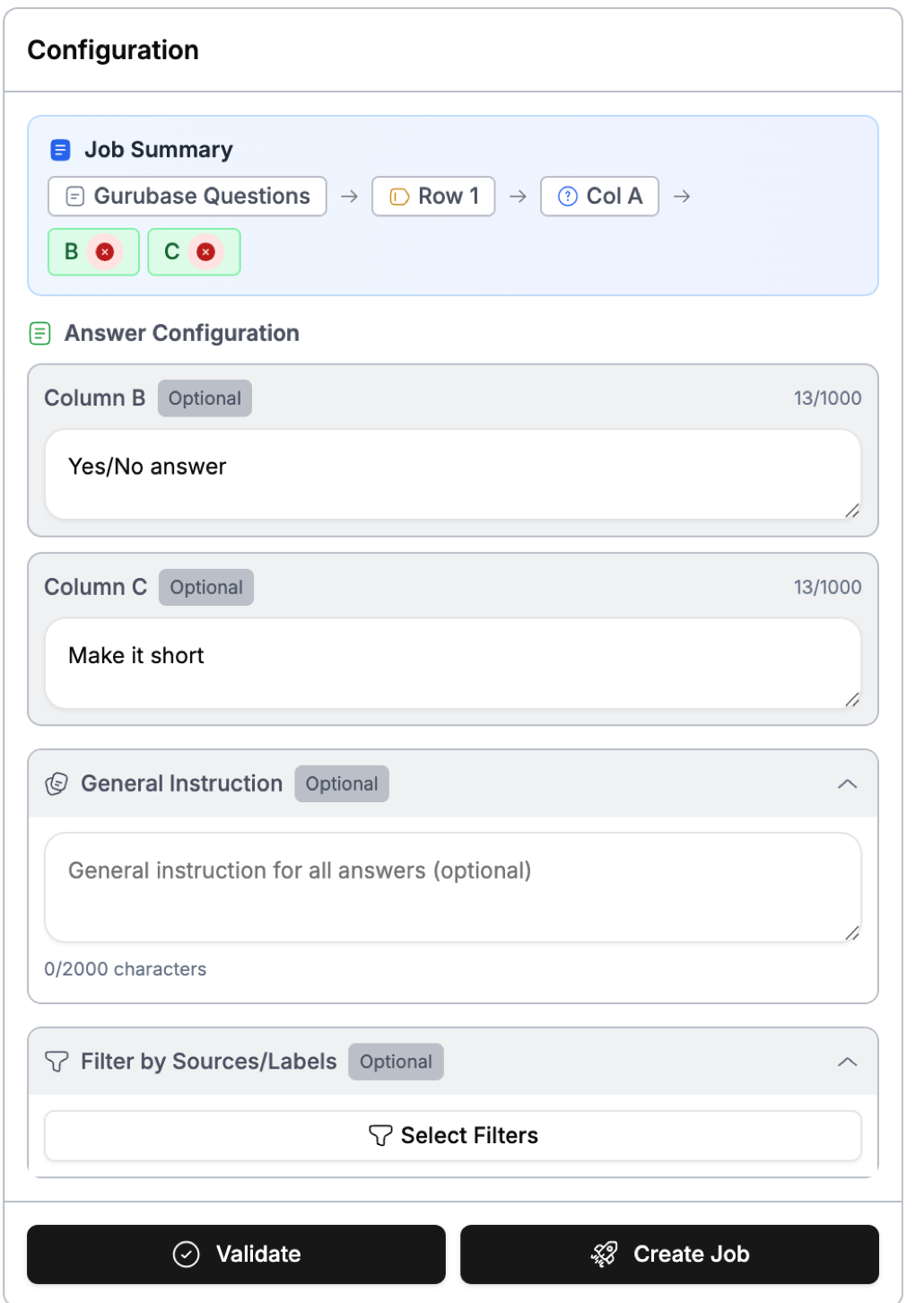 These settings are entered once and apply to every selected sheet.
#### General Instruction (Optional)
Guidance that applies to all answers across all sheets and columns — for consistent tone, style, or context.
#### Column-Specific Instructions (Optional)
In addition to the general instruction, each answer column can carry its own instruction (for example, "Yes/No only" on one column and "detailed answer with policy references" on another).
#### Answer Tools (Optional)
These settings are entered once and apply to every selected sheet.
#### General Instruction (Optional)
Guidance that applies to all answers across all sheets and columns — for consistent tone, style, or context.
#### Column-Specific Instructions (Optional)
In addition to the general instruction, each answer column can carry its own instruction (for example, "Yes/No only" on one column and "detailed answer with policy references" on another).
#### Answer Tools (Optional)
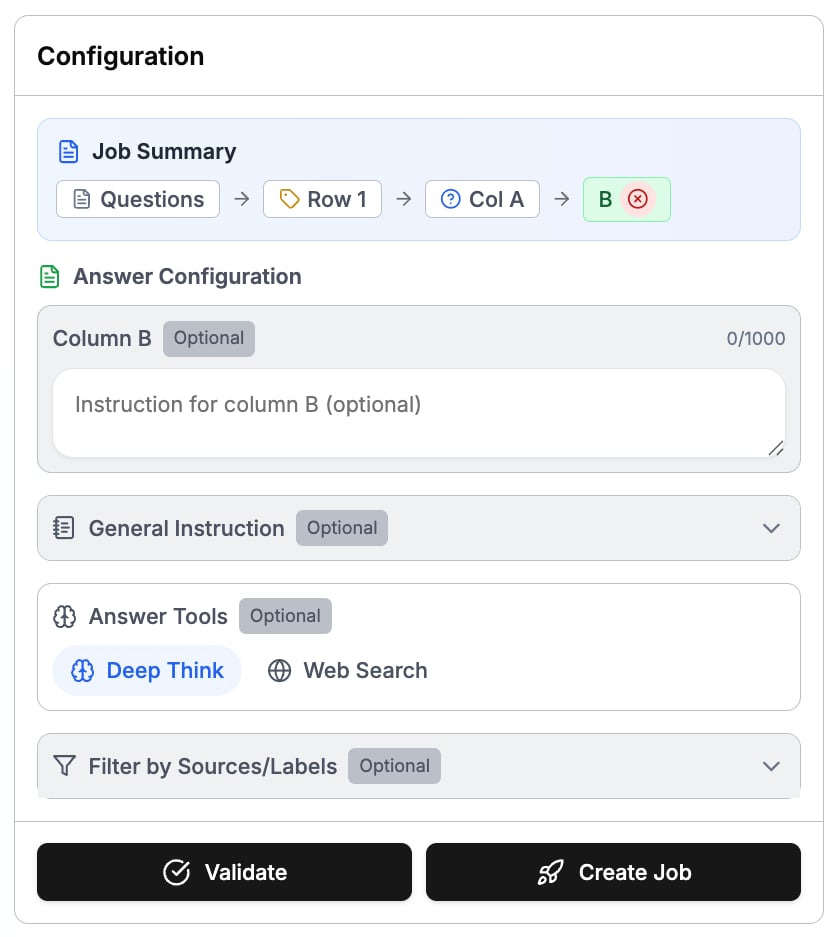 Multi-Answer jobs support the same answer tools as the chat input:
* **Deep Think:** The model spends more reasoning effort on every answer. Slower, but produces higher-quality responses — useful for complex RFP or compliance questions.
* **Web Search:** Answers can be supplemented with up-to-date web results when the knowledge base alone is not enough. Web sources are listed in each answer's references. Shown only when web search is enabled and available for your Guru.
#### Filter by Sources/Labels (Optional)
Limit which data sources or labels are used when generating answers. The filter applies to every selected sheet.
## Validation
Multi-Answer jobs support the same answer tools as the chat input:
* **Deep Think:** The model spends more reasoning effort on every answer. Slower, but produces higher-quality responses — useful for complex RFP or compliance questions.
* **Web Search:** Answers can be supplemented with up-to-date web results when the knowledge base alone is not enough. Web sources are listed in each answer's references. Shown only when web search is enabled and available for your Guru.
#### Filter by Sources/Labels (Optional)
Limit which data sources or labels are used when generating answers. The filter applies to every selected sheet.
## Validation
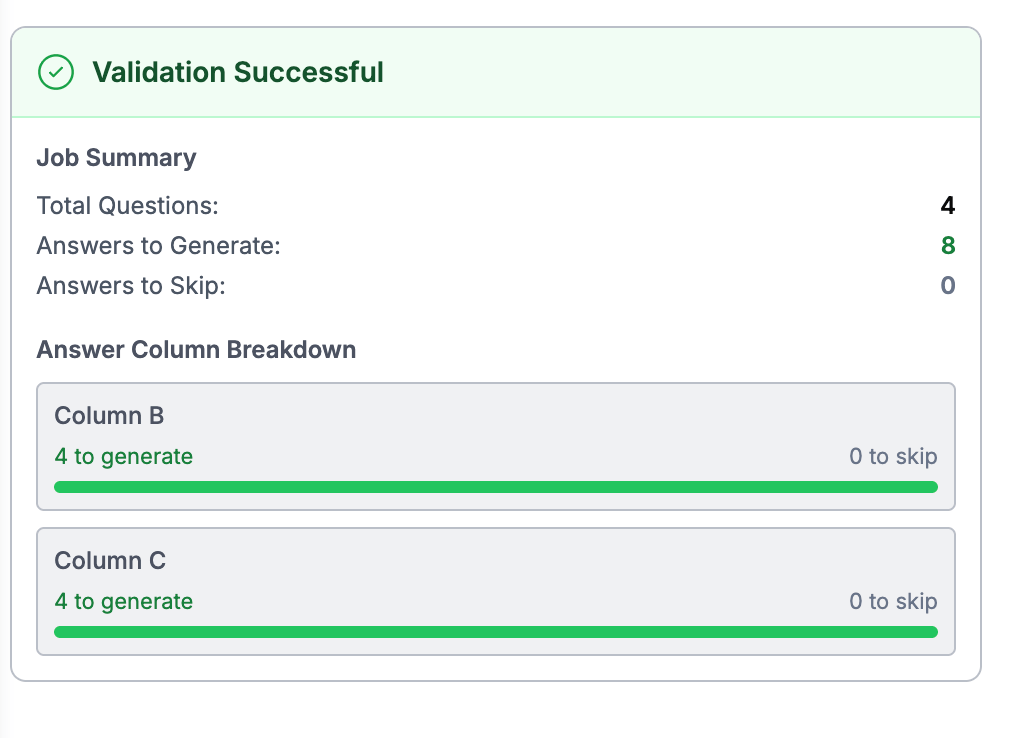 Gurubase validates your configuration automatically as you map (you can also click "Validate"). Each selected sheet is validated and scored **independently**, and the job can only run when **every** selected sheet is fully mapped — sheets are never silently skipped. The summary shows, per sheet and as job-wide totals:
* **Total Questions:** Questions that will be processed (excluding ignored rows)
* **Answers to Generate:** Total answers (questions × answer columns)
* **Answers to Skip:** Answer cells already filled are left untouched and skipped
* **Answer Column Breakdown:** How many answers will be generated per column
If an answer column falls in an unwriteable spot (for example, a merged cell), the affected rows are auto-skipped and flagged. Once every selected sheet is ready, click "Create Job" to start processing.
The downloaded result is your original workbook, unchanged except for the answer cells of the sheets you processed. Every other sheet — including hidden and unprocessed ones — comes back exactly as uploaded.
## Managing Ongoing Jobs
Jobs that are currently processing appear in the jobs table.
### List
Gurubase validates your configuration automatically as you map (you can also click "Validate"). Each selected sheet is validated and scored **independently**, and the job can only run when **every** selected sheet is fully mapped — sheets are never silently skipped. The summary shows, per sheet and as job-wide totals:
* **Total Questions:** Questions that will be processed (excluding ignored rows)
* **Answers to Generate:** Total answers (questions × answer columns)
* **Answers to Skip:** Answer cells already filled are left untouched and skipped
* **Answer Column Breakdown:** How many answers will be generated per column
If an answer column falls in an unwriteable spot (for example, a merged cell), the affected rows are auto-skipped and flagged. Once every selected sheet is ready, click "Create Job" to start processing.
The downloaded result is your original workbook, unchanged except for the answer cells of the sheets you processed. Every other sheet — including hidden and unprocessed ones — comes back exactly as uploaded.
## Managing Ongoing Jobs
Jobs that are currently processing appear in the jobs table.
### List
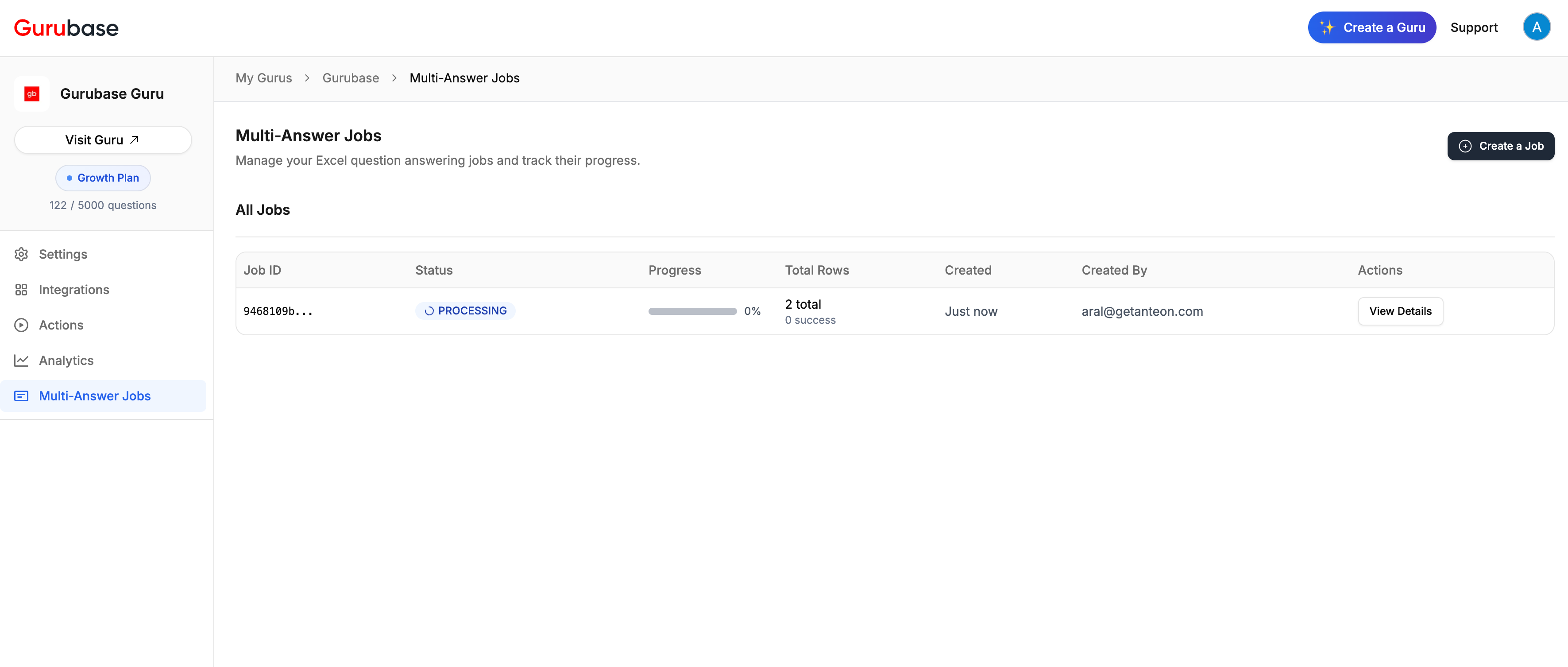 View all processing jobs with their status, progress percentage, total rows, and creation details. Click "View Details" to see more information.
### Details
View all processing jobs with their status, progress percentage, total rows, and creation details. Click "View Details" to see more information.
### Details
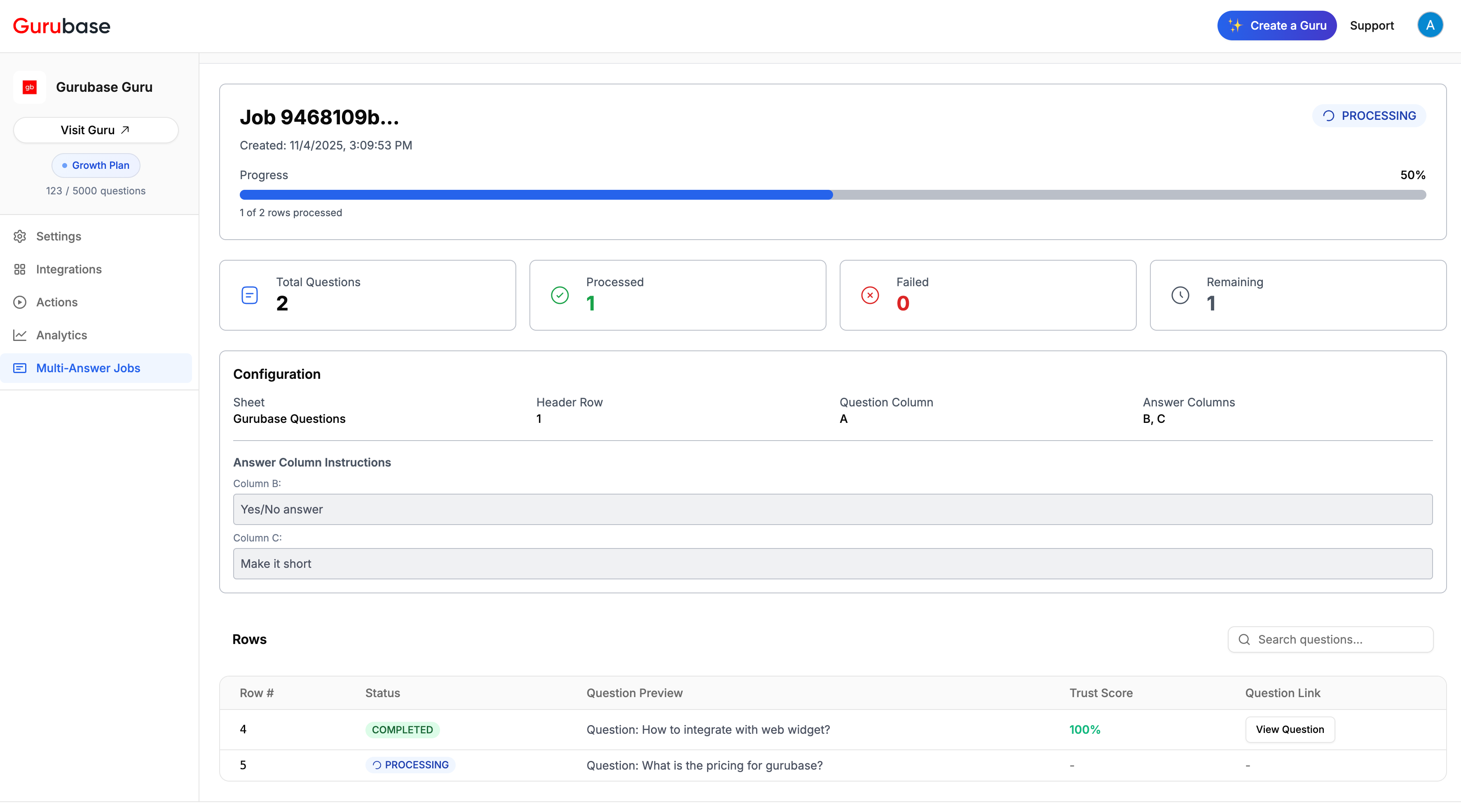 Monitor job progress with:
* **Progress Bar:** Visual indicator showing completion percentage
* **Summary Cards:** Total questions, processed count, failed count, and remaining count
* **Configuration:** A per-sheet table of each processed sheet's header row, question column, and answer columns, plus the job-wide instructions
* **Rows Table:** Status, question preview, trust score, and links to view full details
Use the search field to find specific questions within the job.
## Managing Finished Jobs
Completed jobs show "COMPLETED" status and allow you to review results and download them.
### List
Monitor job progress with:
* **Progress Bar:** Visual indicator showing completion percentage
* **Summary Cards:** Total questions, processed count, failed count, and remaining count
* **Configuration:** A per-sheet table of each processed sheet's header row, question column, and answer columns, plus the job-wide instructions
* **Rows Table:** Status, question preview, trust score, and links to view full details
Use the search field to find specific questions within the job.
## Managing Finished Jobs
Completed jobs show "COMPLETED" status and allow you to review results and download them.
### List
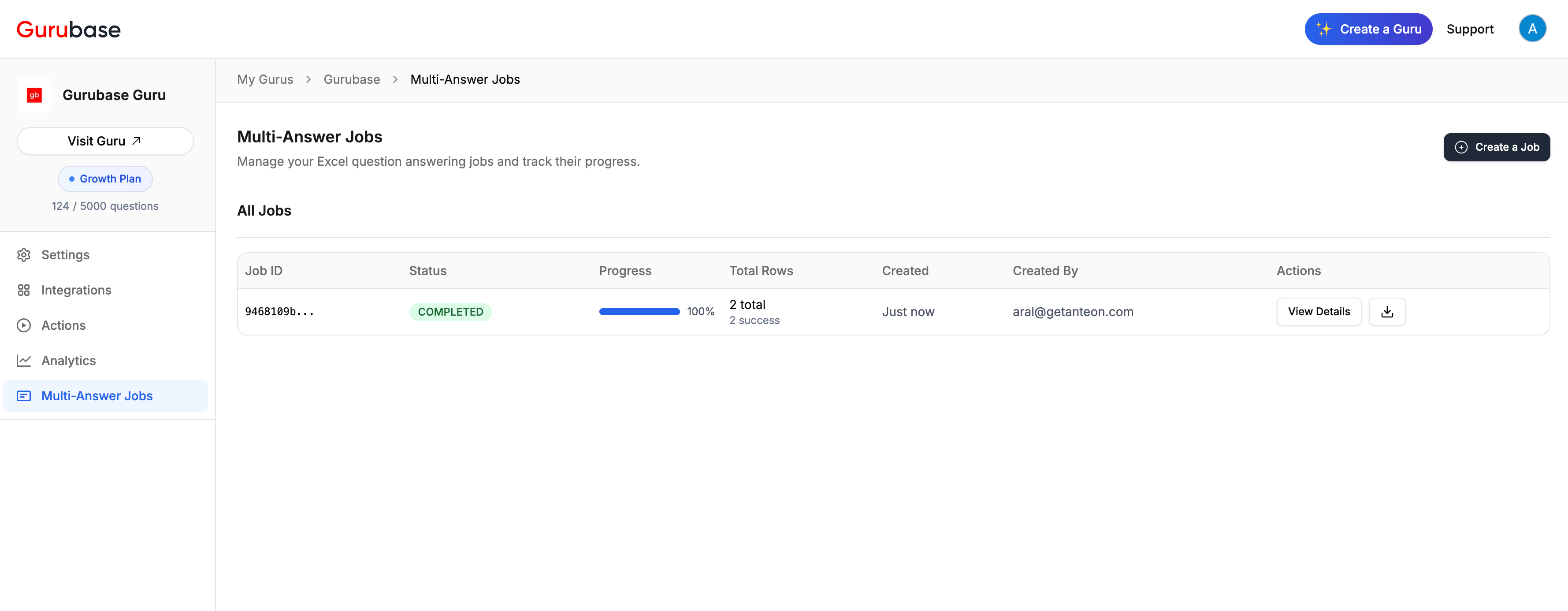 View all completed jobs with their status, 100% progress, and completion details. Use the download icon to export results.
### Details
View all completed jobs with their status, 100% progress, and completion details. Use the download icon to export results.
### Details
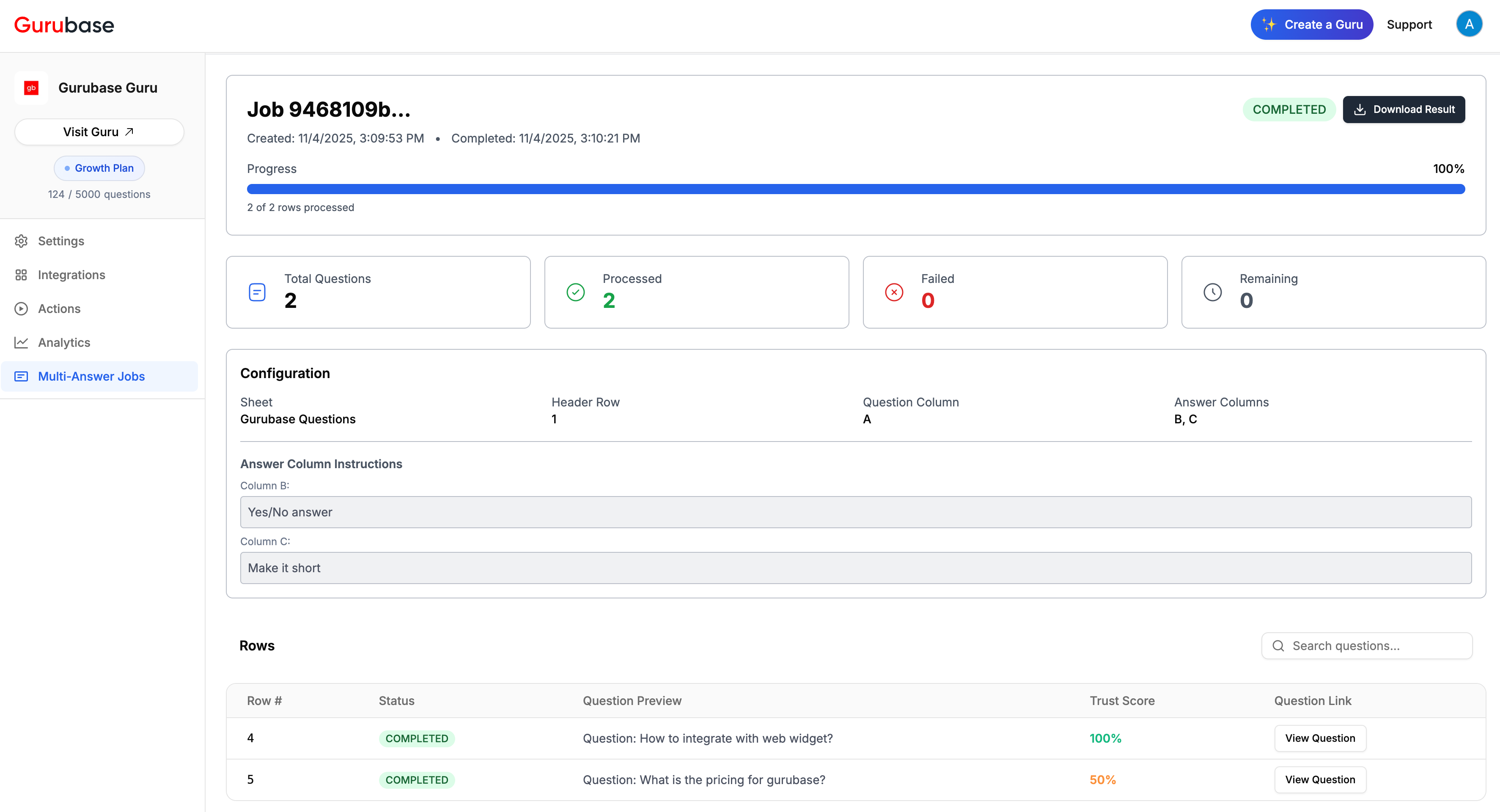 Review completed jobs with:
* **Download Result:** Export the Excel file with generated answers
* **Summary Cards:** Total questions, processed count, failed count (if any)
* **Results Table:** Complete list of processed questions with status, trust scores, and links to view full answers
Use the search functionality to find specific questions within completed jobs.
## Tips for Best Results
Multi-Answer quality depends on your data sources. Before running large questionnaires:
* Upload relevant policies, documentation, and product specs
* Ensure your SOC 2 report, security policies, and compliance docs are indexed
* Test a few sample questions first to verify coverage
Column headers in your Excel file are passed to the model, so a header like "Short Answer" already guides the response. For finer control, each answer column can also have its own instructions:
* **Column B:** "Answer in 1-2 sentences, formal tone"
* **Column C:** "Provide detailed answer with specific policy references"
* **Column D:** "Yes/No only, with brief justification"
This lets you generate multiple answer formats in a single job.
Each answer includes a trust score. Prioritize manual review for:
* Low trust scores (answer may need more context)
* Questions outside your knowledge base coverage
* Answers that reference general knowledge vs. your specific docs
Your data sources can have labels (e.g., "security", "product", "legal"). When creating a Multi-Answer job, you can filter to only use sources with specific labels.
**Example:** You have 500 documents, but for a security questionnaire, you filter to only "security" labeled sources. The AI will only reference your SOC 2 report and security policies — not product marketing docs.
This ensures answers are grounded in the right documents.
***
## Next Steps
Add the documents your Multi-Answer jobs will reference
Best practices for preparing Excel files
Customize how your Guru generates answers
Track answer quality and usage patterns
Review completed jobs with:
* **Download Result:** Export the Excel file with generated answers
* **Summary Cards:** Total questions, processed count, failed count (if any)
* **Results Table:** Complete list of processed questions with status, trust scores, and links to view full answers
Use the search functionality to find specific questions within completed jobs.
## Tips for Best Results
Multi-Answer quality depends on your data sources. Before running large questionnaires:
* Upload relevant policies, documentation, and product specs
* Ensure your SOC 2 report, security policies, and compliance docs are indexed
* Test a few sample questions first to verify coverage
Column headers in your Excel file are passed to the model, so a header like "Short Answer" already guides the response. For finer control, each answer column can also have its own instructions:
* **Column B:** "Answer in 1-2 sentences, formal tone"
* **Column C:** "Provide detailed answer with specific policy references"
* **Column D:** "Yes/No only, with brief justification"
This lets you generate multiple answer formats in a single job.
Each answer includes a trust score. Prioritize manual review for:
* Low trust scores (answer may need more context)
* Questions outside your knowledge base coverage
* Answers that reference general knowledge vs. your specific docs
Your data sources can have labels (e.g., "security", "product", "legal"). When creating a Multi-Answer job, you can filter to only use sources with specific labels.
**Example:** You have 500 documents, but for a security questionnaire, you filter to only "security" labeled sources. The AI will only reference your SOC 2 report and security policies — not product marketing docs.
This ensures answers are grounded in the right documents.
***
## Next Steps
Add the documents your Multi-Answer jobs will reference
Best practices for preparing Excel files
Customize how your Guru generates answers
Track answer quality and usage patterns