> ## Documentation Index
> Fetch the complete documentation index at: https://docs.gurubase.ai/llms.txt
> Use this file to discover all available pages before exploring further.
# Jira Bot
> AI-powered ticket responses directly in your Jira issues
Add Gurubase to your Jira workspace to automatically answer support tickets, provide documentation links, and assist your team — all without leaving Jira.
## Why Use the Jira Bot?
Bot automatically responds to new tickets matching your JQL query
Instant answers from your knowledge base while agents handle complex issues
Control exactly which tickets the bot monitors using Jira Query Language
Answers consider ticket title, description, and comments
## How It Works
| Mode | Behavior |
| ---------- | ----------------------------------------------------------------------------------------- |
| **Auto** | Bot automatically responds to new tickets matching your JQL. Also responds when mentioned |
| **Manual** | Bot only responds when explicitly mentioned with `@gurubase` |
**Self-hosted:** This integration is currently in beta for selected users.
**Cloud:** Available to all users.
***
## Setup
1. Go to [Atlassian API Token settings](https://id.atlassian.com/manage-profile/security/api-tokens)
2. Click **Create API token**
3. Copy the token
Go to **Gurubase Dashboard** → Select your Guru → **Integrations** → **Deployments** → **Jira**
Fill in the connection details:
| Field | Value |
| -------------- | --------------------------------------------------------- |
| **Domain** | Your Atlassian domain (e.g., `your-domain.atlassian.net`) |
| **User Email** | Your Atlassian account email |
| **API Token** | The token you created in Step 1 |
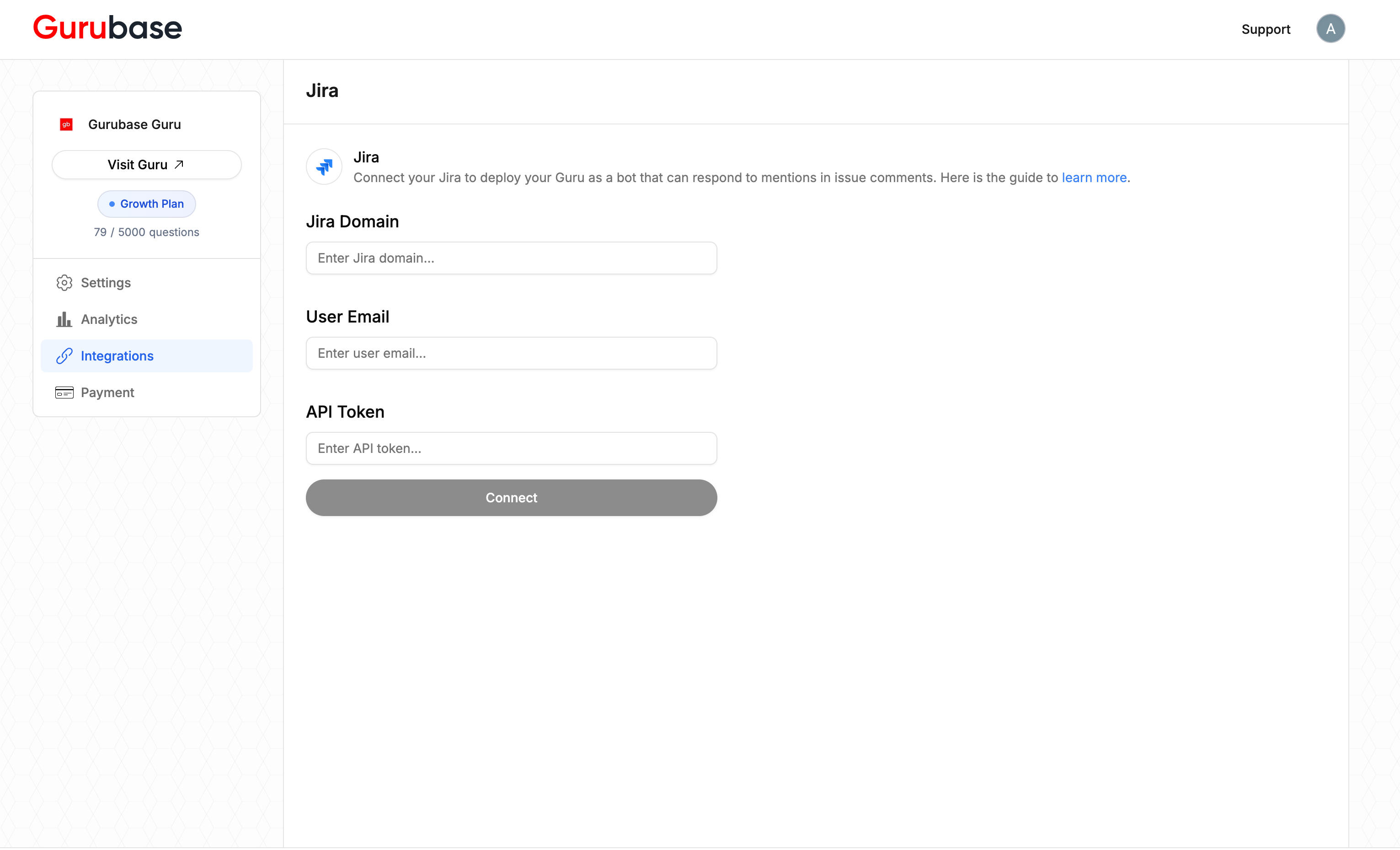 After connecting, configure the bot behavior:
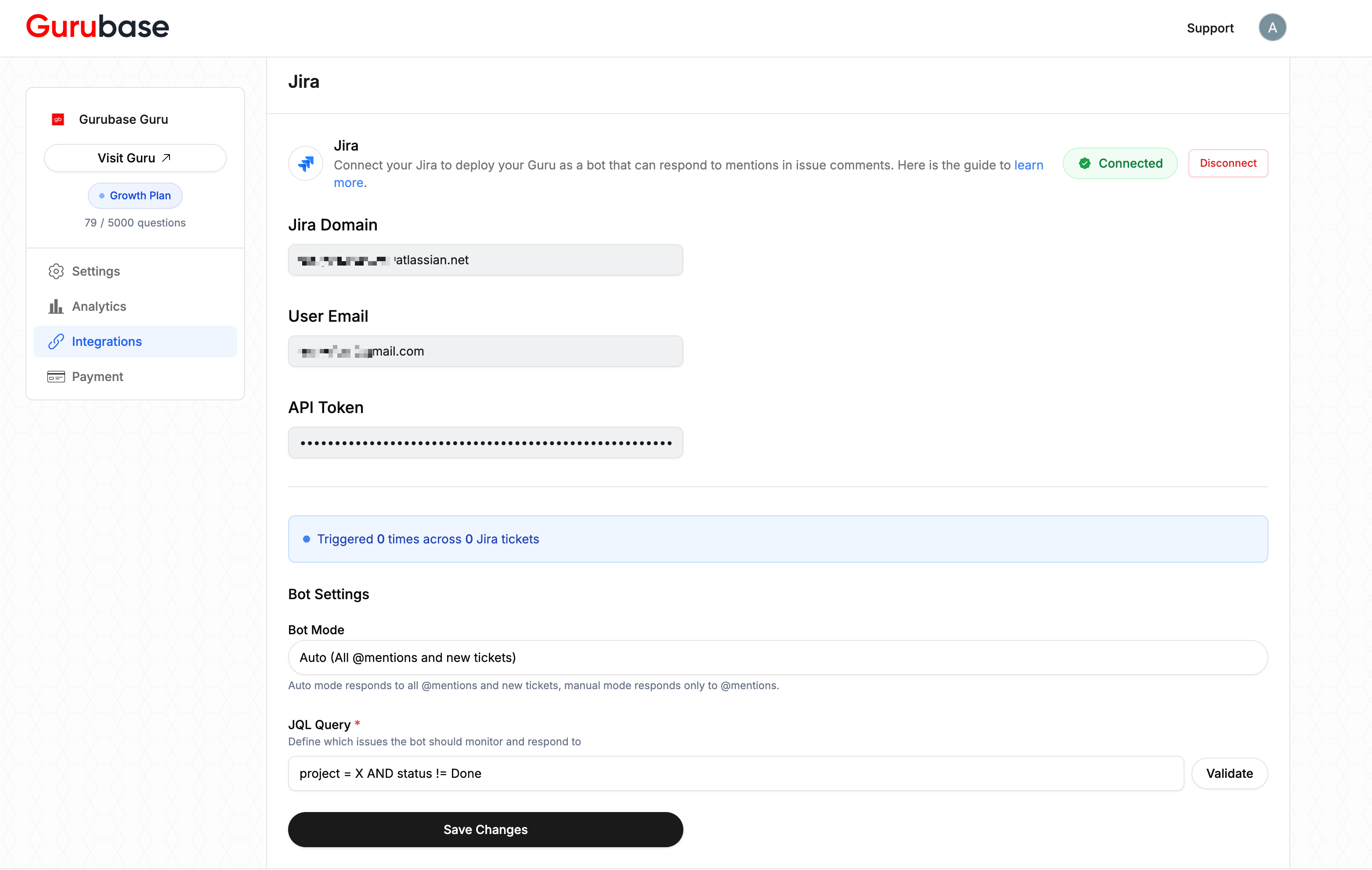 **Bot Mode:** Choose Auto or Manual mode.
**JQL Query:** Define which tickets the bot monitors. Click **Validate** to test your query.
Example JQL queries:
```
project = SUPPORT AND status = Open
```
```
project IN (HELP, SUPPORT) AND created >= -7d
```
The Jira Bot only processes **new tickets** created after setup. Updates to JQL only apply to future tickets — historical tickets are not processed.
***
## Using the Bot
Once configured, the bot automatically monitors tickets matching your JQL query and responds based on your mode setting.
To manually trigger a response, mention the bot in any ticket comment:
```
@gurubase How do I reset my password?
```
***
## Next Steps
Import Jira tickets as knowledge sources
Add Gurubase to your Slack workspace
Deploy Gurubase in Zendesk
Add documentation the bot will reference
**Bot Mode:** Choose Auto or Manual mode.
**JQL Query:** Define which tickets the bot monitors. Click **Validate** to test your query.
Example JQL queries:
```
project = SUPPORT AND status = Open
```
```
project IN (HELP, SUPPORT) AND created >= -7d
```
The Jira Bot only processes **new tickets** created after setup. Updates to JQL only apply to future tickets — historical tickets are not processed.
***
## Using the Bot
Once configured, the bot automatically monitors tickets matching your JQL query and responds based on your mode setting.
To manually trigger a response, mention the bot in any ticket comment:
```
@gurubase How do I reset my password?
```
***
## Next Steps
Import Jira tickets as knowledge sources
Add Gurubase to your Slack workspace
Deploy Gurubase in Zendesk
Add documentation the bot will reference