> ## Documentation Index
> Fetch the complete documentation index at: https://docs.gurubase.ai/llms.txt
> Use this file to discover all available pages before exploring further.
# Confluence Data Ingestion
> Import Confluence pages and spaces as knowledge sources
Turn your Confluence wiki into AI knowledge. Import documentation, runbooks, and internal guides so your Guru can answer questions based on your team's actual knowledge base.
## Why Ingest Confluence Data?
Import runbooks, onboarding guides, and process docs
Use Confluence Query Language to import specific spaces or pages
Images and files attached to pages are indexed too
Backfill jobs automatically import updated pages on a schedule
## What Gets Indexed
| Content Type | What's Included |
| --------------- | --------------------------------------------------------------- |
| **Pages** | Full page content including tables, code blocks, and formatting |
| **Comments** | Page comments with context |
| **Attachments** | Images, PDFs, and text files |
| **Metadata** | Space, labels, author, and last modified date |
**Self-hosted:** This integration is in beta for selected users.
**Cloud:** Available to all users.
***
## Setup
1. Go to [Atlassian API Token settings](https://id.atlassian.com/manage-profile/security/api-tokens)
2. Click **Create API token**
3. Copy the token
Go to **Gurubase Dashboard** → Select your Guru → **Integrations** → **Ingestions** → **Confluence**
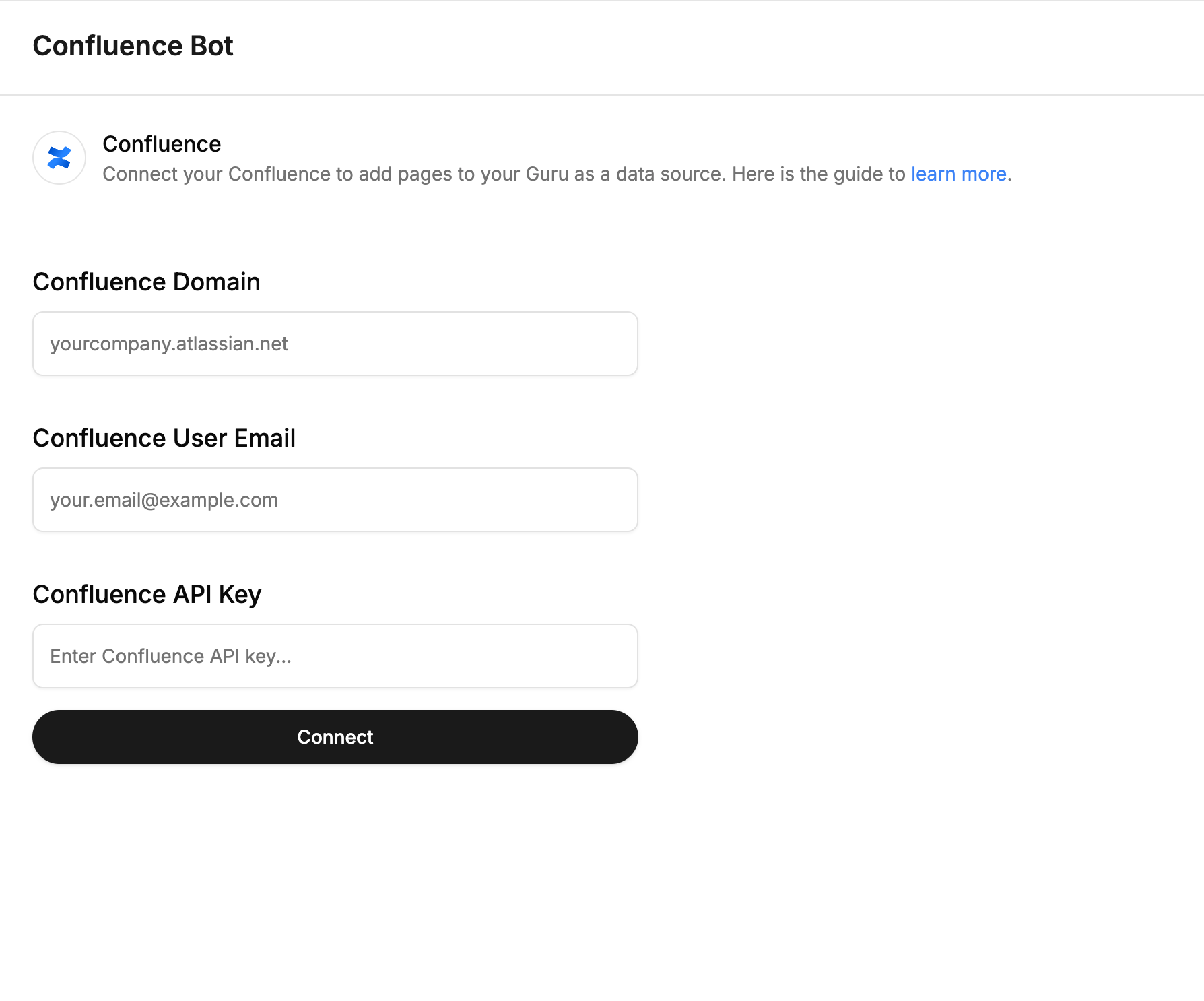
Fill in the connection details:
| Field | Value |
| -------------- | --------------------------------------------------------- |
| **Domain** | Your Atlassian domain (e.g., `yourcompany.atlassian.net`) |
| **User Email** | Your Atlassian account email |
| **API Token** | The token you created in Step 1 |
 ***
## Adding Confluence Content
After connecting, you can import pages in two ways:
***
## Adding Confluence Content
After connecting, you can import pages in two ways:
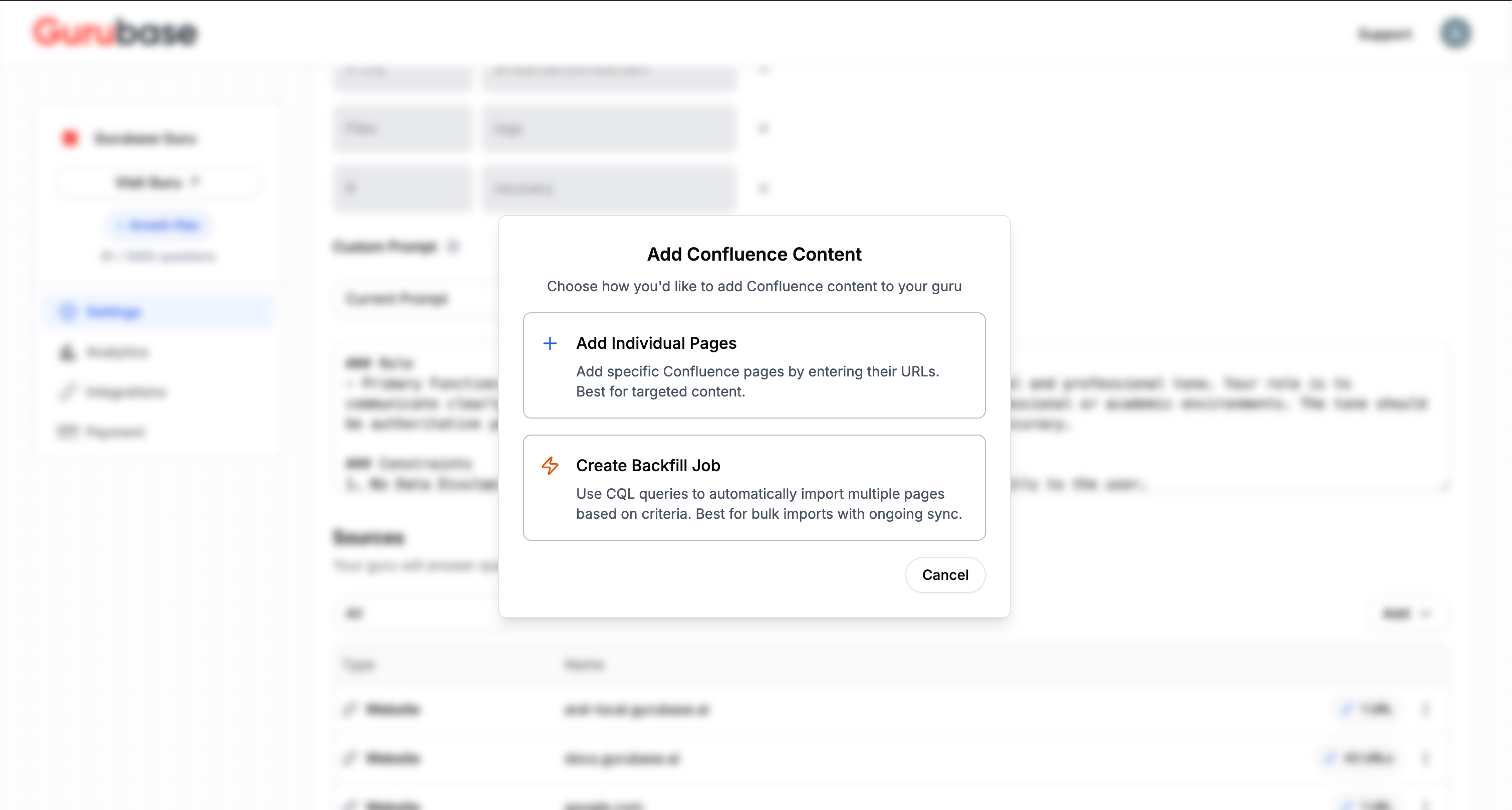 ### Option 1: Add Individual Pages
Best for importing specific pages by URL.
### Option 1: Add Individual Pages
Best for importing specific pages by URL.
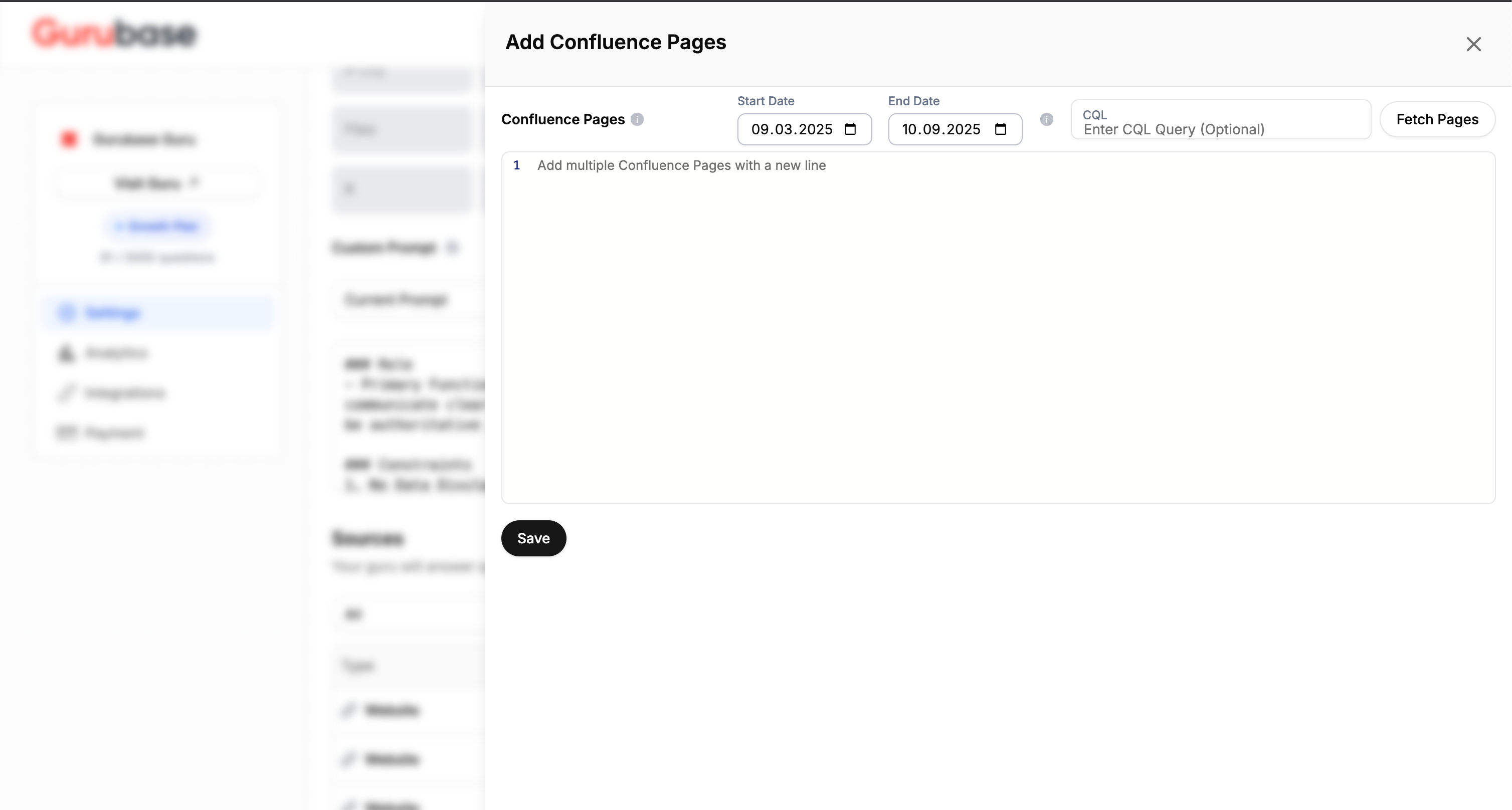 | Setting | Description |
| -------------- | ------------------------------------------- |
| **URLs** | Enter page URLs, one per line |
| **Date Range** | Optionally filter by last modified date |
| **CQL Filter** | Additional CQL criteria to refine selection |
### Option 2: Create Backfill Job
Best for bulk imports and automatic ongoing sync using CQL queries.
| Setting | Description |
| -------------- | ------------------------------------------- |
| **URLs** | Enter page URLs, one per line |
| **Date Range** | Optionally filter by last modified date |
| **CQL Filter** | Additional CQL criteria to refine selection |
### Option 2: Create Backfill Job
Best for bulk imports and automatic ongoing sync using CQL queries.
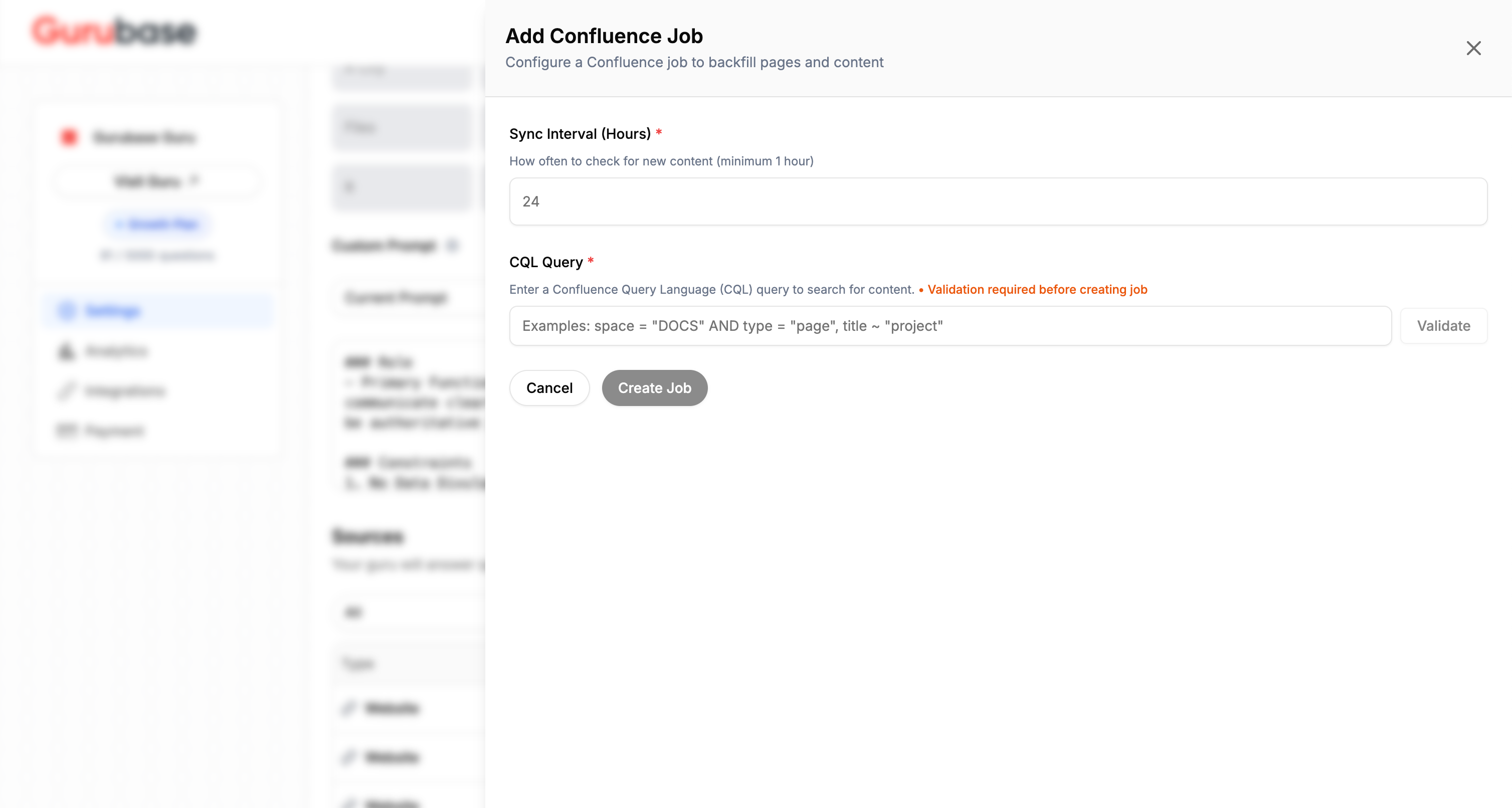 | Setting | Description |
| ----------------- | ----------------------------------------------------- |
| **CQL Query** | Query to select which pages to import |
| **Sync Interval** | How often to check for updated pages (minimum 1 hour) |
| **Sync Now** | Manually trigger an immediate sync |
### Example CQL Queries
```sql theme={null}
-- All pages from a specific space
space = "DOCS" AND type = "page"
-- Recently updated documentation
space = "ENGINEERING" AND lastModified >= now("-30d")
-- Pages with specific labels
label = "runbook" OR label = "onboarding"
-- Search by title
title ~ "API" AND space = "DEVELOPER"
```
Use backfill jobs to keep your Guru automatically updated whenever your team updates Confluence documentation.
***
## Viewing Indexed Content
Imported pages appear as individual sources in your Guru's data sources list. You can:
* View the exact content that was indexed
* Remove specific pages
* Check when content was last synced
***
## Next Steps
Import Jira issues as knowledge sources
Import Zendesk tickets and articles
Deploy Gurubase in Slack
Add more knowledge sources
| Setting | Description |
| ----------------- | ----------------------------------------------------- |
| **CQL Query** | Query to select which pages to import |
| **Sync Interval** | How often to check for updated pages (minimum 1 hour) |
| **Sync Now** | Manually trigger an immediate sync |
### Example CQL Queries
```sql theme={null}
-- All pages from a specific space
space = "DOCS" AND type = "page"
-- Recently updated documentation
space = "ENGINEERING" AND lastModified >= now("-30d")
-- Pages with specific labels
label = "runbook" OR label = "onboarding"
-- Search by title
title ~ "API" AND space = "DEVELOPER"
```
Use backfill jobs to keep your Guru automatically updated whenever your team updates Confluence documentation.
***
## Viewing Indexed Content
Imported pages appear as individual sources in your Guru's data sources list. You can:
* View the exact content that was indexed
* Remove specific pages
* Check when content was last synced
***
## Next Steps
Import Jira issues as knowledge sources
Import Zendesk tickets and articles
Deploy Gurubase in Slack
Add more knowledge sources