> ## Documentation Index
> Fetch the complete documentation index at: https://docs.gurubase.ai/llms.txt
> Use this file to discover all available pages before exploring further.
# Slack Data Ingestion
> Import Slack channel history as knowledge sources
Turn your Slack conversations into AI knowledge. Import support threads, engineering discussions, and decision logs so your Guru can answer questions based on real team conversations.
## Why Ingest Slack Data?
Answers buried in Slack threads become searchable knowledge
Only index threads answered by experts or senior team members
Include or exclude threads based on specific words
Backfill jobs automatically import new conversations on a schedule
## What Gets Indexed
| Content Type | What's Included |
| -------------- | -------------------------------------------------- |
| **Threads** | Full thread conversations with all replies |
| **Messages** | Message content from selected channels |
| **Files** | Files shared in channels (images, documents, etc.) |
| **Time Range** | Filter by date range (custom or predefined) |
| **Filtering** | Include/exclude by keywords or trusted users |
***
## Setup
### Step 1: Create a Slack App
1. Go to [Slack API Apps](https://api.slack.com/apps) and click **Create New App**
2. Select **From scratch**
3. Enter a name (e.g., "Gurubase Backfill")
4. Choose your Slack workspace
5. Click **Create App**
Go to **OAuth & Permissions** → **Bot Token Scopes** and add:
| Scope | Purpose |
| ------------------ | ----------------------------- |
| `channels:history` | Read public channel messages |
| `groups:history` | Read private channel messages |
| `channels:join` | Join public channels |
| `channels:read` | Get public channel names |
| `groups:read` | Get private channel names |
| `files:read` | Read files shared in channels |
1. Go to **Install App** page
2. Click **Install to \[Your Workspace]**
3. Complete the OAuth flow
4. Copy the **Bot User OAuth Token** (starts with `xoxb-`)
### Step 2: Connect to Gurubase
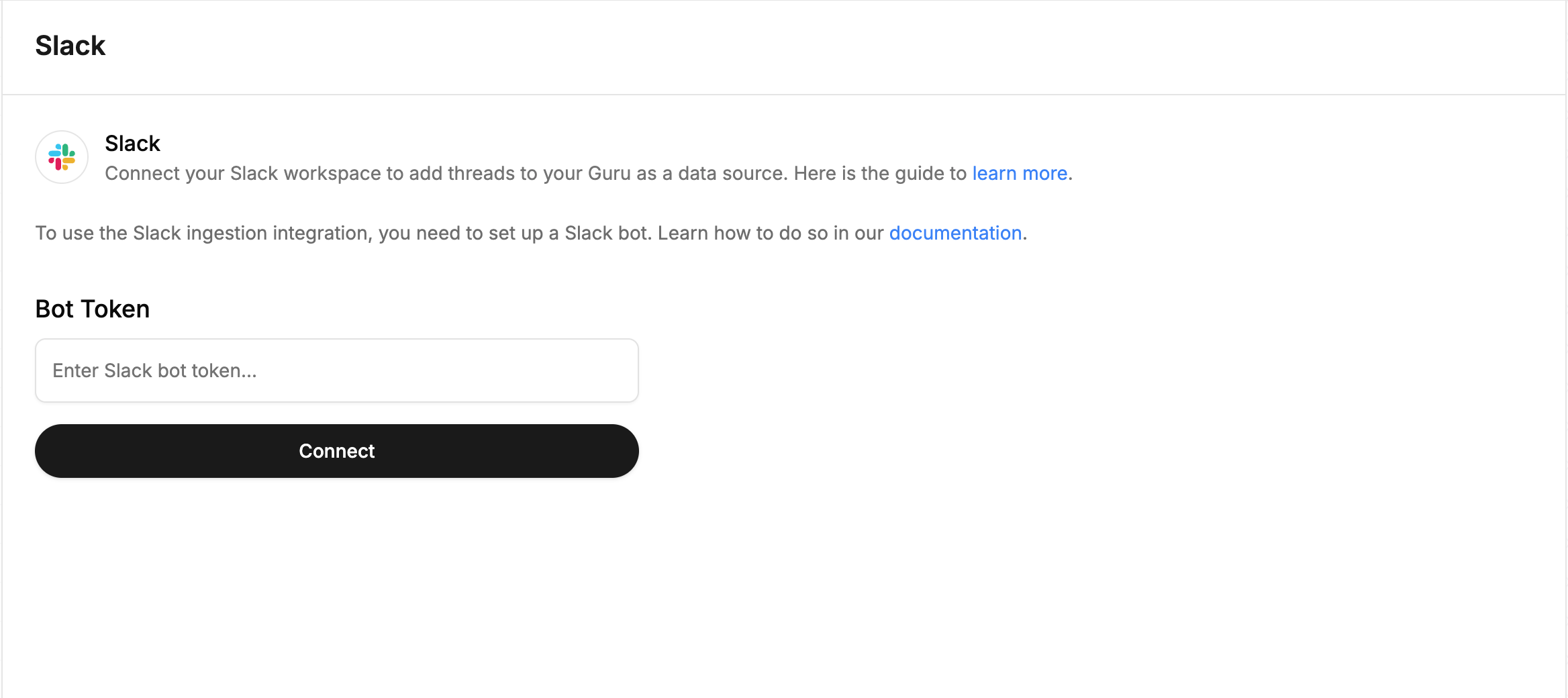
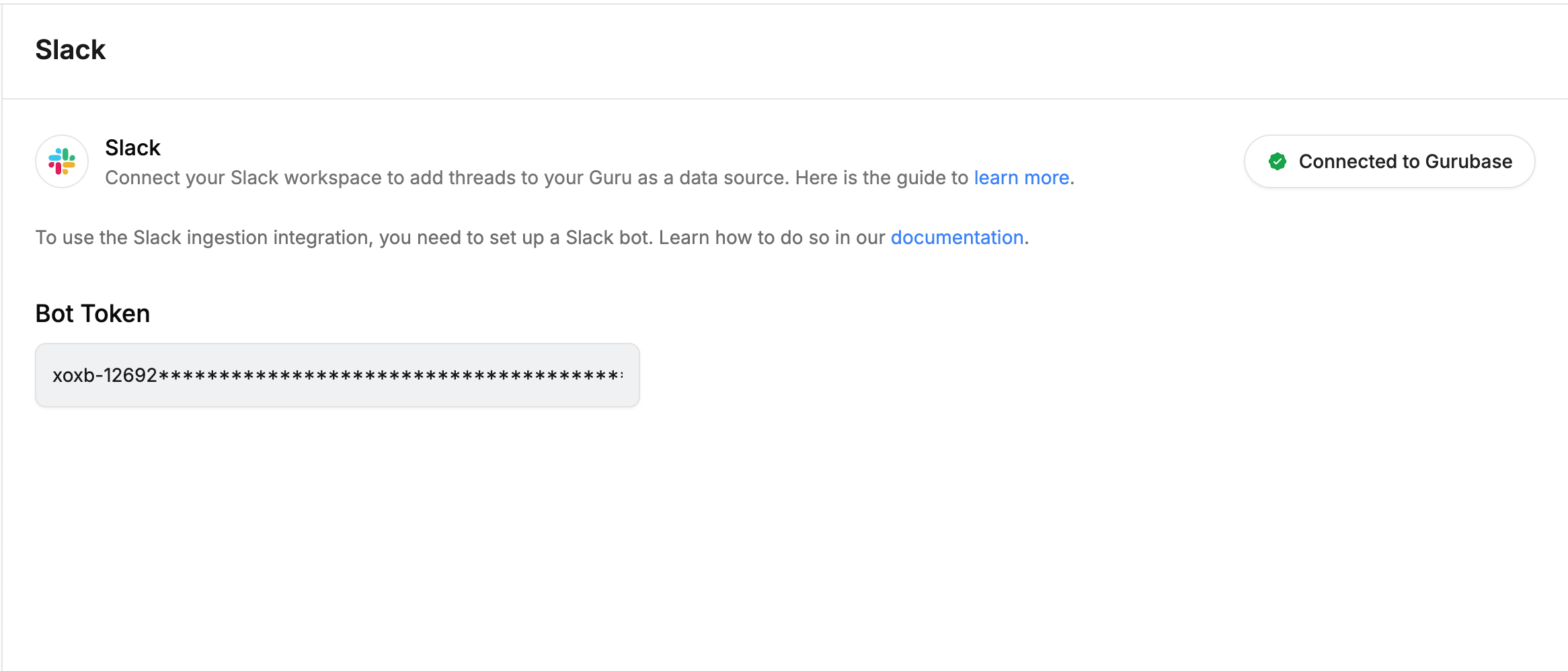
Go to **Gurubase Dashboard** → Select your Guru → **Integrations** → **Ingestions** → **Slack**
Paste your Bot User OAuth Token and click **Connect**
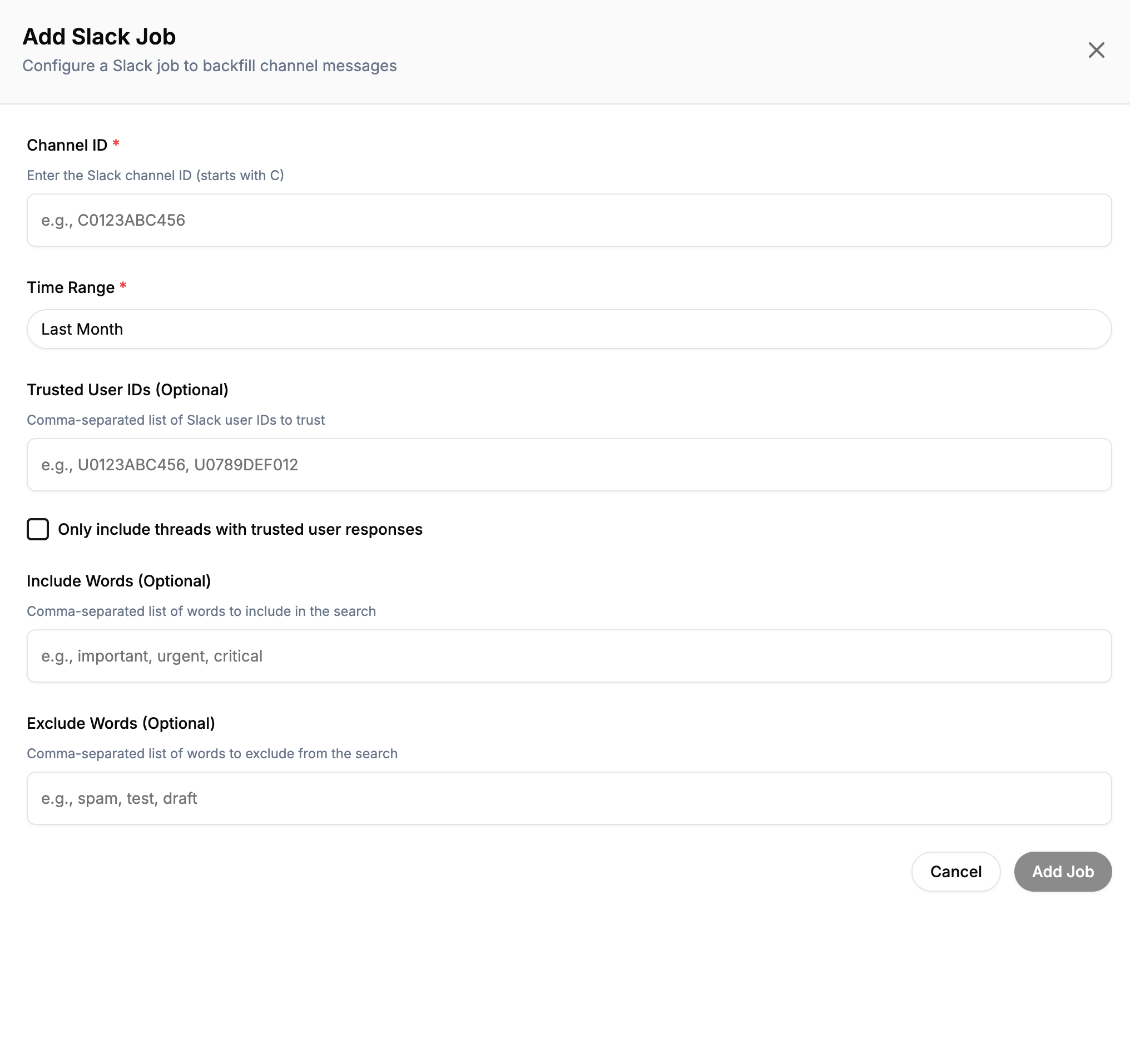
 Go to your Guru's **Settings** → **Add** → **Slack** to configure a backfill job
 ***
## Configuring a Backfill Job
| Setting | Description |
| -------------------- | ------------------------------------------------------------------------------------------------------------------------------------------------------------------- |
| **Channel ID** | The Slack channel to index (see below for how to find it) |
| **Time Range** | Custom date range or predefined (last 7 days, 30 days, etc.) |
| **Buffer Days** | Number of days to skip from the end of the time range (default: 3). Avoids indexing threads still being actively discussed. Set to 0 to index everything up to now. |
| **Trusted User IDs** | Only index threads answered by these users |
| **Include Words** | Only index threads containing these keywords |
| **Exclude Words** | Skip threads containing these keywords |
### Public vs Private Channels
**Public channels** work out of the box. The bot automatically joins the channel when you create a backfill job.
**Private channels** require an extra step: you must manually invite the bot to the channel before creating the backfill job. In Slack, open the private channel and type:
```
/invite @YourBotName
```
Replace `@YourBotName` with the name of your Slack app (e.g., `@Gurubase Backfill`). Without this, the bot cannot access the channel's message history.
Make sure your Slack app has the `groups:history` and `groups:read` scopes. These are required for reading private channel messages and metadata.
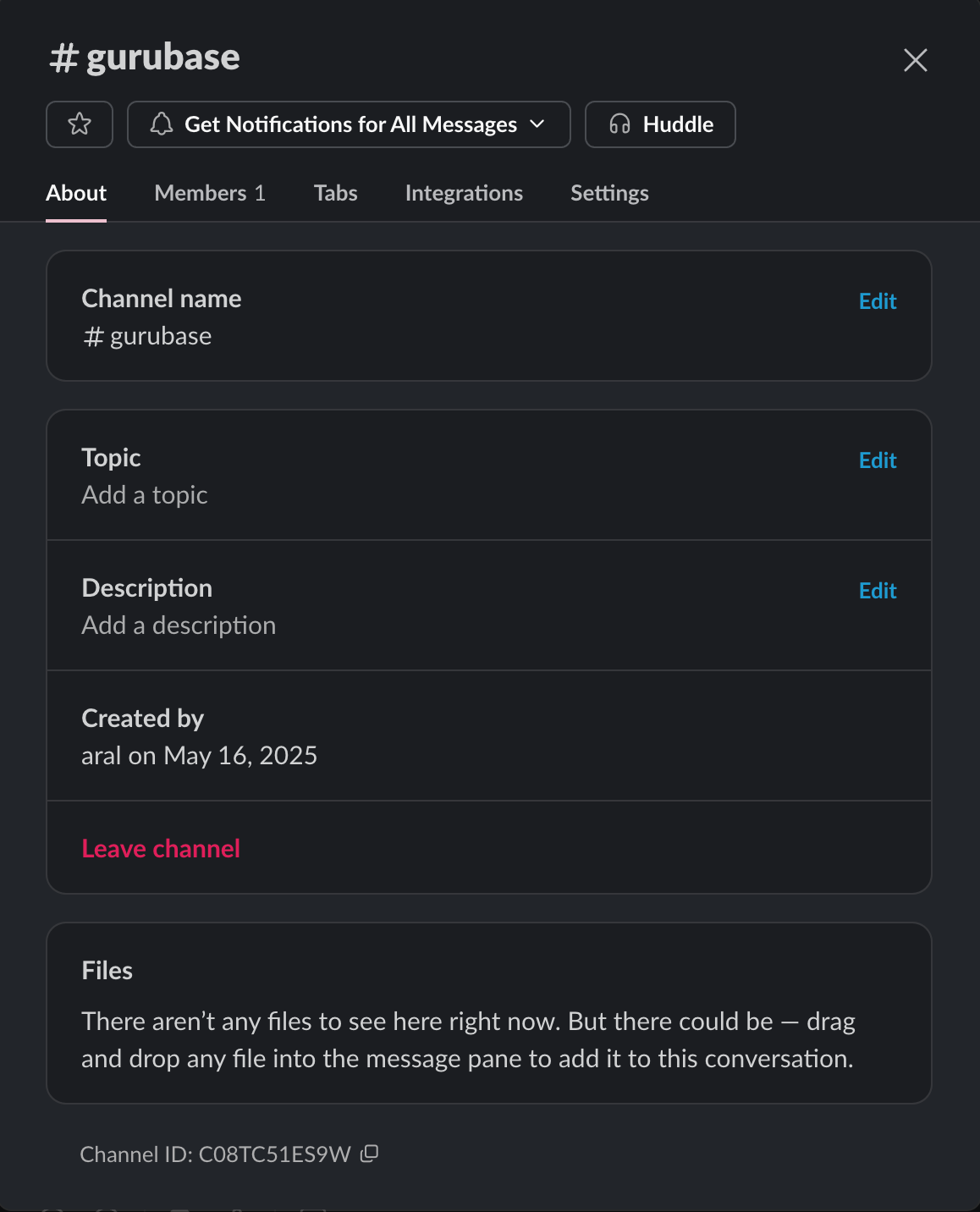
### Finding a Channel ID
Right-click on a channel → **View channel details** → The Channel ID is shown at the bottom of the modal.
***
## Configuring a Backfill Job
| Setting | Description |
| -------------------- | ------------------------------------------------------------------------------------------------------------------------------------------------------------------- |
| **Channel ID** | The Slack channel to index (see below for how to find it) |
| **Time Range** | Custom date range or predefined (last 7 days, 30 days, etc.) |
| **Buffer Days** | Number of days to skip from the end of the time range (default: 3). Avoids indexing threads still being actively discussed. Set to 0 to index everything up to now. |
| **Trusted User IDs** | Only index threads answered by these users |
| **Include Words** | Only index threads containing these keywords |
| **Exclude Words** | Skip threads containing these keywords |
### Public vs Private Channels
**Public channels** work out of the box. The bot automatically joins the channel when you create a backfill job.
**Private channels** require an extra step: you must manually invite the bot to the channel before creating the backfill job. In Slack, open the private channel and type:
```
/invite @YourBotName
```
Replace `@YourBotName` with the name of your Slack app (e.g., `@Gurubase Backfill`). Without this, the bot cannot access the channel's message history.
Make sure your Slack app has the `groups:history` and `groups:read` scopes. These are required for reading private channel messages and metadata.
### Finding a Channel ID
Right-click on a channel → **View channel details** → The Channel ID is shown at the bottom of the modal.
 ### Finding a User ID
Open a DM with the user → Click their name → Click **View full profile**
In the profile sidebar, click the **three dots (⋮)** → **Copy member ID**
Use trusted user filtering to only index threads where senior engineers or support leads provided answers — this ensures higher quality knowledge.
***
## Next Steps
Deploy Gurubase as a Slack bot for your team
Import Confluence pages
Import Jira issues
Add more knowledge sources
### Finding a User ID
Open a DM with the user → Click their name → Click **View full profile**
In the profile sidebar, click the **three dots (⋮)** → **Copy member ID**
Use trusted user filtering to only index threads where senior engineers or support leads provided answers — this ensures higher quality knowledge.
***
## Next Steps
Deploy Gurubase as a Slack bot for your team
Import Confluence pages
Import Jira issues
Add more knowledge sources