> ## Documentation Index
> Fetch the complete documentation index at: https://docs.gurubase.ai/llms.txt
> Use this file to discover all available pages before exploring further.
# Single Sign-On (SAML)
> Let your team sign in to a self-hosted Gurubase with Google Workspace, Okta, or any SAML 2.0 identity provider.
SAML single sign-on is available on self-hosted (on-premise) Gurubase
deployments. Only super admins can configure it.
## Overview
With single sign-on (SSO), people sign in to Gurubase through your identity
provider (IdP) instead of a Gurubase password. Gurubase acts as a SAML 2.0
service provider and works with Google Workspace, Okta, Microsoft Entra ID,
Keycloak, and any other IdP that speaks SAML 2.0.
* **Roles stay in Gurubase.** The IdP proves who someone is. What they can do
(super admin, guru admin, guru viewer) is assigned in
[User Management](/guides/team), never taken from the IdP.
* **Groups map to content groups.** Group memberships the IdP sends can join
people to [content groups](/guides/groups) automatically.
* **Works behind a VPN.** The IdP never connects to your Gurubase server: the
user's browser carries the request to the IdP and posts the signed response
back. Gurubase needs no inbound access from the internet and no outbound
access to the IdP.
## Before you start
* **Gurubase URL.** Under **Settings > General**, the Gurubase URL must be the
HTTPS address your users open, for example `https://gurubase.example.com`.
The ACS URL and Entity ID are built from it.
* **Clock.** The server clock must be in sync (NTP). Signed responses are only
accepted within a few minutes of the time they were issued.
* **A break-glass account.** Keep at least one super admin who signs in with a
password and two-factor authentication, in case the IdP is unavailable.
## Configure Gurubase
Open **Settings > Single Sign-On**. The **Service provider details** section
lists the values your IdP asks for.
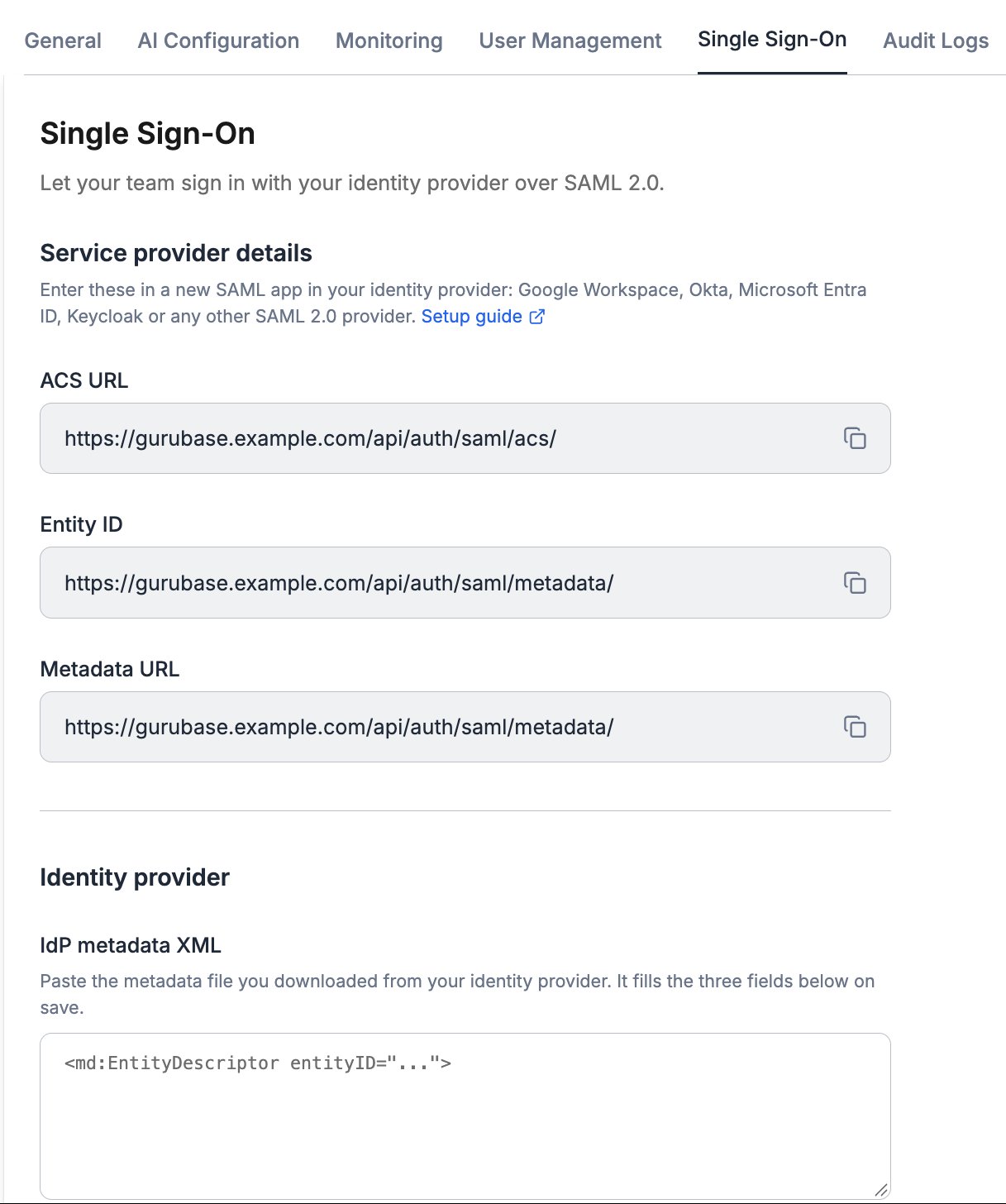 | Field | Value |
| - | - |
| ACS URL | `https:///api/auth/saml/acs/` |
| Entity ID | `https:///api/auth/saml/metadata/` |
| Metadata URL | `https:///api/auth/saml/metadata/` |
Keep this tab open, set up the IdP (next section), then come back and finish
here.
## Set up Google Workspace
In the Google Admin console (`admin.google.com`), go to **Apps >
Web and mobile apps > Add app > Add custom SAML app**. Name it
`Gurubase`. For the app icon, you can use
[gurubase-icon.png](https://gurubase.io/media/gurubase-icon.png).
On the **Google Identity Provider details** step, click **Download
metadata**. You will paste this file into Gurubase.
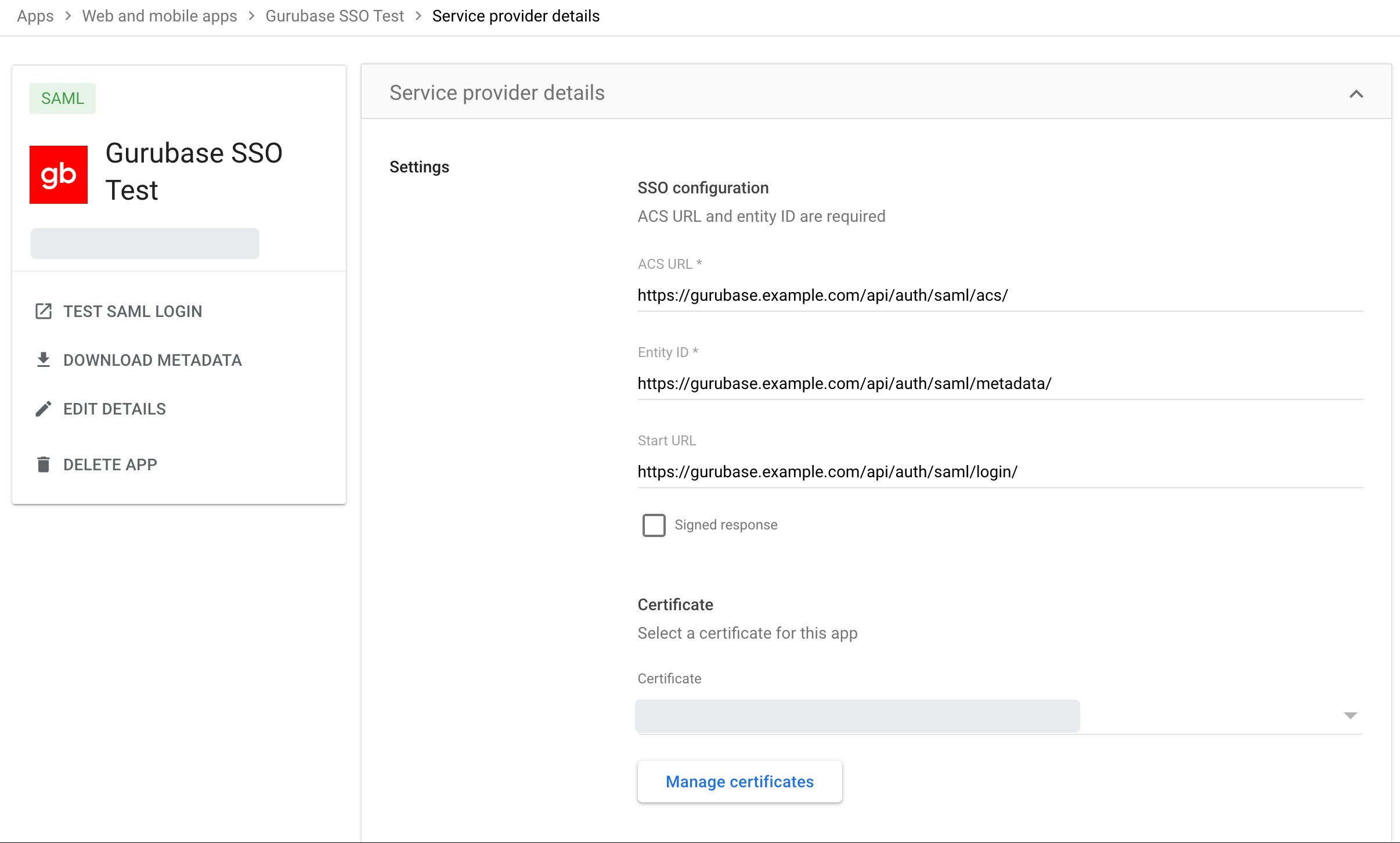
* **ACS URL**: the ACS URL from Gurubase.
* **Entity ID**: the Entity ID from Gurubase.
* **Start URL** (optional): `https:///api/auth/saml/login/`
* **Signed response**: either setting works. Gurubase accepts a signed
response or a signed assertion.
* **Name ID format**: `UNSPECIFIED` or `EMAIL`. **Name ID**:
`Basic Information > Primary email`.
| Field | Value |
| - | - |
| ACS URL | `https:///api/auth/saml/acs/` |
| Entity ID | `https:///api/auth/saml/metadata/` |
| Metadata URL | `https:///api/auth/saml/metadata/` |
Keep this tab open, set up the IdP (next section), then come back and finish
here.
## Set up Google Workspace
In the Google Admin console (`admin.google.com`), go to **Apps >
Web and mobile apps > Add app > Add custom SAML app**. Name it
`Gurubase`. For the app icon, you can use
[gurubase-icon.png](https://gurubase.io/media/gurubase-icon.png).
On the **Google Identity Provider details** step, click **Download
metadata**. You will paste this file into Gurubase.
* **ACS URL**: the ACS URL from Gurubase.
* **Entity ID**: the Entity ID from Gurubase.
* **Start URL** (optional): `https:///api/auth/saml/login/`
* **Signed response**: either setting works. Gurubase accepts a signed
response or a signed assertion.
* **Name ID format**: `UNSPECIFIED` or `EMAIL`. **Name ID**:
`Basic Information > Primary email`.
 * Under **Attributes**, map `First name` to `firstName` and `Last name` to
`lastName`. Without them, new accounts are named after the email
address.
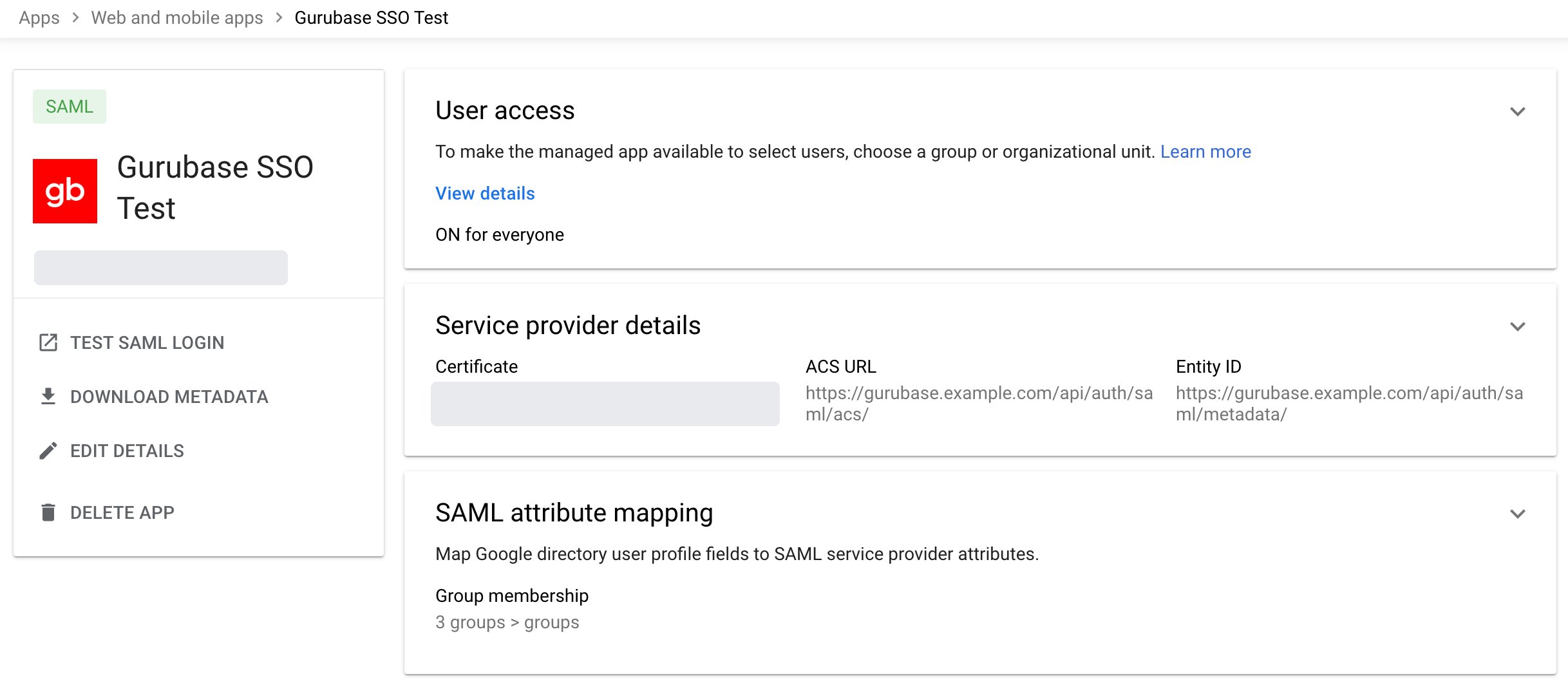
* Under **Group membership** (optional), pick the Google groups Gurubase
should know about and set the app attribute to `groups`. Google allows
up to 75 groups here.
Open the app, then **User access**, and turn it **ON** for everyone or
for the organizational units and groups that should use Gurubase. The app
is **off for everyone** by default; until you turn it on, Google stops
sign-in with `app_not_configured_for_user`. Changes can take a few
minutes, and occasionally up to 24 hours, to apply.
* Under **Attributes**, map `First name` to `firstName` and `Last name` to
`lastName`. Without them, new accounts are named after the email
address.
* Under **Group membership** (optional), pick the Google groups Gurubase
should know about and set the app attribute to `groups`. Google allows
up to 75 groups here.
Open the app, then **User access**, and turn it **ON** for everyone or
for the organizational units and groups that should use Gurubase. The app
is **off for everyone** by default; until you turn it on, Google stops
sign-in with `app_not_configured_for_user`. Changes can take a few
minutes, and occasionally up to 24 hours, to apply.
 ## Set up Okta
In the Okta Admin Console, go to **Applications > Applications > Create
App Integration**, choose **SAML 2.0** and click **Next**. Name it
`Gurubase`; for the logo you can use
[gurubase-icon.png](https://gurubase.io/media/gurubase-icon.png).
* **Single sign-on URL**: the ACS URL from Gurubase. Keep **Use this for
Recipient URL and Destination URL** ticked.
* **Audience URI (SP Entity ID)**: the Entity ID from Gurubase.
* **Name ID format**: `EmailAddress`. **Application username**: `Email`.
* Under **Attribute Statements**, add `firstName` with the value
`user.firstName` and `lastName` with `user.lastName`.
* Under **Group Attribute Statements** (optional), add `groups` with a
filter that matches the groups Gurubase should know about, for example
**Starts with** `gurubase-`. A filter of **Matches regex** `.*` also
sends the built-in `Everyone` group.
Click **Next**, answer Okta's feedback question (it does not change the
app) and click **Finish**. Okta signs both the response and the
assertion, which Gurubase accepts.
On the app's **Sign On** tab, copy the **Metadata URL** under **Metadata
details**, open it in the browser and save the XML. You will paste it
into Gurubase.
On the **Assignments** tab, assign the groups or people who should use
Gurubase. Unassigned users are stopped at Okta.
Users can also start from the Gurubase tile on their Okta dashboard.
### Other identity providers
Use the same ACS URL and Entity ID. Send the user's email as the NameID, sign
the assertion or the response with RSA-SHA256, and send group names in an
attribute called `groups`. If your IdP can only send an opaque NameID, set
**Email attribute** in Gurubase to the attribute that carries the email, and
make sure users cannot edit that attribute themselves.
## Finish in Gurubase
Paste the metadata file into **IdP metadata XML** and click **Save**.
Gurubase fills the IdP entity ID, SSO URL and signing certificate from it
and shows when the certificate expires. You can also enter the three
fields by hand.
## Set up Okta
In the Okta Admin Console, go to **Applications > Applications > Create
App Integration**, choose **SAML 2.0** and click **Next**. Name it
`Gurubase`; for the logo you can use
[gurubase-icon.png](https://gurubase.io/media/gurubase-icon.png).
* **Single sign-on URL**: the ACS URL from Gurubase. Keep **Use this for
Recipient URL and Destination URL** ticked.
* **Audience URI (SP Entity ID)**: the Entity ID from Gurubase.
* **Name ID format**: `EmailAddress`. **Application username**: `Email`.
* Under **Attribute Statements**, add `firstName` with the value
`user.firstName` and `lastName` with `user.lastName`.
* Under **Group Attribute Statements** (optional), add `groups` with a
filter that matches the groups Gurubase should know about, for example
**Starts with** `gurubase-`. A filter of **Matches regex** `.*` also
sends the built-in `Everyone` group.
Click **Next**, answer Okta's feedback question (it does not change the
app) and click **Finish**. Okta signs both the response and the
assertion, which Gurubase accepts.
On the app's **Sign On** tab, copy the **Metadata URL** under **Metadata
details**, open it in the browser and save the XML. You will paste it
into Gurubase.
On the **Assignments** tab, assign the groups or people who should use
Gurubase. Unassigned users are stopped at Okta.
Users can also start from the Gurubase tile on their Okta dashboard.
### Other identity providers
Use the same ACS URL and Entity ID. Send the user's email as the NameID, sign
the assertion or the response with RSA-SHA256, and send group names in an
attribute called `groups`. If your IdP can only send an opaque NameID, set
**Email attribute** in Gurubase to the attribute that carries the email, and
make sure users cannot edit that attribute themselves.
## Finish in Gurubase
Paste the metadata file into **IdP metadata XML** and click **Save**.
Gurubase fills the IdP entity ID, SSO URL and signing certificate from it
and shows when the certificate expires. You can also enter the three
fields by hand.
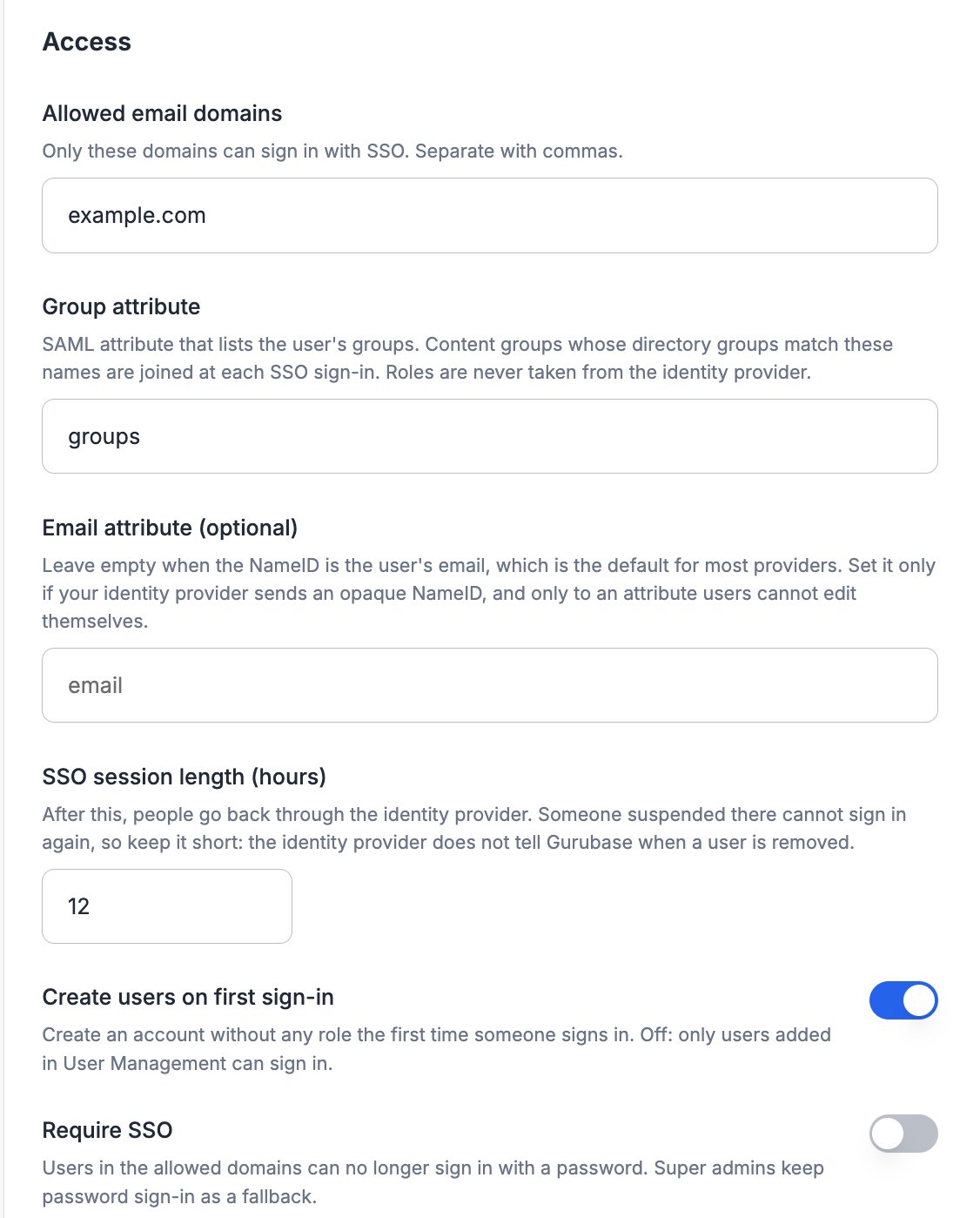 * **Allowed email domains**: every domain your users' primary emails use.
If your Google Workspace has secondary domains (for example
`example.com` and `example.io`), list all of them.
* **Group attribute**: `groups`, unless your IdP uses another name.
* **SSO session length**: how long an SSO session lasts before the user
goes back through the IdP (default 12 hours). SAML gives the IdP no way
to tell Gurubase that a user was suspended, so this is how long a
suspended user can keep an existing session.
* **Create users on first sign-in**: on by default. A new account starts
with no role and sees no gurus until an admin assigns one. Turn it off
to allow only people already added in User Management.
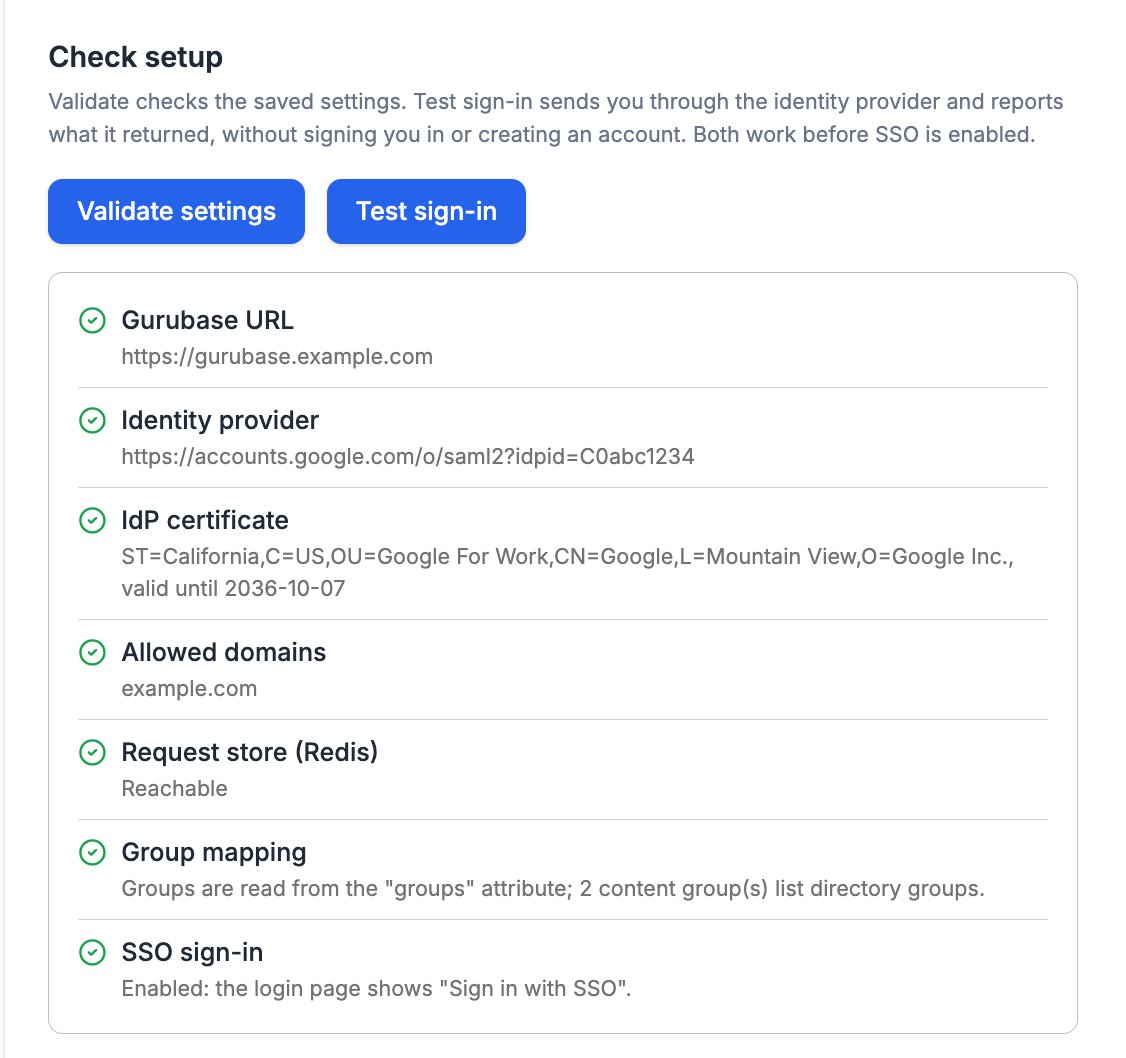
Click **Validate settings** to check the saved configuration. Every check
explains what is wrong and how to fix it.
* **Allowed email domains**: every domain your users' primary emails use.
If your Google Workspace has secondary domains (for example
`example.com` and `example.io`), list all of them.
* **Group attribute**: `groups`, unless your IdP uses another name.
* **SSO session length**: how long an SSO session lasts before the user
goes back through the IdP (default 12 hours). SAML gives the IdP no way
to tell Gurubase that a user was suspended, so this is how long a
suspended user can keep an existing session.
* **Create users on first sign-in**: on by default. A new account starts
with no role and sees no gurus until an admin assigns one. Turn it off
to allow only people already added in User Management.
Click **Validate settings** to check the saved configuration. Every check
explains what is wrong and how to fix it.
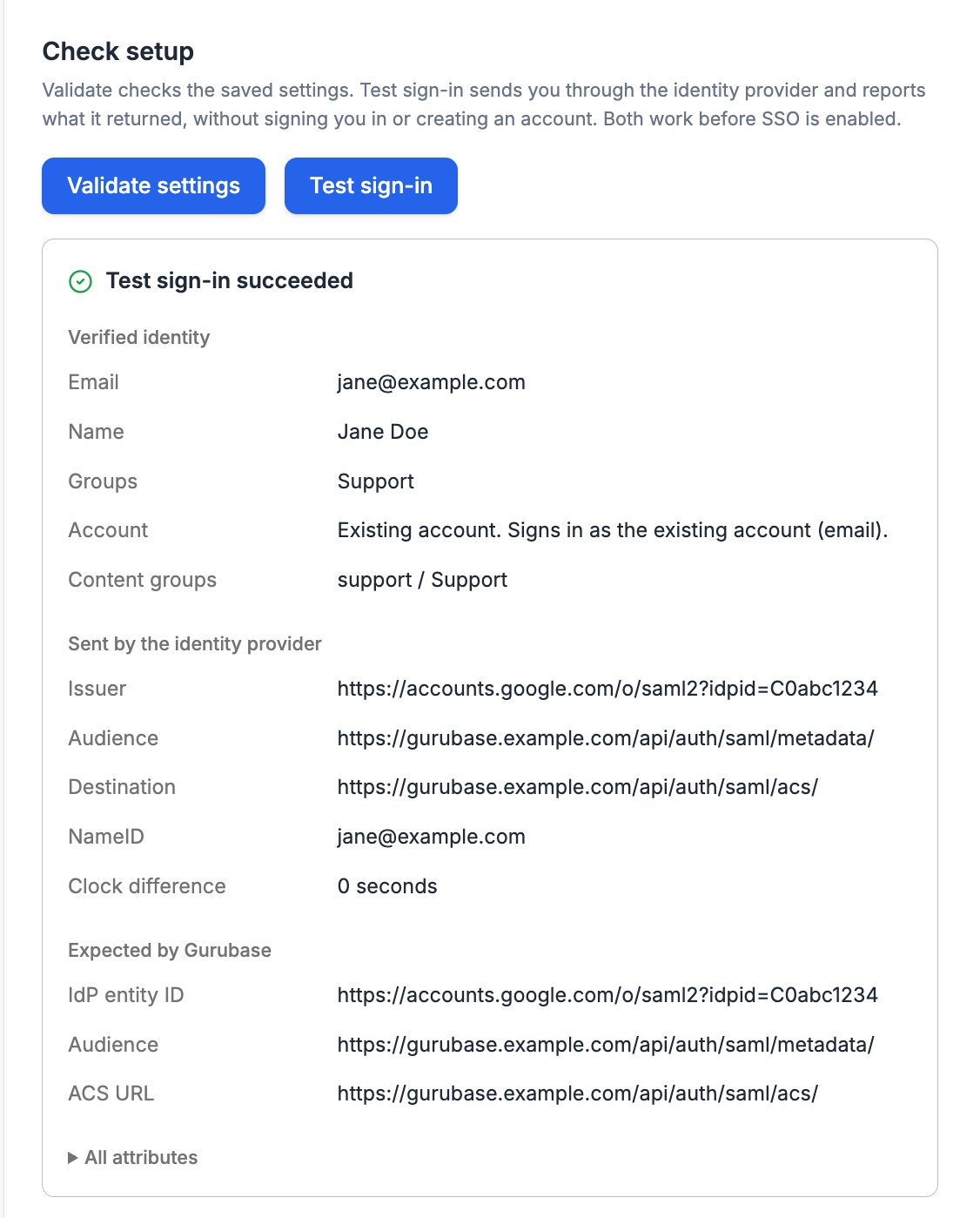
 Then click **Test sign-in**. It sends you through the IdP and reports what
came back, without signing you in or creating an account: the verified
email and groups, what Gurubase would do with the account, the values the
IdP sent next to the values Gurubase expects, and the clock difference.
Both checks work before SSO is enabled.
Then click **Test sign-in**. It sends you through the IdP and reports what
came back, without signing you in or creating an account: the verified
email and groups, what Gurubase would do with the account, the values the
IdP sent next to the values Gurubase expects, and the clock difference.
Both checks work before SSO is enabled.
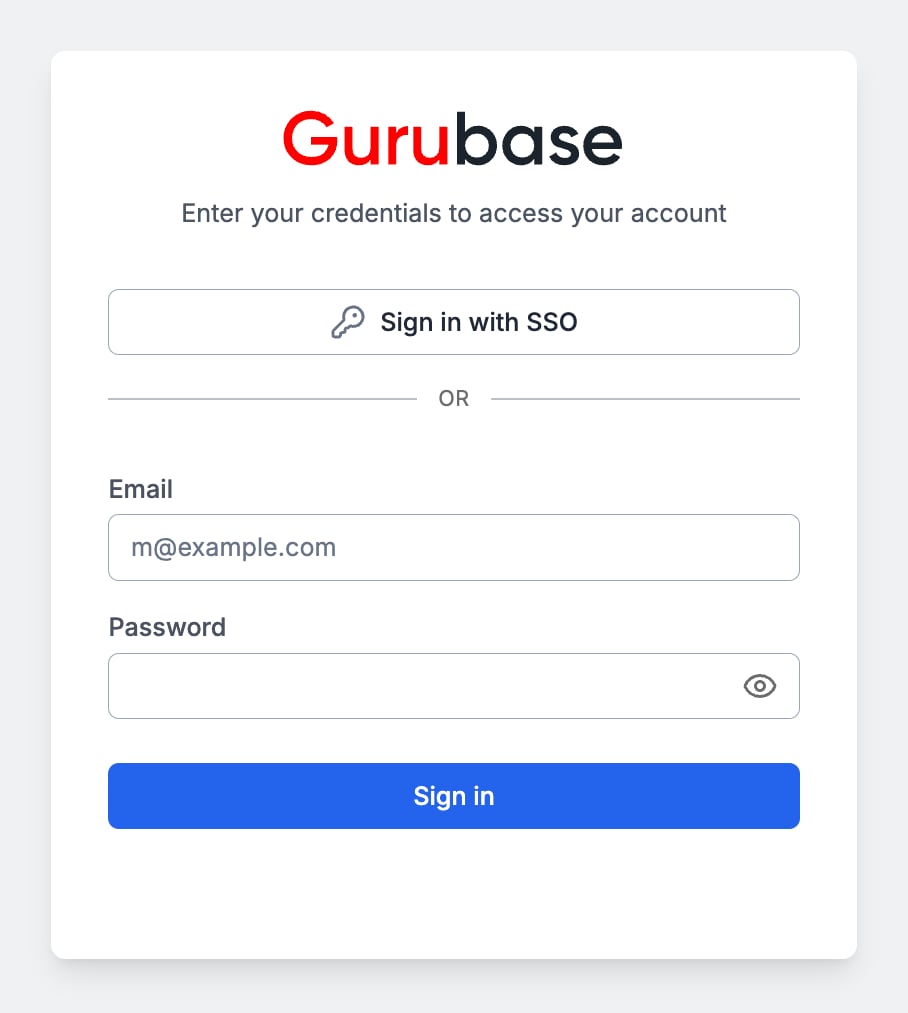
 Turn on **Enable SSO** and save. The login page now shows **Sign in with
SSO**. Users who open Gurubase from the IdP's app launcher (the Google apps
grid or the Okta dashboard) are signed in too.
Turn on **Enable SSO** and save. The login page now shows **Sign in with
SSO**. Users who open Gurubase from the IdP's app launcher (the Google apps
grid or the Okta dashboard) are signed in too.
 ## Accounts and roles
* The account is matched by email. Someone who already has a Gurubase account
with the same email signs in to that account and keeps their roles.
* A new account has no role. Assign guru roles in
[User Management](/guides/team).
* After the first SSO sign-in, the account is bound to its IdP identity.
Another IdP identity that presents the same email is refused.
### Moving existing users to SSO
Users who already sign in with a password need no preparation. On their first
SSO sign-in they land in the same account, matched by email regardless of
letter case, with the same guru roles and content group memberships. A
temporary password from User Management is retired at that point. You do not
need to add new users in User Management first: with **Create users on first
sign-in** on, their account appears there after the first sign-in, and you
assign their guru roles from there.
## Groups
When the IdP sends group names, Gurubase joins the user to every
[content group](/guides/groups) whose **Directory groups** list one of those
names, on each SSO sign-in. Add the Google group's name (not its email) to the
content group under **Team > Groups > Edit Group > Directory groups**.
* Memberships created this way are removed when the user leaves the group in
the IdP. Memberships an admin added by hand are never touched, even in a
group that is mapped to a directory group; remove them by hand if the IdP
should be the only source for that group.
* A user is only added to content groups of gurus they have a role on. When an
admin assigns a role later, the groups from the last sign-in apply right
away.
* Changing a content group's **Directory groups** applies at once to everyone
who signed in with SSO, without waiting for their next sign-in.
* Group memberships come only from an SSO sign-in. Someone who signs in with a
password instead loses the memberships the IdP granted until their next SSO
sign-in.
* Google sends group **names**. If two groups share a name (for example
`security@example.com` and `security@example.io`), Gurubase cannot tell them
apart, so give the groups you map unique names.
## Require SSO
Turn on **Require SSO** to stop password sign-in for users in the allowed
domains. Password reset and password change are disabled for them as well,
and sessions they started with a password end as soon as you save. Super admins can still
sign in with a password, so you are not locked out if the IdP is down; protect
those accounts with [two-factor authentication](/guides/two-factor-authentication).
## Certificate rotation
The IdP signs every response with its certificate, and Gurubase only trusts
the certificate you saved. Google's certificates are valid for five years and
are shared by all custom SAML apps in your Workspace; Okta's are valid for ten
years and belong to the app. **Validate settings**
warns 30 days before the saved certificate expires.
To rotate without downtime:
1. In Google Admin, open the app and click **Manage certificates**, then add a
new certificate.
2. In Gurubase, paste the new certificate below the current one in **IdP
signing certificate** and save. Gurubase accepts both while they are
listed.
3. In Google Admin, switch the app to the new certificate.
4. Run **Test sign-in**, then remove the old certificate from Gurubase.
## Signing out
Signing out of Gurubase does not sign the user out of the IdP. Clicking **Sign
in with SSO** again signs them straight back in while their IdP session is
active. Gurubase does not use SAML single logout.
## Troubleshooting
| What you see | Cause and fix |
| - | - |
| Google shows `app_not_configured_for_user` | The app is off for this user. Turn it on under **User access** and wait a few minutes. |
| Okta says the user is not assigned to the app | Assign the user, or a group they belong to, on the app's **Assignments** tab. |
| "Single sign-on failed" on the login page | Run **Test sign-in**. The report names the check that failed: signature, audience, destination or time. |
| Signature validation failed | The certificate in Gurubase does not match the one the IdP signs with. Download the metadata again and paste it. |
| Audience or destination mismatch | The ACS URL or Entity ID in the IdP differs from Gurubase, often because of a different host name or a missing trailing slash. Copy them again from **Service provider details**. |
| "Your email domain is not allowed" | Add the user's email domain to **Allowed email domains**. |
| "The sign-in attempt expired" | The sign-in took longer than 15 minutes, or the response reached a different browser than the one that started it. Start again from the login page. |
| Clock difference above two minutes | Sync the server clock with NTP. |
| A user signs in but sees no gurus | New accounts have no role. Assign one in User Management. |
This documentation is built and hosted on [Mintlify](https://mintlify.com), a developer documentation platform.
## Accounts and roles
* The account is matched by email. Someone who already has a Gurubase account
with the same email signs in to that account and keeps their roles.
* A new account has no role. Assign guru roles in
[User Management](/guides/team).
* After the first SSO sign-in, the account is bound to its IdP identity.
Another IdP identity that presents the same email is refused.
### Moving existing users to SSO
Users who already sign in with a password need no preparation. On their first
SSO sign-in they land in the same account, matched by email regardless of
letter case, with the same guru roles and content group memberships. A
temporary password from User Management is retired at that point. You do not
need to add new users in User Management first: with **Create users on first
sign-in** on, their account appears there after the first sign-in, and you
assign their guru roles from there.
## Groups
When the IdP sends group names, Gurubase joins the user to every
[content group](/guides/groups) whose **Directory groups** list one of those
names, on each SSO sign-in. Add the Google group's name (not its email) to the
content group under **Team > Groups > Edit Group > Directory groups**.
* Memberships created this way are removed when the user leaves the group in
the IdP. Memberships an admin added by hand are never touched, even in a
group that is mapped to a directory group; remove them by hand if the IdP
should be the only source for that group.
* A user is only added to content groups of gurus they have a role on. When an
admin assigns a role later, the groups from the last sign-in apply right
away.
* Changing a content group's **Directory groups** applies at once to everyone
who signed in with SSO, without waiting for their next sign-in.
* Group memberships come only from an SSO sign-in. Someone who signs in with a
password instead loses the memberships the IdP granted until their next SSO
sign-in.
* Google sends group **names**. If two groups share a name (for example
`security@example.com` and `security@example.io`), Gurubase cannot tell them
apart, so give the groups you map unique names.
## Require SSO
Turn on **Require SSO** to stop password sign-in for users in the allowed
domains. Password reset and password change are disabled for them as well,
and sessions they started with a password end as soon as you save. Super admins can still
sign in with a password, so you are not locked out if the IdP is down; protect
those accounts with [two-factor authentication](/guides/two-factor-authentication).
## Certificate rotation
The IdP signs every response with its certificate, and Gurubase only trusts
the certificate you saved. Google's certificates are valid for five years and
are shared by all custom SAML apps in your Workspace; Okta's are valid for ten
years and belong to the app. **Validate settings**
warns 30 days before the saved certificate expires.
To rotate without downtime:
1. In Google Admin, open the app and click **Manage certificates**, then add a
new certificate.
2. In Gurubase, paste the new certificate below the current one in **IdP
signing certificate** and save. Gurubase accepts both while they are
listed.
3. In Google Admin, switch the app to the new certificate.
4. Run **Test sign-in**, then remove the old certificate from Gurubase.
## Signing out
Signing out of Gurubase does not sign the user out of the IdP. Clicking **Sign
in with SSO** again signs them straight back in while their IdP session is
active. Gurubase does not use SAML single logout.
## Troubleshooting
| What you see | Cause and fix |
| - | - |
| Google shows `app_not_configured_for_user` | The app is off for this user. Turn it on under **User access** and wait a few minutes. |
| Okta says the user is not assigned to the app | Assign the user, or a group they belong to, on the app's **Assignments** tab. |
| "Single sign-on failed" on the login page | Run **Test sign-in**. The report names the check that failed: signature, audience, destination or time. |
| Signature validation failed | The certificate in Gurubase does not match the one the IdP signs with. Download the metadata again and paste it. |
| Audience or destination mismatch | The ACS URL or Entity ID in the IdP differs from Gurubase, often because of a different host name or a missing trailing slash. Copy them again from **Service provider details**. |
| "Your email domain is not allowed" | Add the user's email domain to **Allowed email domains**. |
| "The sign-in attempt expired" | The sign-in took longer than 15 minutes, or the response reached a different browser than the one that started it. Start again from the login page. |
| Clock difference above two minutes | Sync the server clock with NTP. |
| A user signs in but sees no gurus | New accounts have no role. Assign one in User Management. |
This documentation is built and hosted on [Mintlify](https://mintlify.com), a developer documentation platform.