

Overview
Gurubase provides comprehensive audit logging to track all actions performed within the platform. This feature helps you monitor user activities, troubleshoot issues, and maintain security compliance by recording detailed information about every operation.What Audit Logs Store
Audit logs capture user-attributable activity on the platform, including:- User Actions: All actions performed by users (identified by email)
- Timestamps: Exact date and time of each action
- IP Addresses: Source location of actions
- Action Types: The specific operation performed
- Objects Affected: What resources were modified
- Field Changes: Before and after values for updates
Only actions attributable to an authenticated user are logged. Background and system-initiated operations (scheduled syncs, automated reindexing, background state transitions) are excluded; they are tracked in the system’s own job records. The only exceptions are authentication events that have no actor by definition:
LOGIN_FAILED and REGISTER.Accessing Audit Logs
Audit logs can be accessed in two ways:Per-Guru Audit Logs
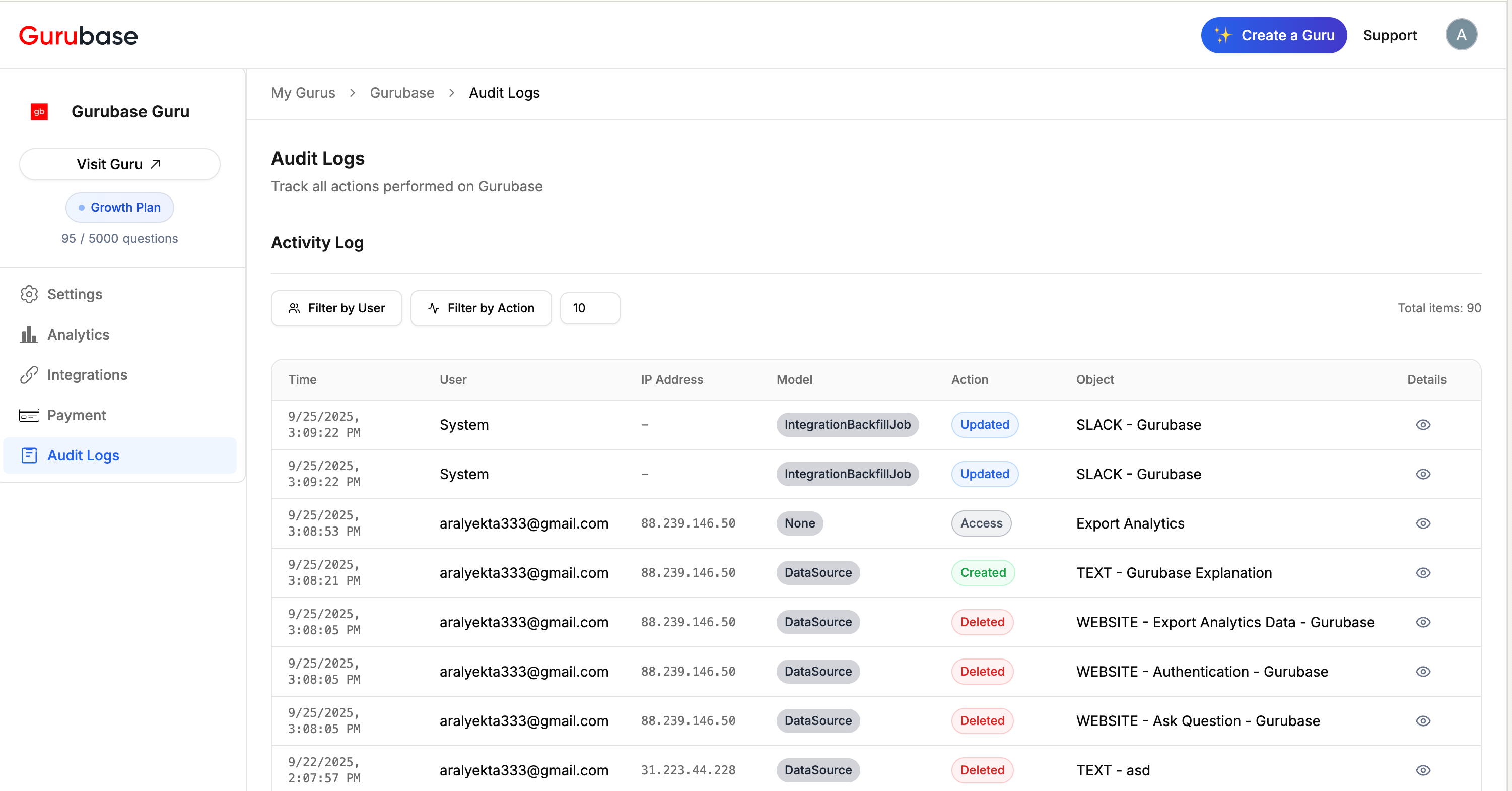
All maintainers can view audit logs for a specific guru:- Navigate to the Audit Logs section in the guru sidebar
- View the activity log table scoped to that guru
- Use filtering options to narrow down results
- Click on “Details” for individual entries to view detailed information
Global Audit Logs (Self-hosted)
Super admins in self-hosted deployments can access a global audit log view from the Settings page. This view shows logs across all gurus, including actions that are not tied to any specific guru (such as login events and user management).Filtering Options
Filters are selected from dropdown menus and require clicking the Apply button to take effect. Use the Reset button to clear all active filters.Filter by Guru (Global View Only)
- Filter logs by one or more specific gurus
- Select No guru to see actions not associated with any guru (e.g., login events, user management)
Filter by Model
- Filter by the entity type that was affected (e.g., DataSource, APIKey, GuruType, Integration)
- Useful for focusing on changes to a specific type of resource
Filter by User
- Filter logs by specific users using their email addresses
- View actions performed by individual team members
- Track user-specific activity patterns
Filter by Action Type
- Filter by the four main action types:
- Access - Viewing or accessing resources
- Created - Creating new resources
- Deleted - Removing resources
- Updated - Modifying existing resources
Export
Audit logs can be exported in three formats: CSV, Excel (XLSX), and JSON.- The exported file includes all columns visible in the table plus the detailed changes data (the same information shown when clicking the “Details” eye icon)
- The filename reflects the currently applied filters (e.g.,
audit_logs_users-2_actions-1_1711792800.xlsx) - Export is available in both the per-guru and global audit log views
- Active filters are applied to the export, so only the filtered data is included
Guru-Independent Actions (Self-hosted)
Some actions are not tied to any specific guru. These are all self-hosted-only features and only appear in the global audit log on the Settings page, or when selecting the No guru option in the guru filter:- LOGIN_SUCCESS - Successful user login
- LOGIN_FAILED - Failed login attempt (retained even without an actor, for brute-force detection)
- REGISTER - New user registration (retained even without an actor, for account provisioning trails)
- PASSWORD_CHANGED - User password change
- USER_CREATED - New user account created by admin
- USER_DELETED - User account deleted by admin
- EXPORT_AUDIT_LOGS - Audit log export from the global view (when no guru context)
Recorded Operation Types
Gurubase tracks a comprehensive range of operations across the platform:Guru Management
- UPDATE_GURU - Modifications to Guru settings and configuration
Analytics and Reporting
- EXPORT_ANALYTICS - Exporting analytics data and reports
- EXPORT_AUDIT_LOGS - Exporting audit log data
Data Source Operations
- ADD_DATASOURCE - Adding new data sources to Gurus
- DELETE_DATASOURCE - Removing data sources
- REINDEX_DATASOURCE - Reindexing existing data sources
Integration Management
- CREATE_INTEGRATION - Setting up new platform integrations
- DELETE_INTEGRATION - Removing integrations
- EDIT_INTEGRATION - Modifying integration settings (channels, etc.)
Backfill Job Operations
- CREATE_BACKFILL_JOB - Creating automated data sync jobs
- DELETE_BACKFILL_JOB - Removing backfill jobs
- UPDATE_BACKFILL_JOB - Modifying backfill job settings (user-initiated only)
- REINDEX_BACKFILL_JOB - Triggering backfill job reindexing (user-initiated only)
Automatic backfill job state changes (status transitions during scheduled syncs) are not logged. Only user-initiated job operations appear in the audit log.
Widget Management
- CREATE_WIDGET_ID - Creating website widgets
- DELETE_WIDGET_ID - Removing widgets
Team Management
- ADD_MAINTAINER - Adding new maintainers to the account
- REMOVE_MAINTAINER - Removing maintainer access
User Management (Self-hosted)
- USER_CREATED - Creating a new user account
- USER_DELETED - Deleting a user account
- ROLE_ASSIGNED / ROLE_REVOKED - Assigning or revoking guru-level roles
- PASSWORD_CHANGED - Changing a user’s password
Authentication (Self-hosted)
- LOGIN_SUCCESS - Successful login
- LOGIN_FAILED - Failed login attempt
- REGISTER - New user registration
Secret Management
- SECRET_READ - Reading a secret value
- SECRET_WRITE - Creating or updating a secret
- SECRET_DELETE - Deleting a secret
Excel Jobs
- DOWNLOAD_EXCEL_OUTPUT - Downloading an Excel job output file
Action Types
All operations are categorized into four main action types, each with distinct visual indicators:Access (Grey Badge)
- Viewing resources or data
- Exporting analytics or audit logs
- Login and authentication events
- Reindexing data sources
- Reading secrets
- Downloading Excel outputs
Created (Green Badge)
- Creating new resources (data sources, integrations, widgets)
- User registration
- Admin creating new user accounts
Updated (Blue Badge)
- Modifying existing settings and configurations
- Assigning or revoking roles
- Changing passwords
- Updating secrets
Deleted (Red Badge)
- Removing resources (data sources, integrations, widgets)
- Deleting user accounts
- Deleting secrets
Detailed Log Information
Basic Information
Each audit log entry includes:- Timestamp: Exact date and time of the action
- User: Email address of the user who performed the action
- IP Address: Source IP address for the operation
- Action: The type of operation performed
- Object: The specific resource that was affected
Field Change Tracking
For update operations, audit logs show detailed before/after comparisons: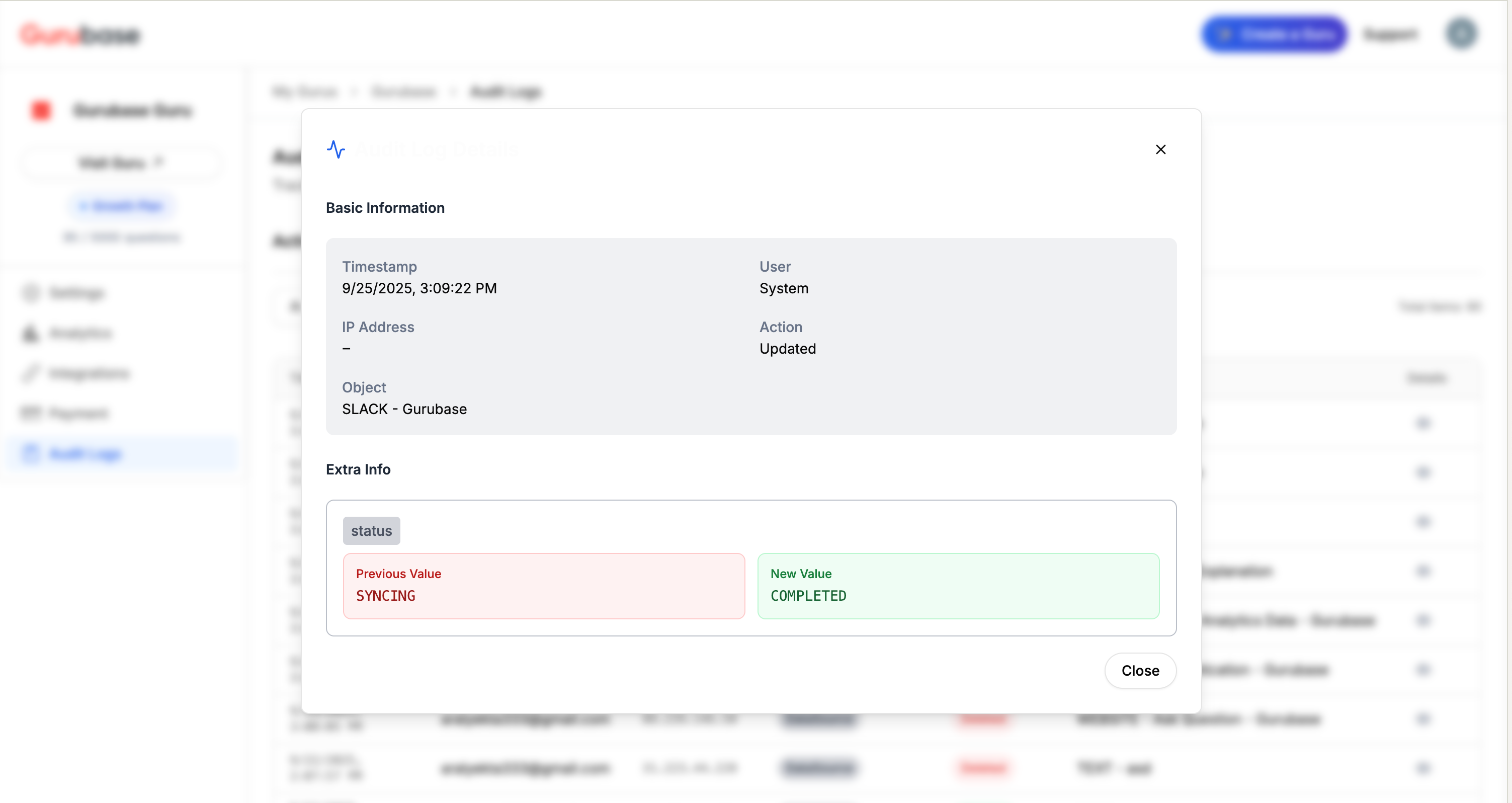
- Previous Value: The state before the change
- New Value: The state after the change
- Field Names: Specific fields that were modified
Operation Details
Additional context is provided for complex operations: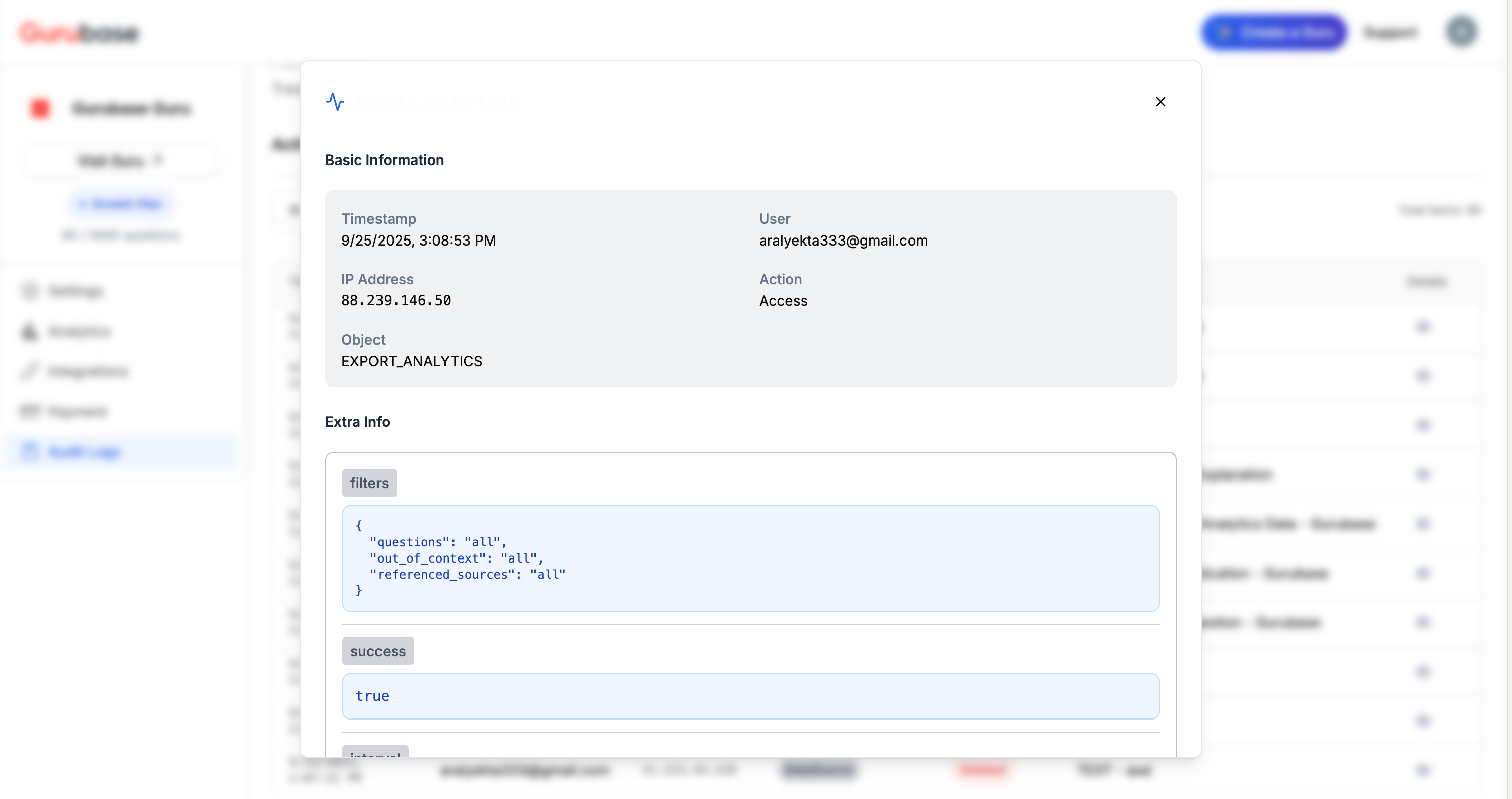
- Filters Applied: Parameters used in operations
- Success Status: Whether the operation completed successfully
- Additional Context: Extra information relevant to the operation
User-Attributable Logging
Audit logs only record actions that can be tied to an authenticated user. Each entry includes the user’s email and source IP address. Background and system-initiated operations (scheduled syncs, automated reindexing, background backfill jobs) are not logged. These operations are tracked in the system’s own job records rather than the audit log, which keeps the log focused on activity an operator or auditor can meaningfully review. The only entries retained without an actor areLOGIN_FAILED and REGISTER, which by definition have no authenticated user but are critical for security review (brute-force detection and account provisioning trails respectively).
Auto-Cleanup
Audit logs older than 3 months (90 days) are automatically deleted on a daily basis. This applies to both the optimized audit log entries and the underlying log records. No configuration is needed — the cleanup runs automatically.Best Practices
Regular Monitoring
- Review audit logs regularly to identify patterns
- Monitor for unusual activity or unauthorized access
- Track integration health and sync status
Filtering and Search
- Use the guru filter (global view) to focus on a specific guru or guru-independent actions
- Use model and action type filters to narrow down results
- Use user filters to focus on specific team members
- Remember to click Apply after selecting filters
Exporting for Compliance
- Export audit logs regularly for compliance records
- Use filters before exporting to get targeted reports
- JSON format preserves the full structure of change details
Security Compliance
- Audit logs help meet compliance requirements
- Track data access and modifications
- Monitor maintainer access changes
Next Steps
Analytics Guide
Learn how to analyze your Guru’s usage patterns
Create Your First Guru
Understand how to manage maintainers and permissions