Turn your Salesforce Knowledge Base into AI knowledge. Import published articles so your Guru can answer questions based on your existing customer-facing documentation.

Why Ingest Salesforce Data?

Knowledge Base Sync

Import your Salesforce Knowledge articles as AI knowledge sources

SOQL-Powered Selection

Use SOQL WHERE clauses to import specific articles

Images Included

Embedded and attached images are indexed too

Auto-Sync

Backfill jobs automatically import new articles on a schedule

What Gets Indexed

Content TypeWhat’s Included
ArticlesFull article content from Knowledge Base
ImagesEmbedded images and attached files
MetadataTitle, summary, language, publish status
Self-hosted: This integration is in beta for selected users. Cloud: Available to all users.

Setup

1

Get Salesforce Security Token

  1. Go to your Salesforce security token settings:
https://{your-subdomain}.lightning.force.com/lightning/settings/personal/ResetApiToken/home
  1. Click Reset Security Token
  2. Check your email for the new security token
2

Navigate to Salesforce Integration

Go to Gurubase Dashboard → Select your Guru → IntegrationsIngestionsSalesforce
3

Connect Your Salesforce

Fill in the connection details:
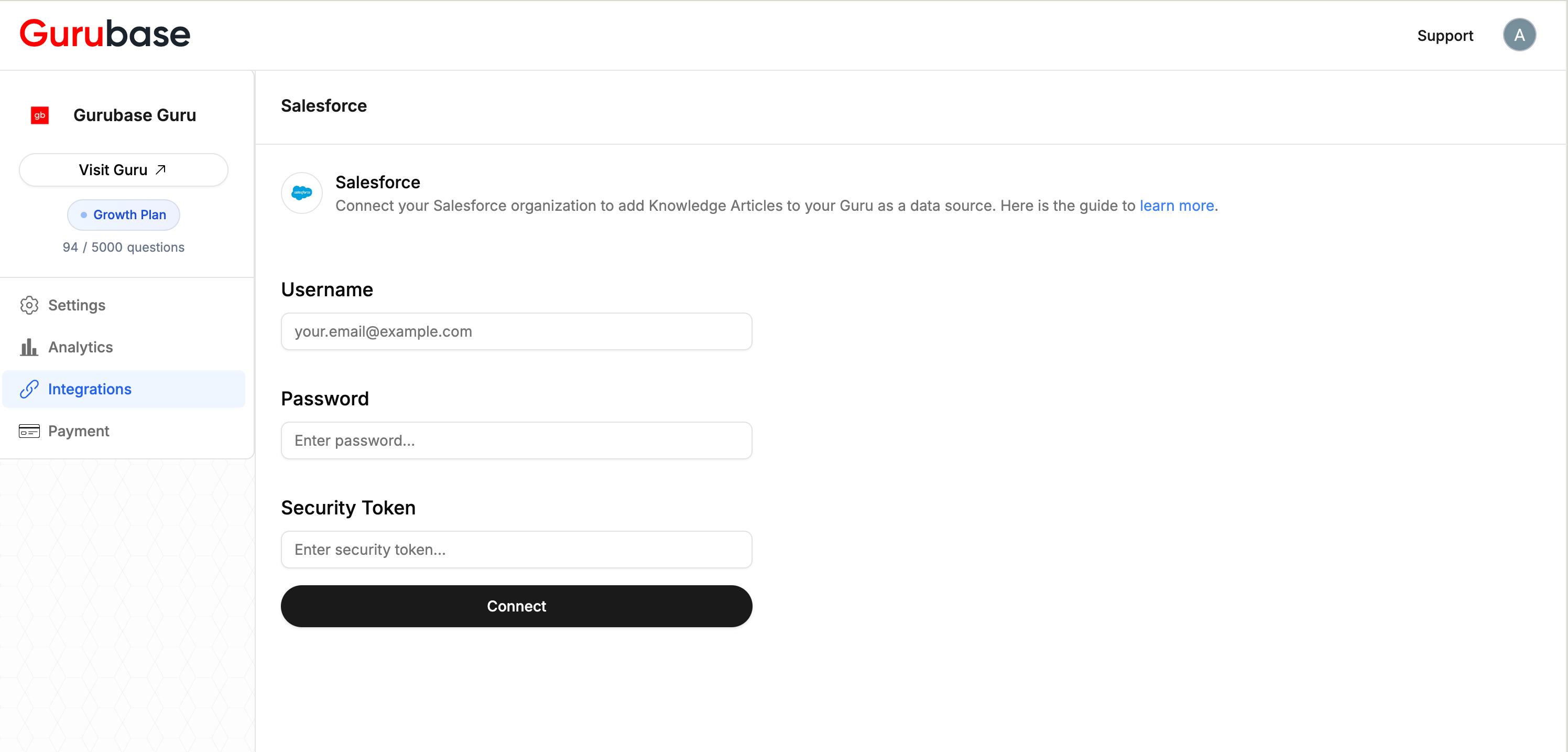
FieldValue
UsernameYour Salesforce username
PasswordYour Salesforce password
Security TokenThe token from your email
Salesforce Integration Fields
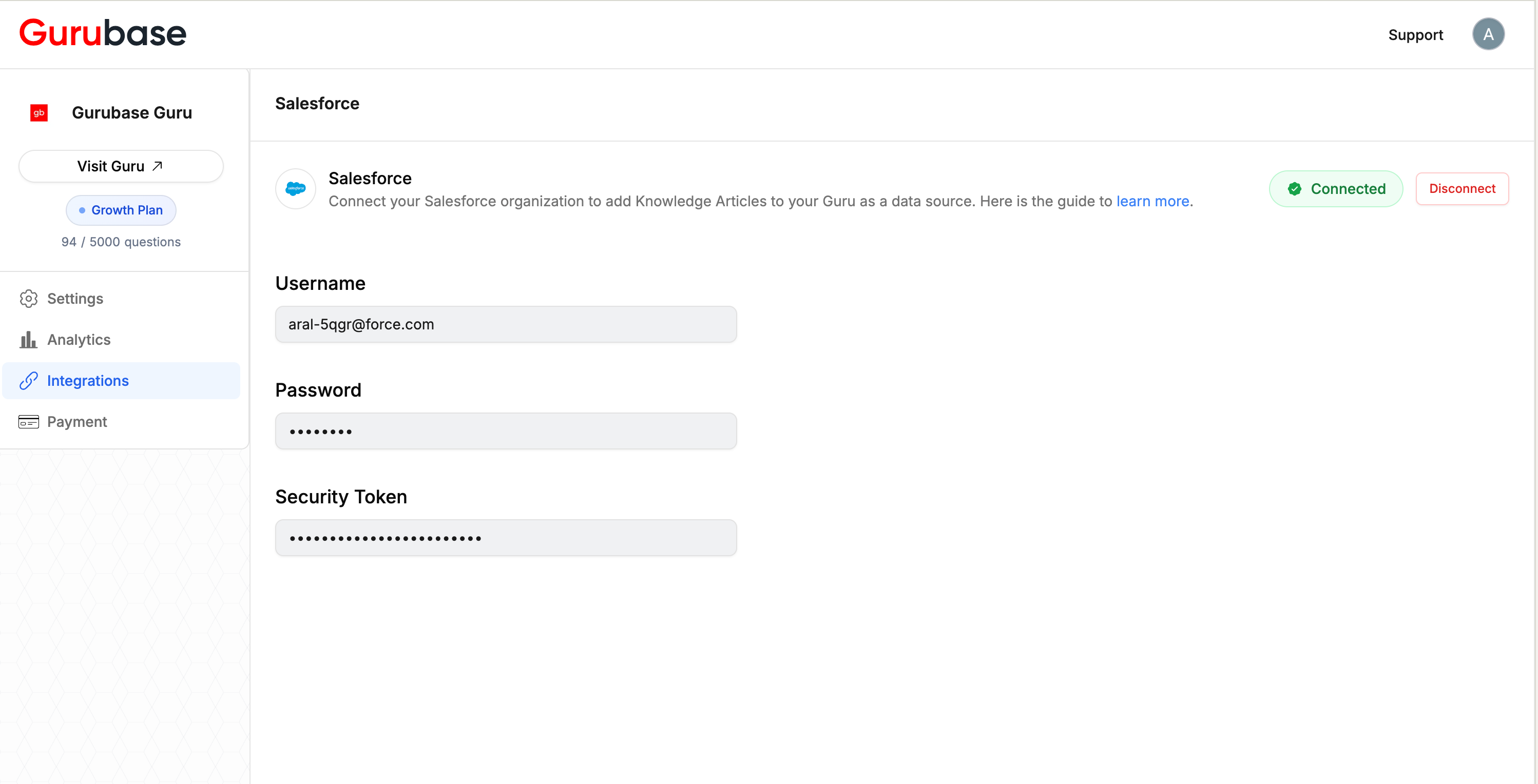
After connecting:
Salesforce Integration Success

Adding Salesforce Content

After connecting, you can import articles in two ways:
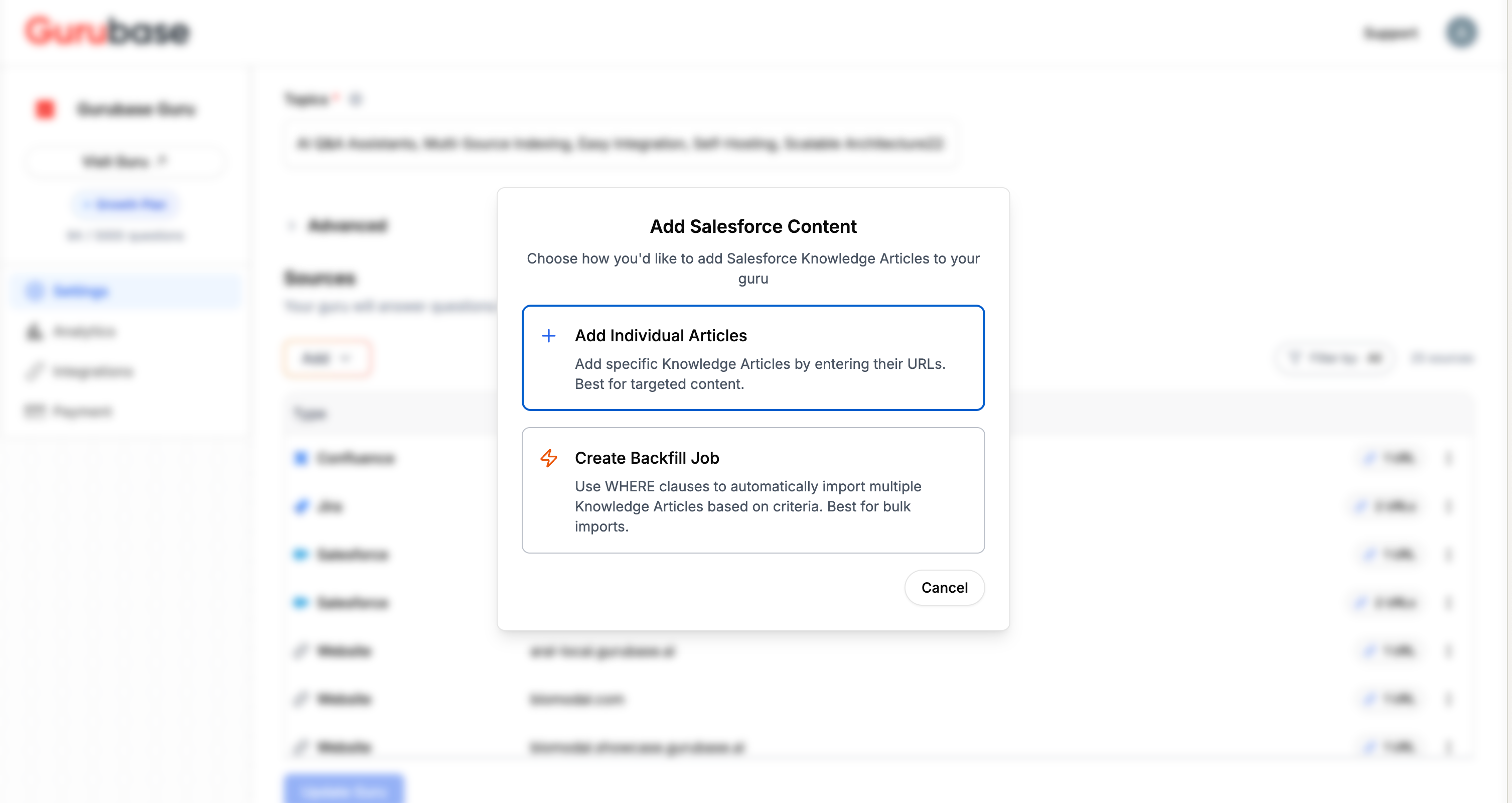
Add Salesforce Content Modal

Option 1: Add Individual Articles

Best for importing specific articles by URL or SOQL filter.
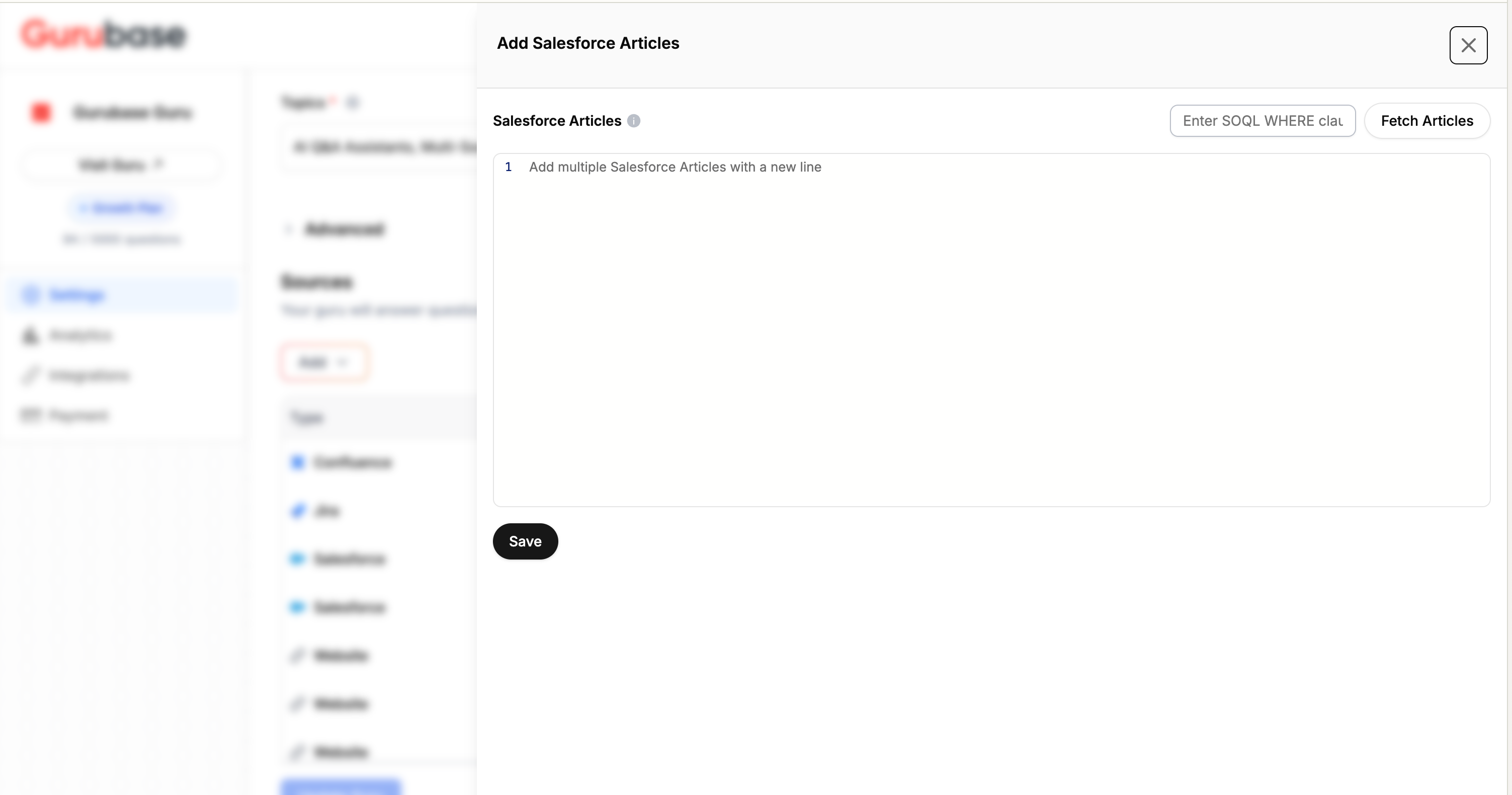
Add Individual Salesforce Articles
SettingDescription
URLsEnter article URLs, one per line
SOQL WHERE ClauseFilter articles with SOQL criteria

Option 2: Create Backfill Job

Best for bulk imports and automatic ongoing sync.
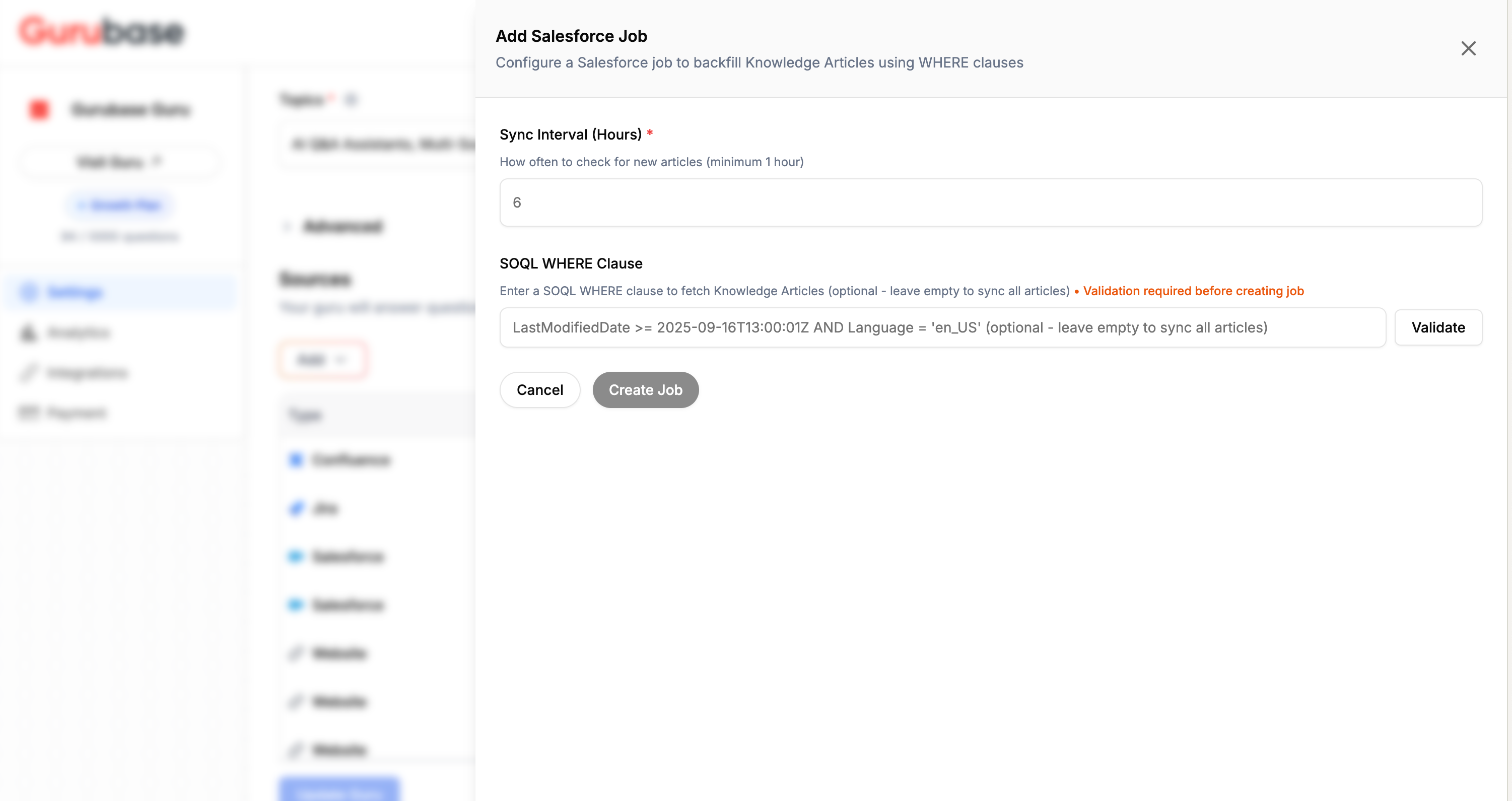
Create Salesforce Backfill Job
SettingDescription
SOQL WHERE ClauseQuery to select which articles to import
Sync IntervalHow often to check for new articles (minimum 1 hour)
Sync NowManually trigger an immediate sync

Example SOQL WHERE Clauses

-- Only published articles
PublishStatus = 'Online'

-- English articles only
Language = 'en_US'

-- Recently modified articles
LastModifiedDate >= 2024-01-01T00:00:00Z

-- Articles with specific keywords in title
Title LIKE '%API%'

-- Combined filters
PublishStatus = 'Online' AND Language = 'en_US'
Use backfill jobs with PublishStatus = 'Online' to automatically sync all published articles.

Knowledge Base Requirements

Gurubase queries the Knowledge__kav table with these fields:
FieldDescription
IdUnique article identifier
TitleArticle title
SummaryArticle summary
LastModifiedDateLast modification date
UrlNameURL-friendly name
PublishStatusPublication status
LanguageArticle language
ArticleBody__cMain article content
If your Knowledge Base uses custom field names, contact us for assistance with custom field mapping.

Viewing Indexed Content

Imported articles appear as individual sources in your Guru’s data sources list. You can:
  • View the exact content that was indexed
  • Remove specific articles
  • Check when content was last synced

Next Steps