

Introduction
Integrate Gurubase with Microsoft Teams to chat with your Guru in personal chats, group chats, and team channels. Unlike Slack and Discord (which use a single OAuth flow), Teams requires you to register your own bot in the Microsoft developer portal and paste its credentials into Gurubase. This guide walks through the full process step by step.Each Gurubase guru needs its own Microsoft Teams bot. You cannot reuse one bot across multiple gurus — the bot id is how Gurubase routes incoming messages back to the correct guru. If you want a bot per product / per team, repeat this guide once per guru, each time creating a fresh bot in
dev.teams.microsoft.com.Setup
1
Open the Microsoft Teams Developer Portal
Go to dev.teams.microsoft.com and sign in with the Microsoft account that owns the Teams tenant you’ll deploy the bot to. You’ll land on the Apps screen.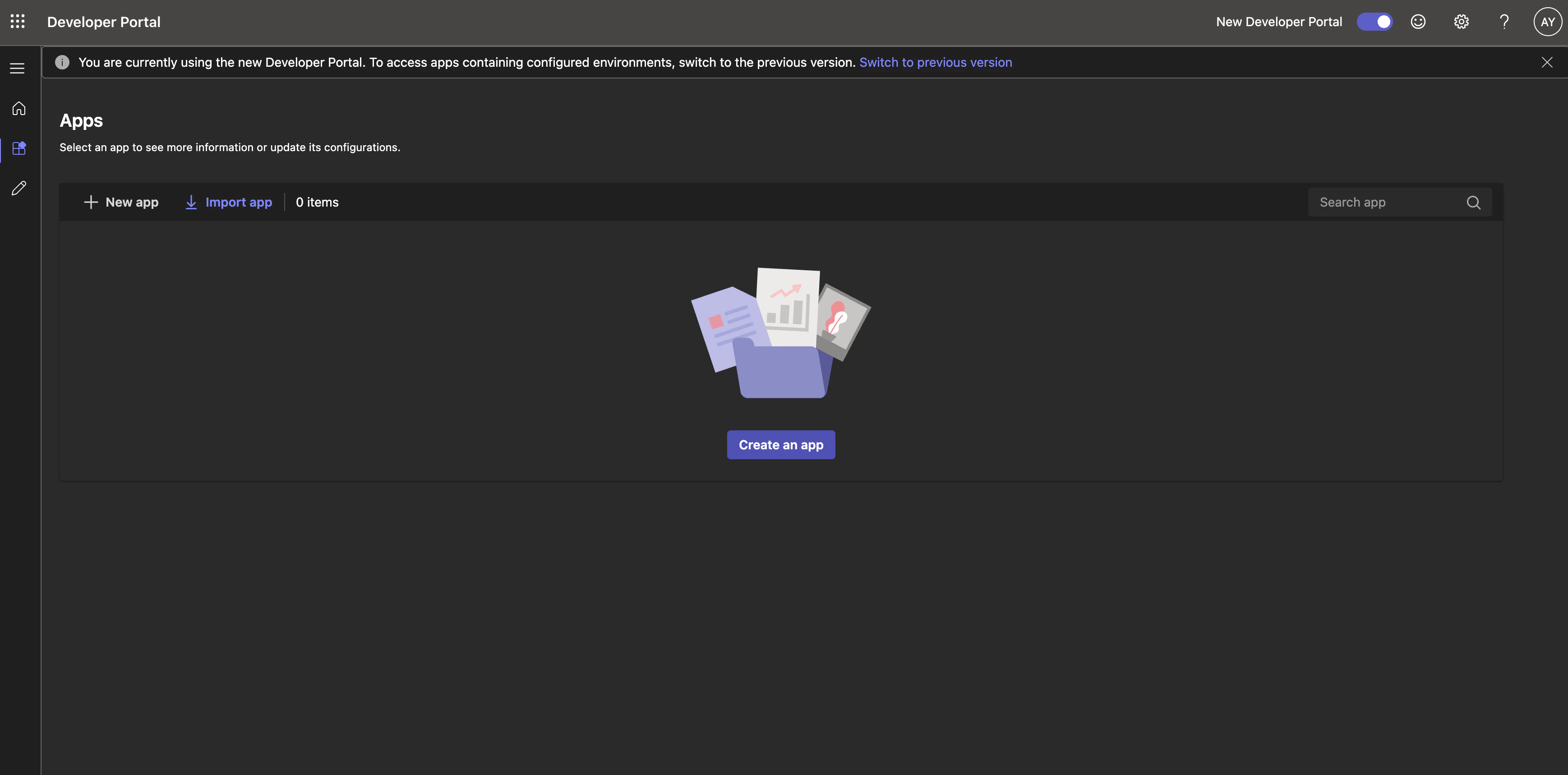
Gurubase), and create it.2
Add a Bot capability
In the left sidebar of your new app, open App features.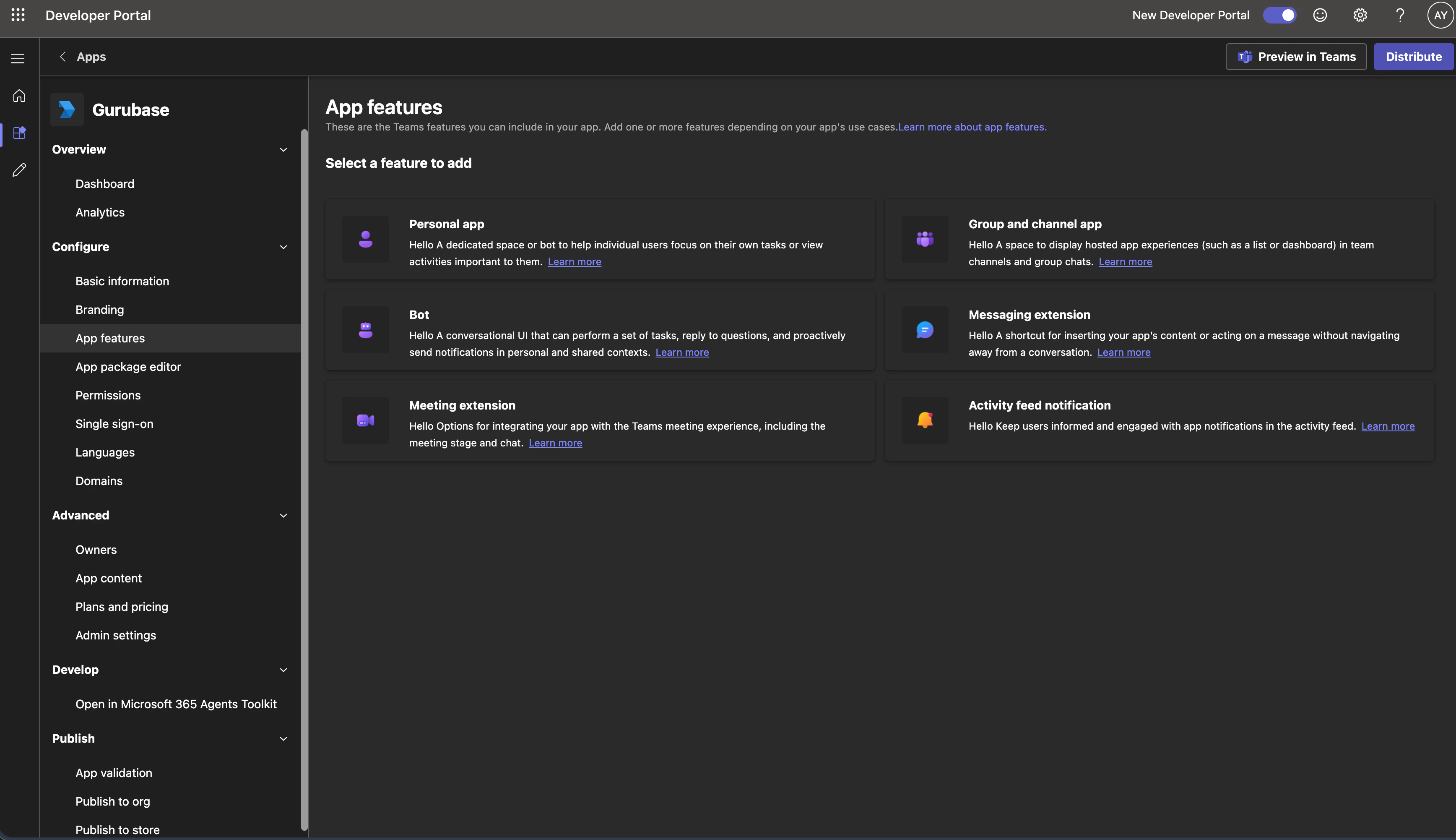
3
Create a new bot
On the Bot configuration screen, click Create a new bot. Leave the capability checkboxes and scopes alone for now — you’ll configure them in Step 6 after the bot exists.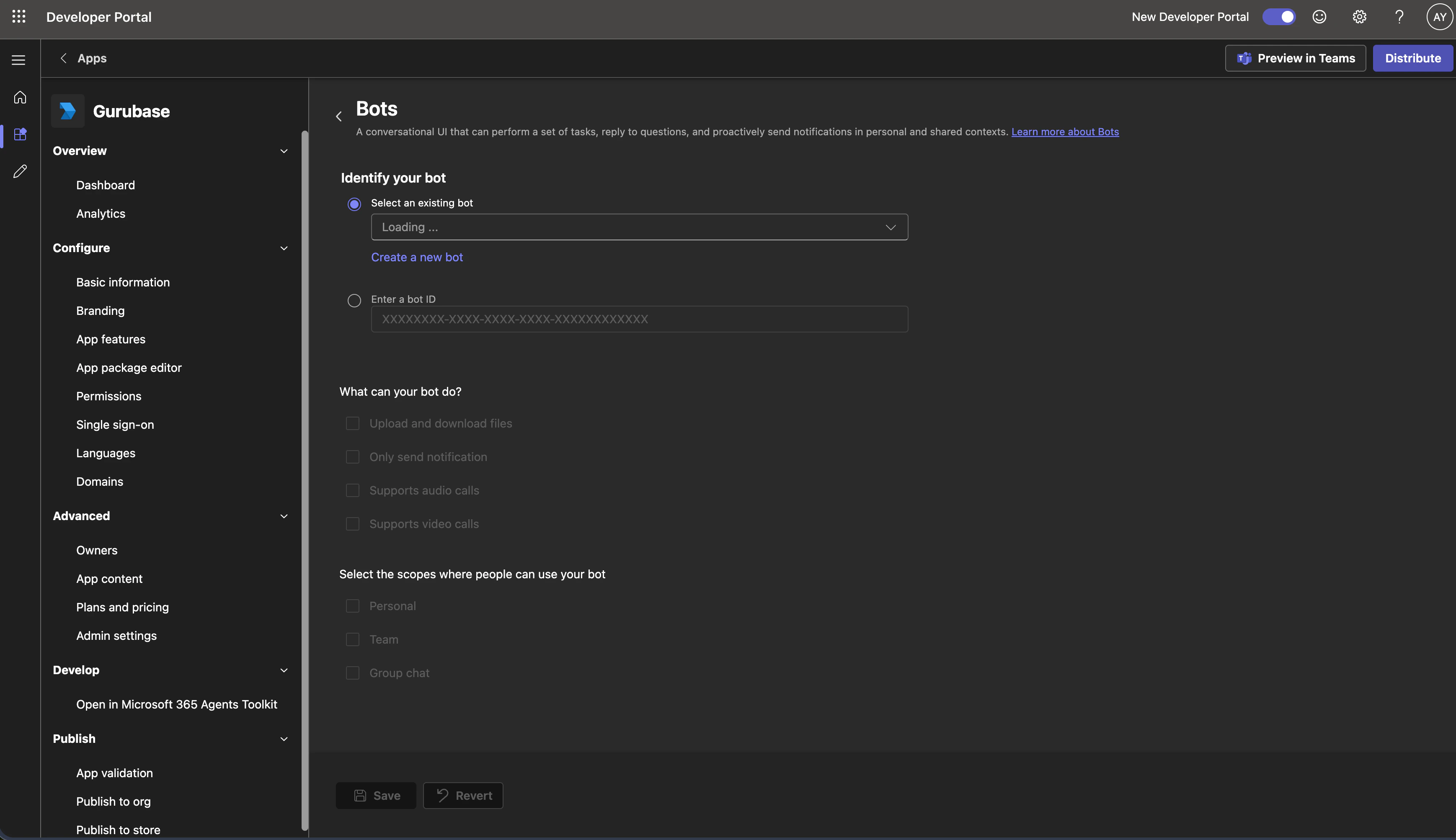
https://dev.teams.microsoft.com/tools/bots/<BOT_ID>/configure. The GUID in the URL is your Bot ID — copy it somewhere safe.4
Set the messaging endpoint
On the bot configuration page you’ve been redirected to: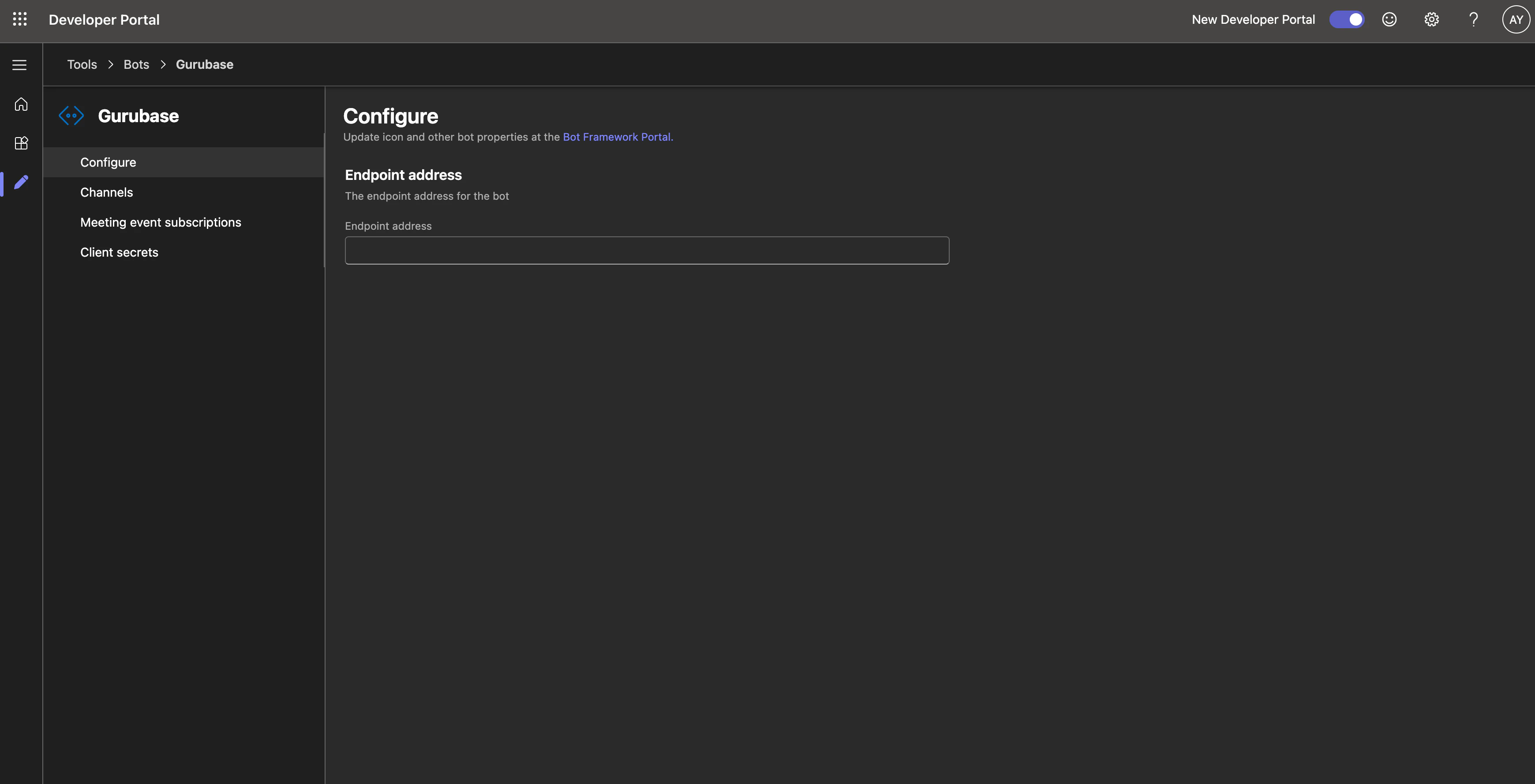
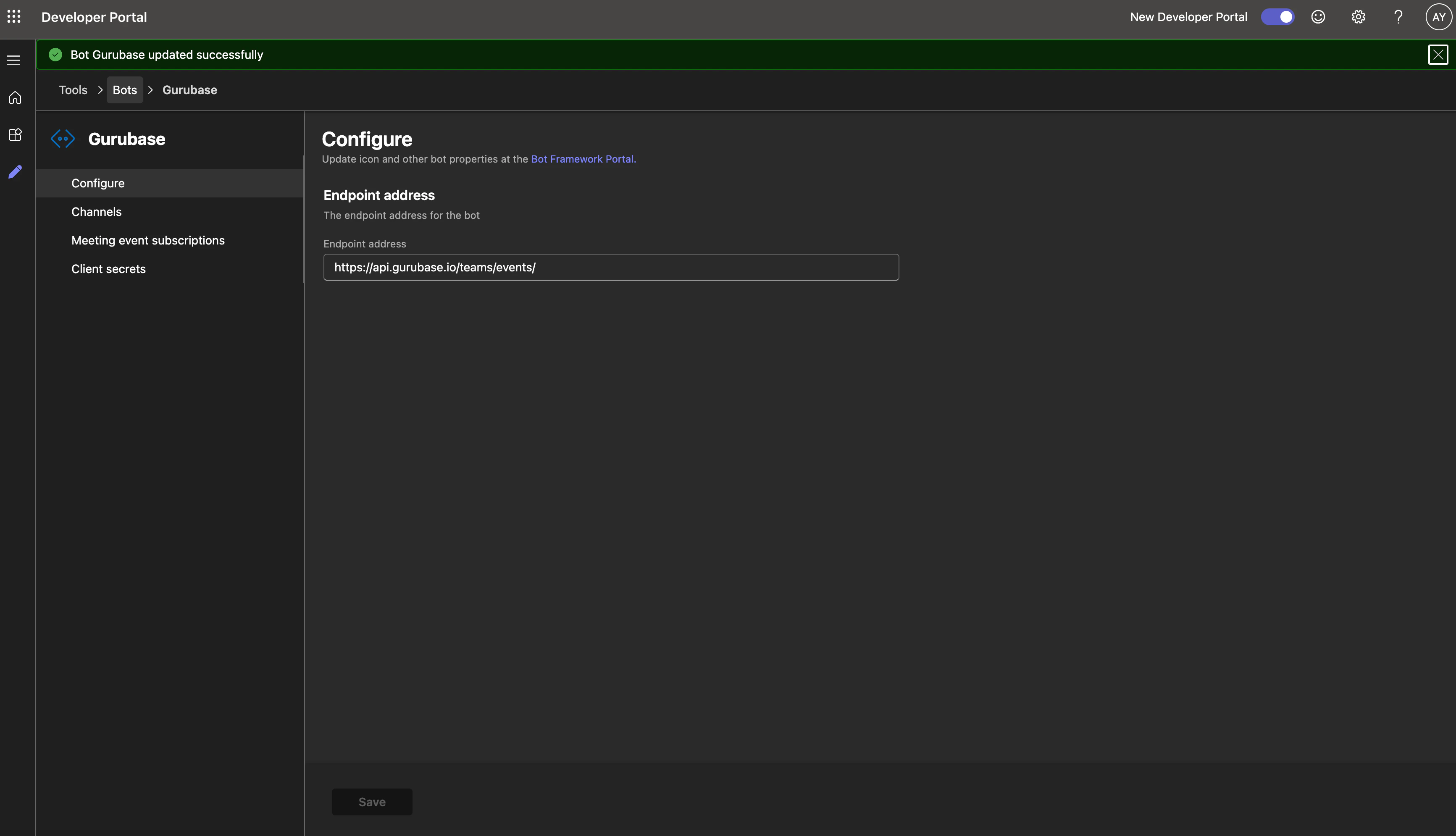
Self-hosted users: Teams delivers every message to Gurubase as a webhook, so the messaging endpoint must be reachable from Microsoft’s servers on the public internet. A
localhost or private LAN address (192.168.x.x, 10.x.x.x, etc.) will not work. You only need to expose your Gurubase frontend publicly — requests are routed internally from there to the backend. If your frontend isn’t already public, front it with a tunnel like ngrok or Cloudflare Tunnel and replace the host prefix before /api/... in the Gurubase-provided messaging endpoint with your tunnel URL.5
Generate a client secret
In the same bot configuration sidebar, open Client secrets → Create your first client secret.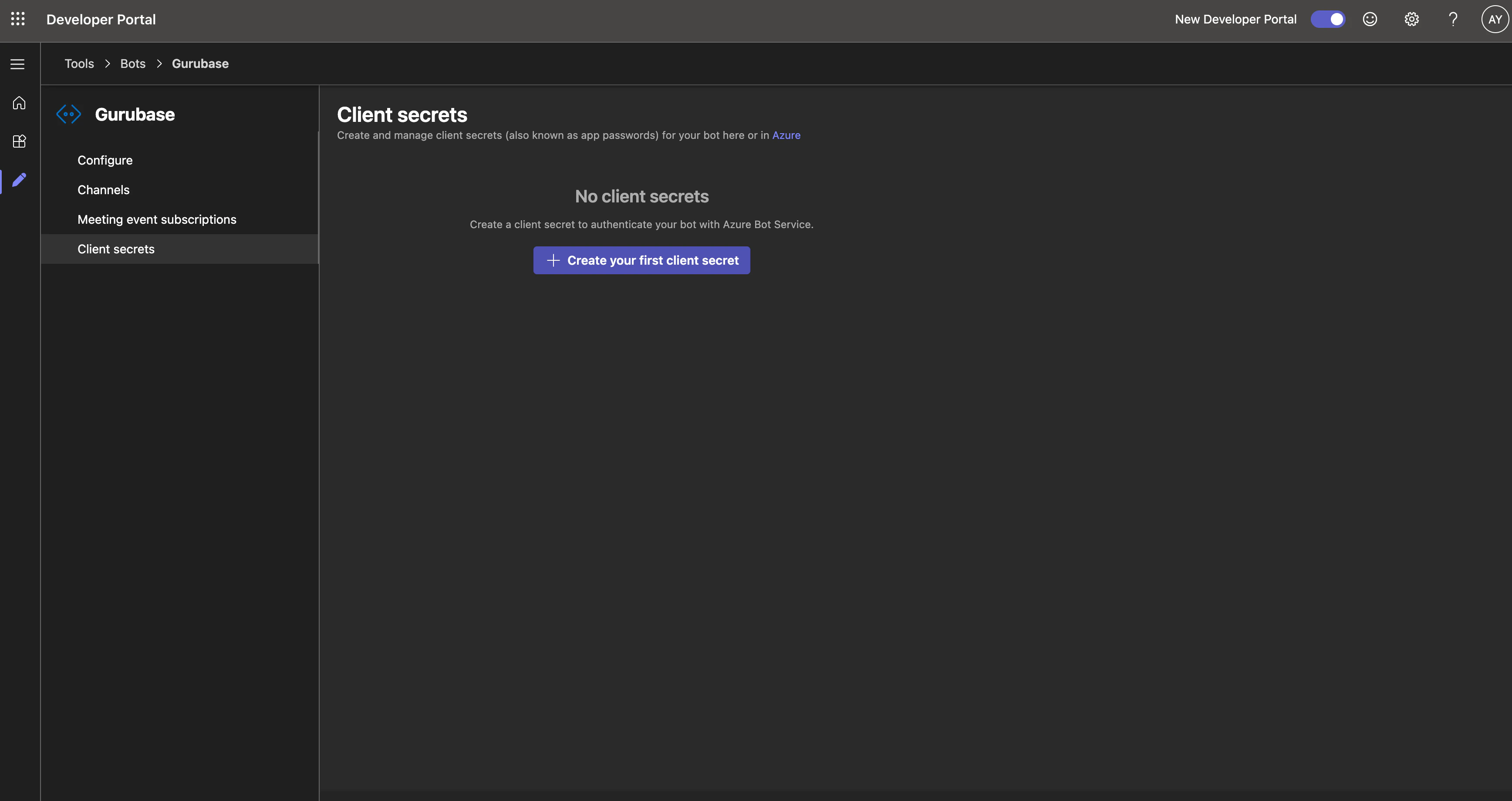
6
Link the bot back to your app
Go back to App features → Bot in your app and refresh the page. The Select an existing bot dropdown will now list the bot you just created — pick it.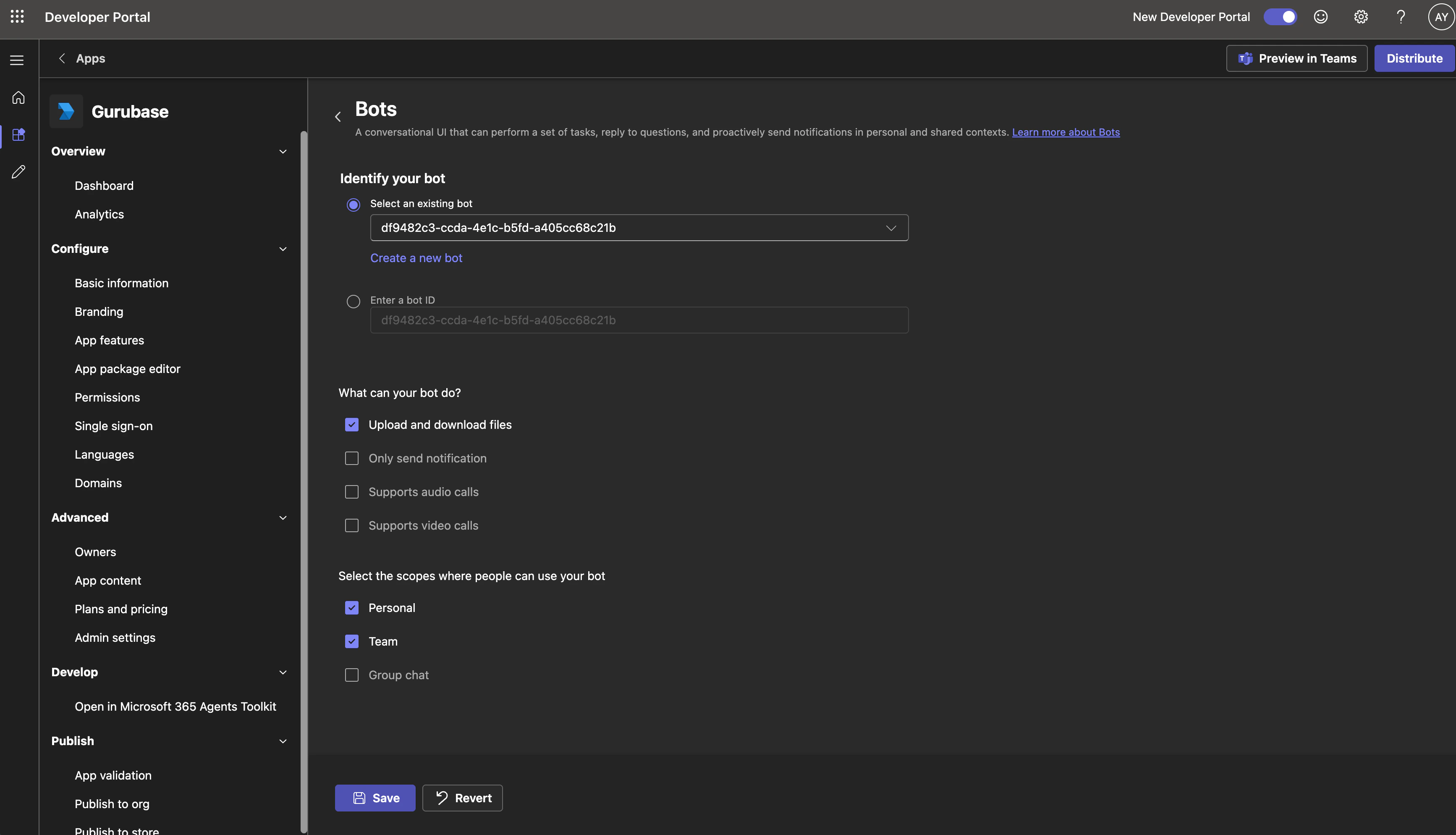
- Under What can your bot do?, check Upload and download files (required for PDF / log / img attachments in 1-1 DMs).
- Under Select the scopes where people can use your bot, check Personal and Team.
7
Fill in Basic information
Open Basic information in the left sidebar. Fill in the required fields (descriptions, version, developer info, privacy URL, terms URL). All fields marked with 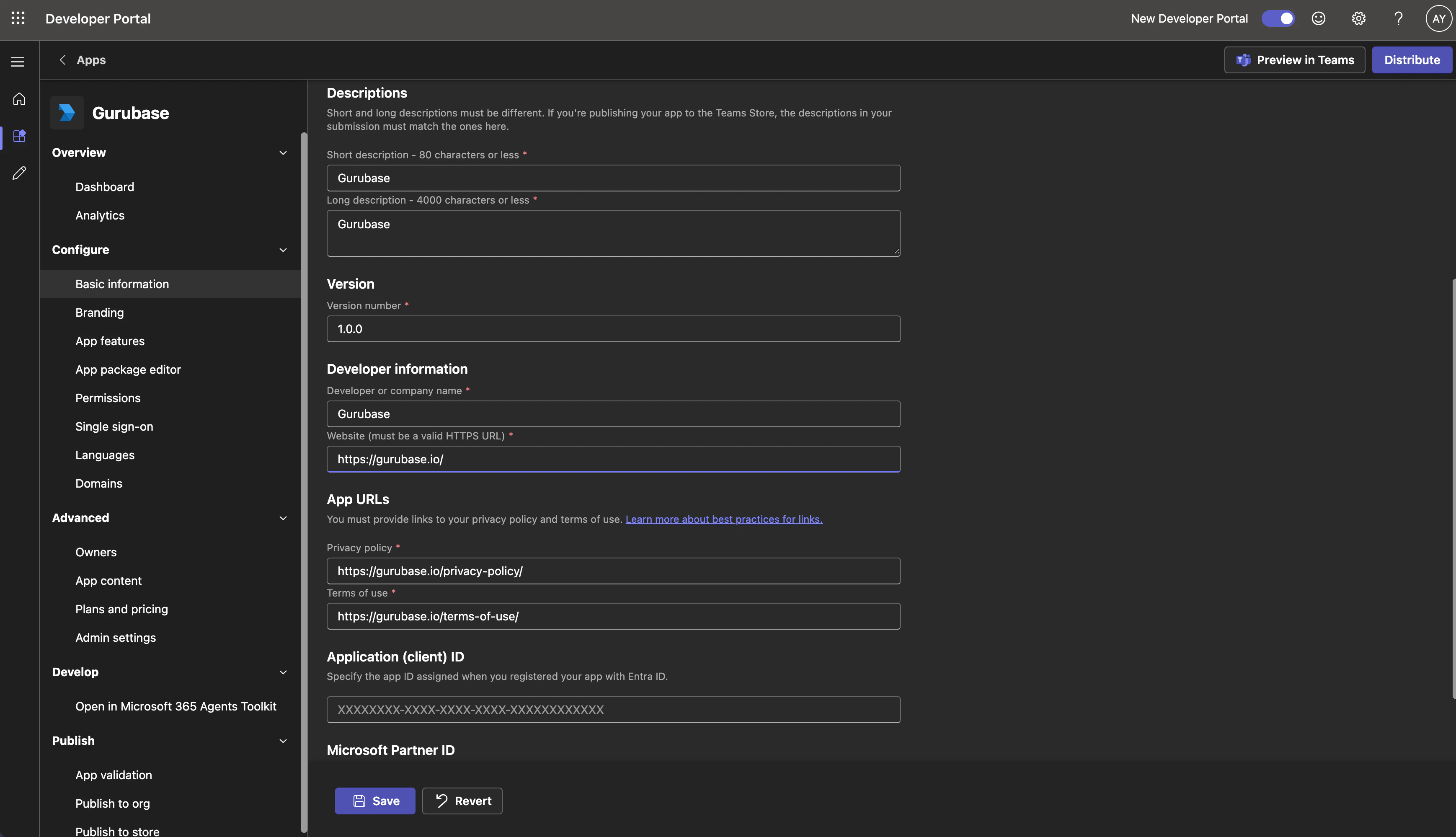
* must be set before the app can be published.8
Downgrade manifest version to 1.19
Open App package editor in the left sidebar and click manifest.json.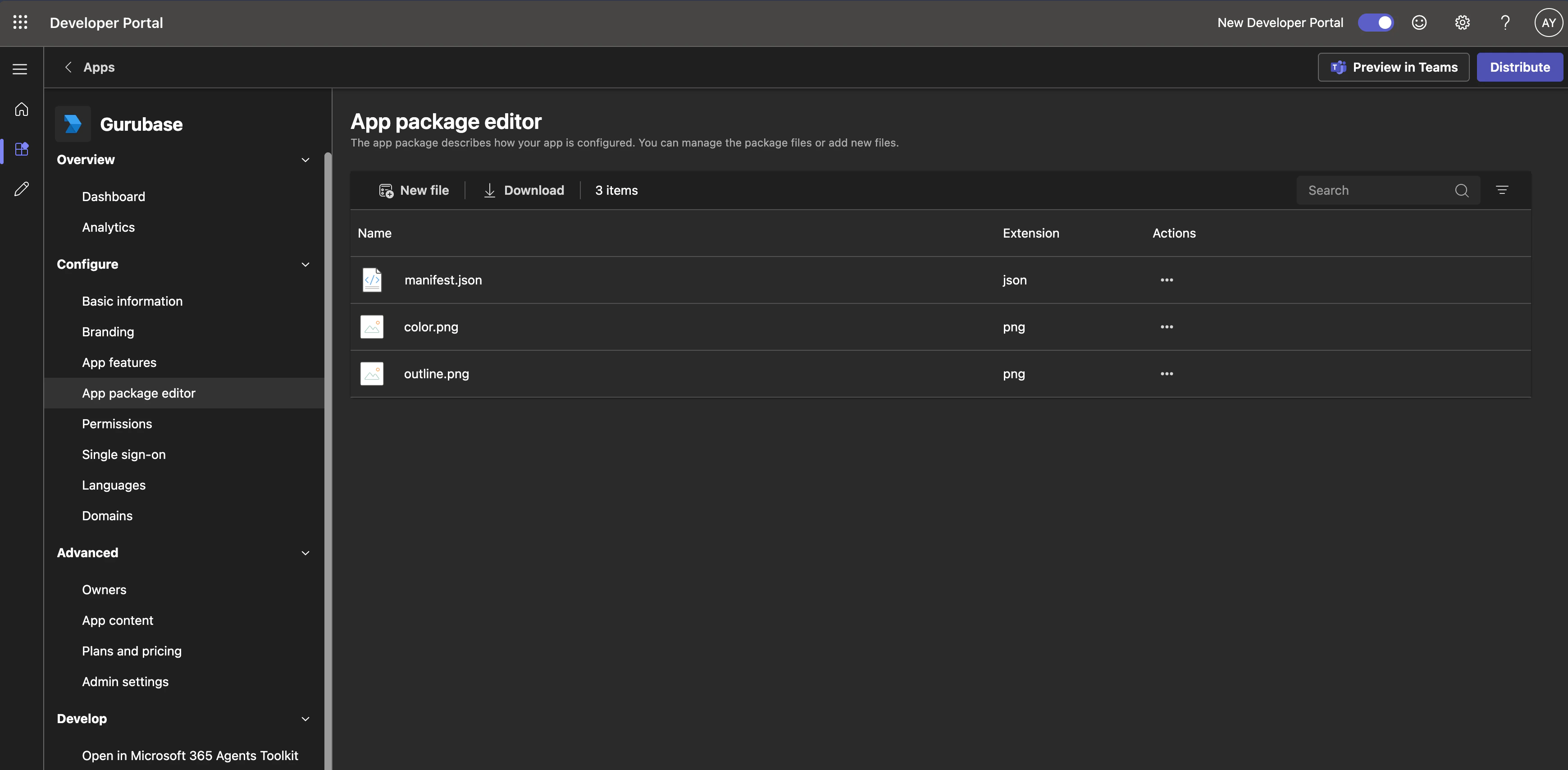
Manifest schema 1.25+ requires a
supportsChannelFeatures declaration for the team scope, which the dev portal UI doesn’t expose yet. Downgrading to 1.19 sidesteps this check without changing any functionality you care about.9
Publish to your organization
Open Publish → Publish to your org in the left sidebar and click Get started (or Publish your app).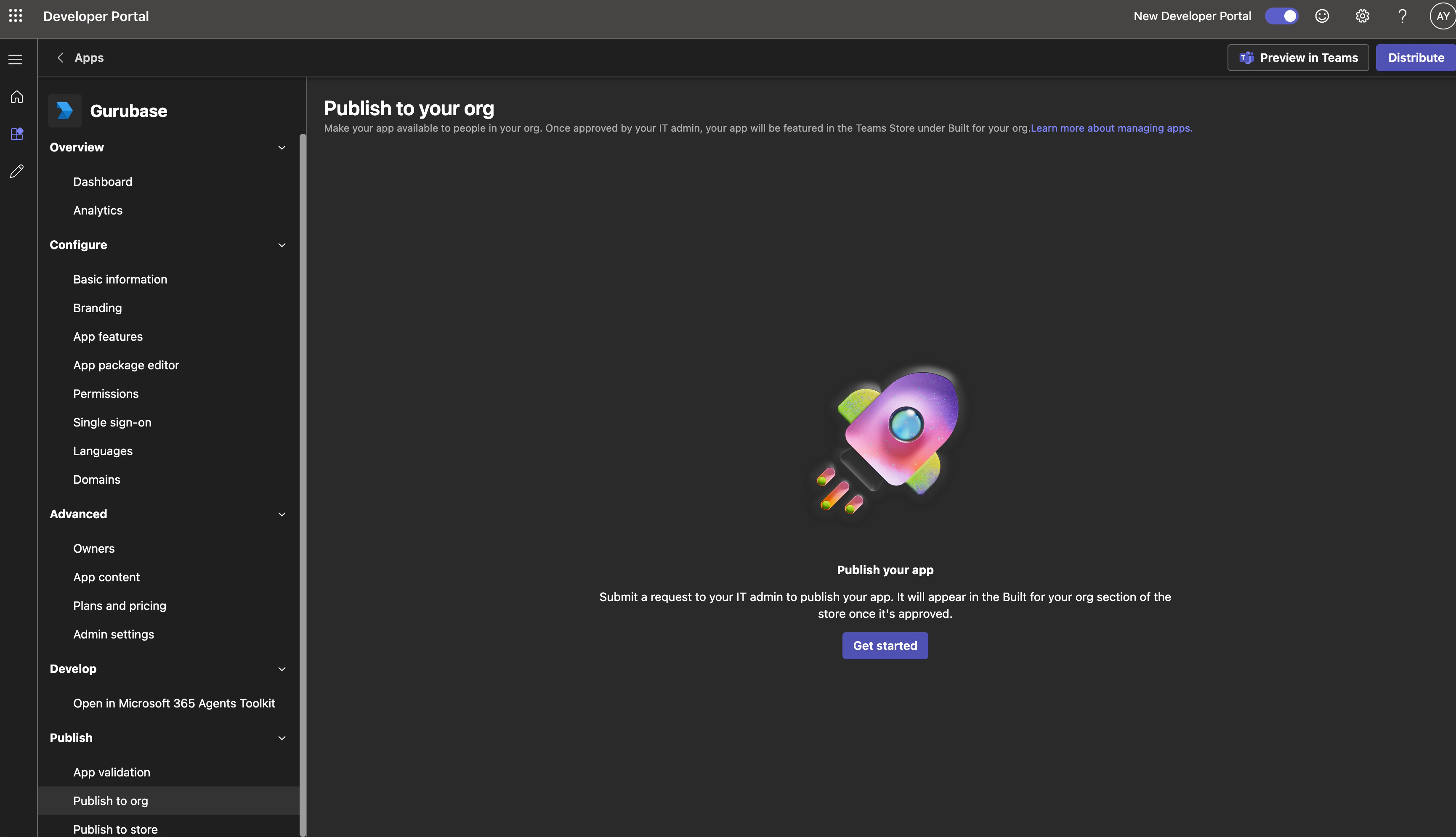
10
Approve the app as a Teams admin
Go to the Teams admin center → Manage apps, search for your app, and click it.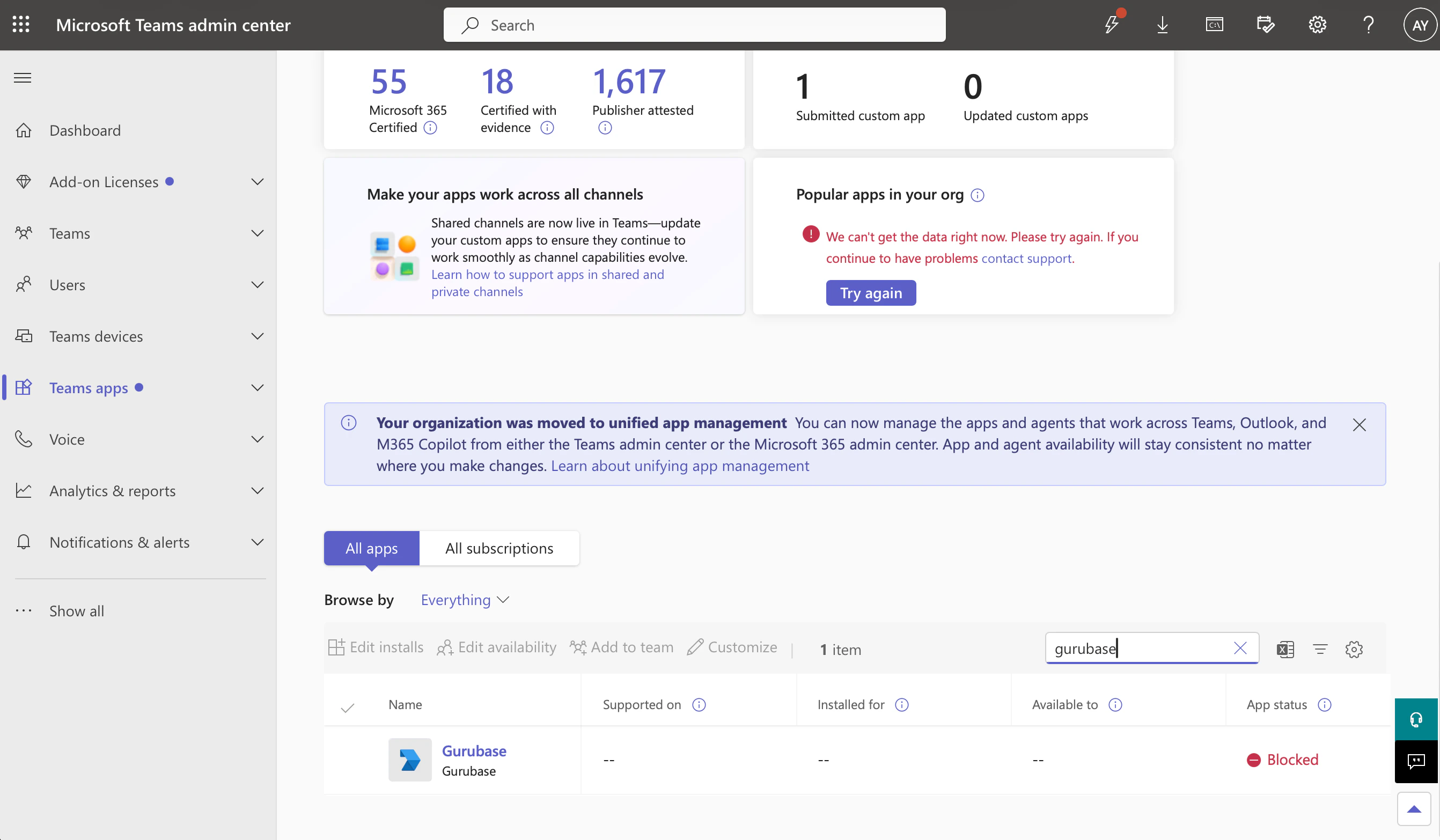
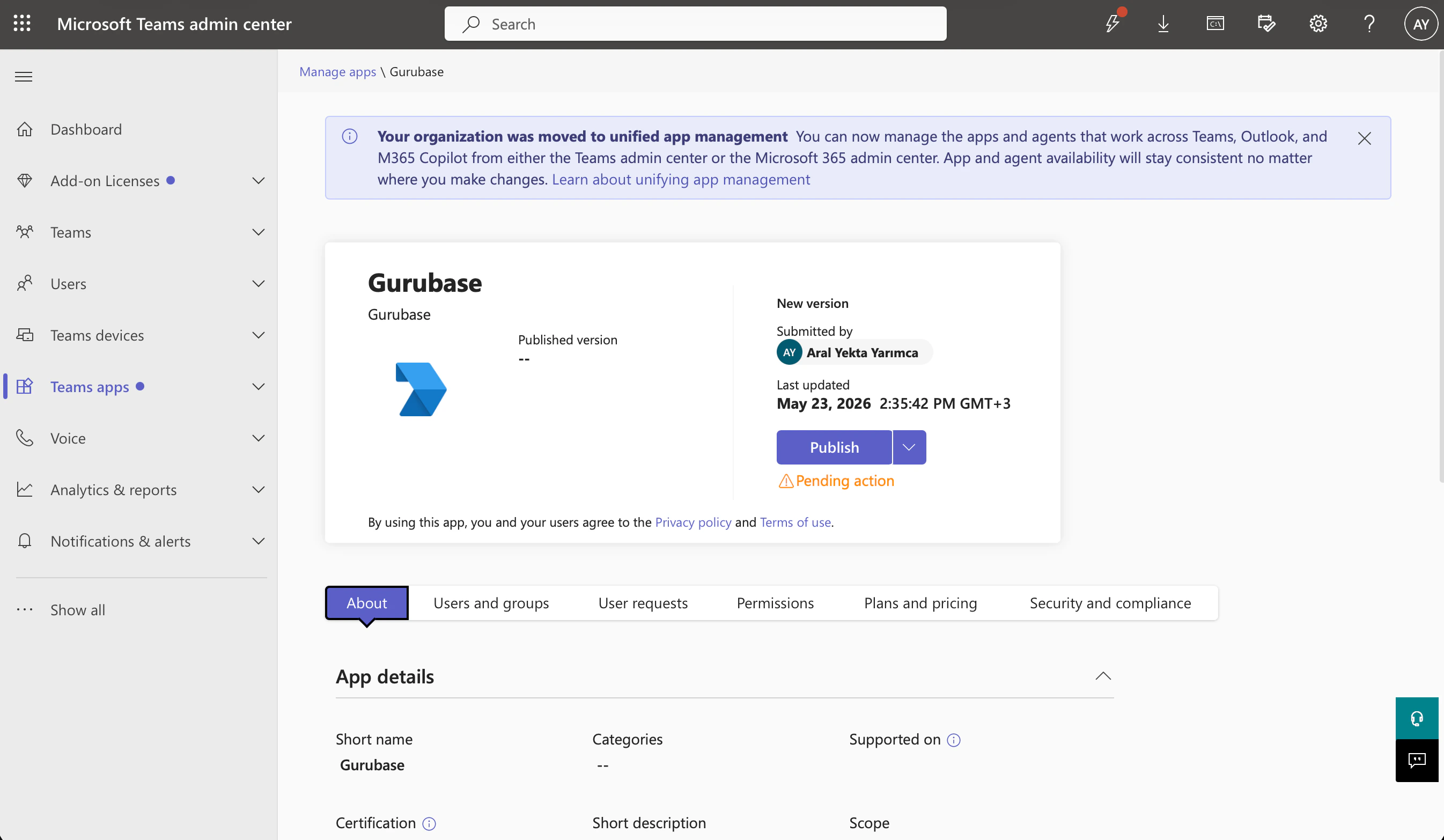
The approval can take a few minutes to propagate. If you don’t see your app in the admin center immediately, refresh after a minute.
11
Pin the app for users
Pinning the app for your org installs it for everyone automatically — without this step users won’t see the bot in their Teams sidebar. Go to Setup policies → click Global (Org-wide default).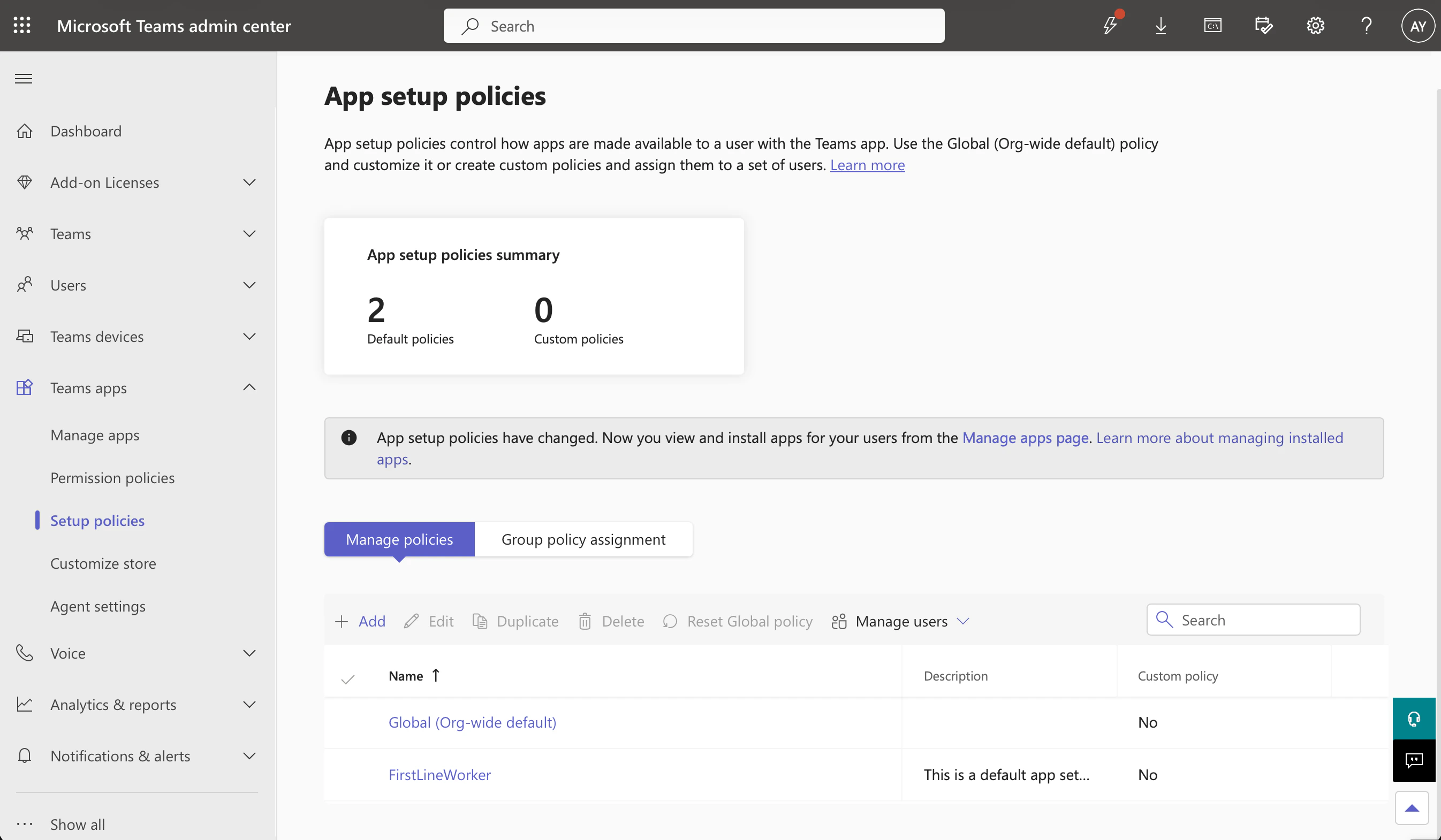
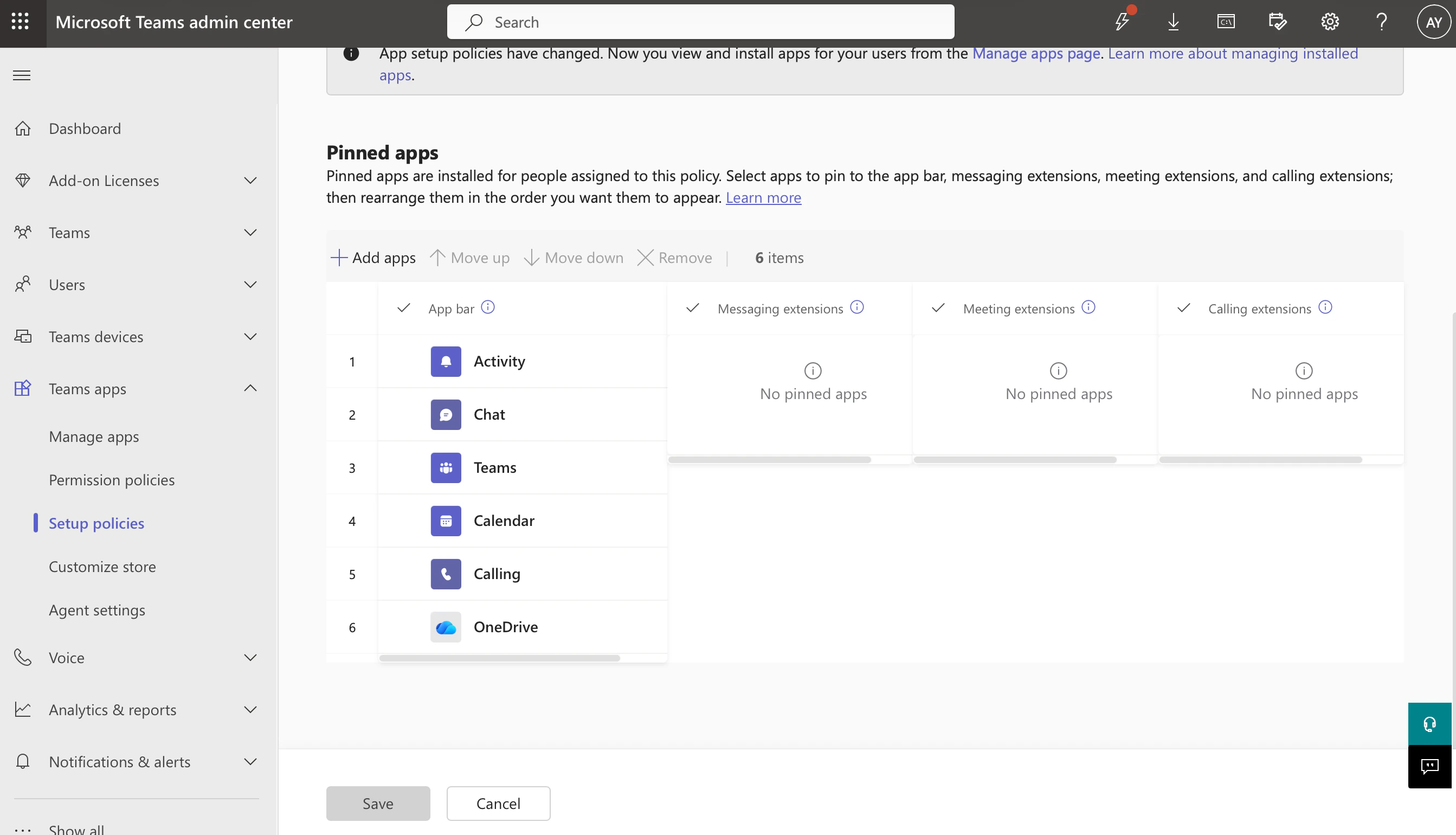
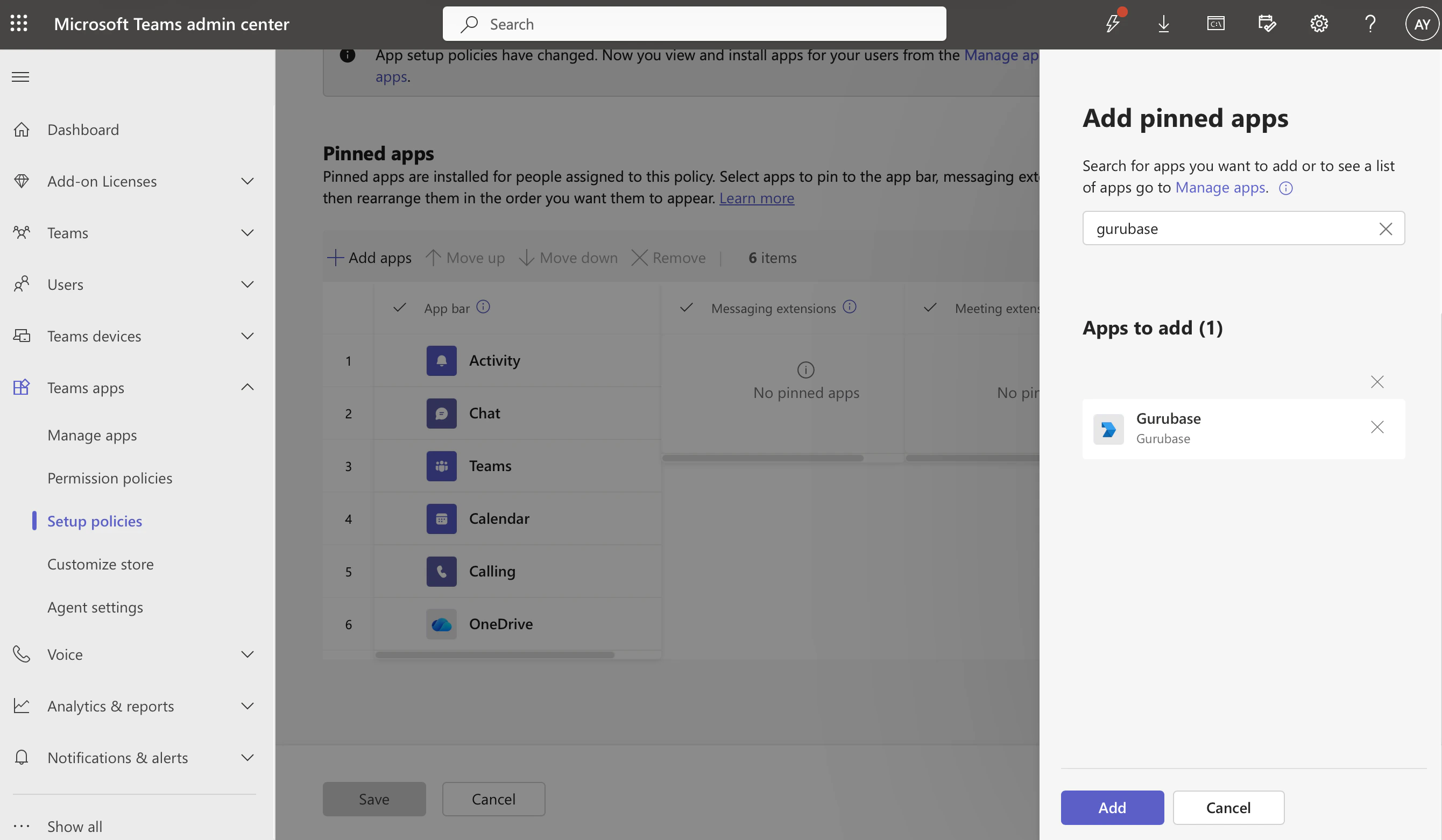
12
Find your Tenant ID
Open the Microsoft Entra admin center → Overview and copy the Tenant ID (a GUID).
13
Connect in Gurubase
Go to Gurubase Dashboard → select your Guru → Integrations → Deployments → Microsoft Teams.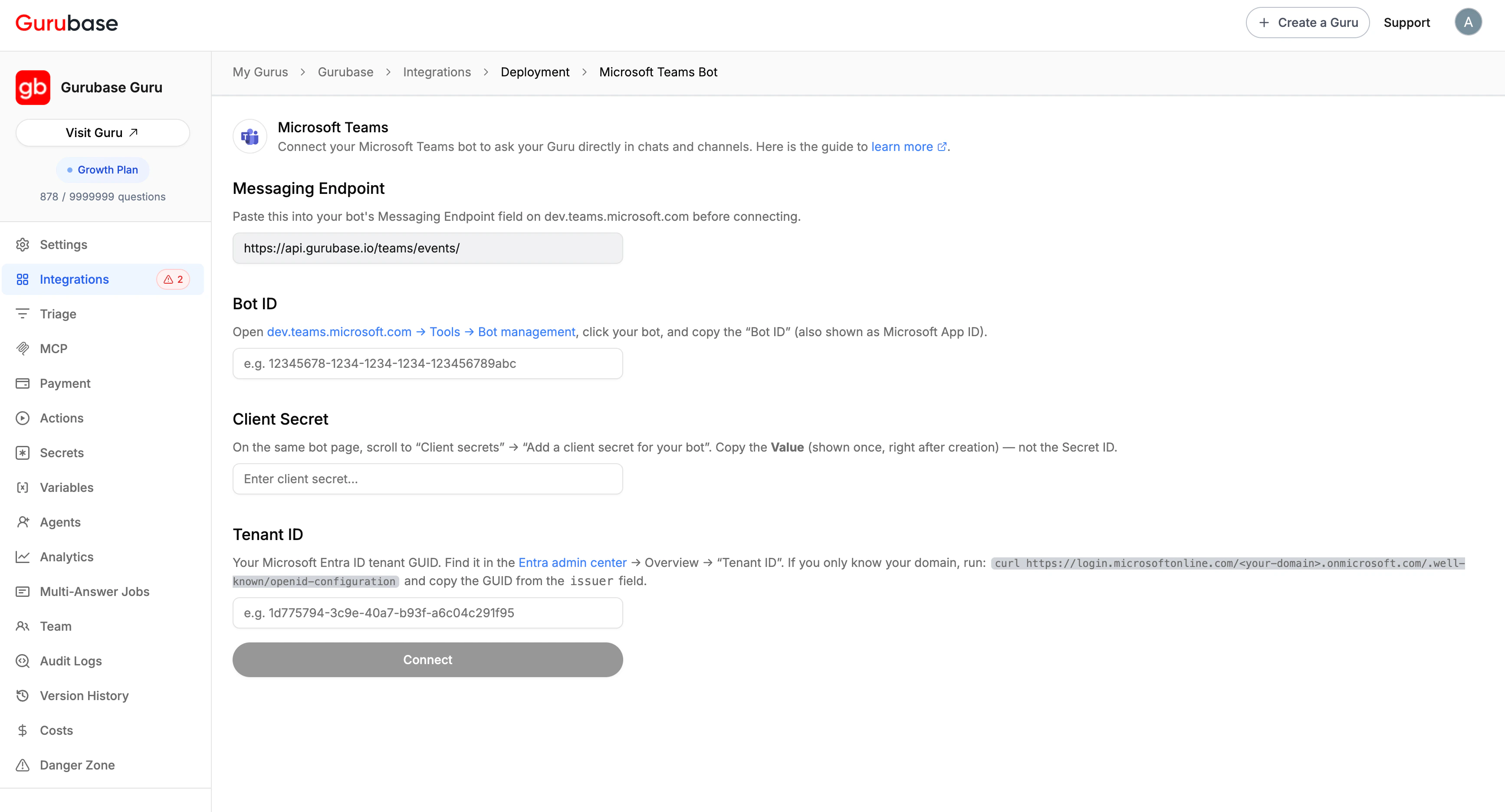
Click Connect. Gurubase will validate the credentials by acquiring a Bot Framework token; if everything is correct you’ll see masked values on the page.
14
Add the bot to each team (for channel use)
Org-wide pinning (Step 11) installs the bot into every user’s personal sidebar so 1-1 chats work out of the box. But for the bot to reply in a team channel, the bot also needs to be installed in that specific team — pinning alone doesn’t do this. Repeat the steps below once per team where you want channel support: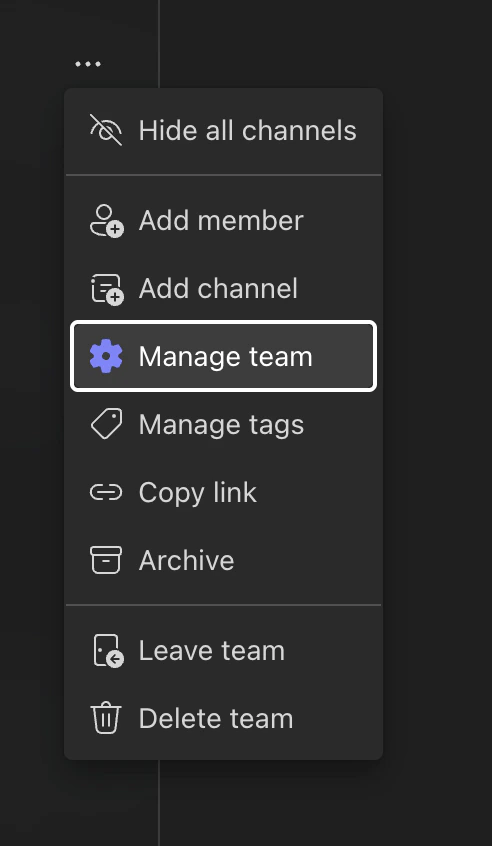
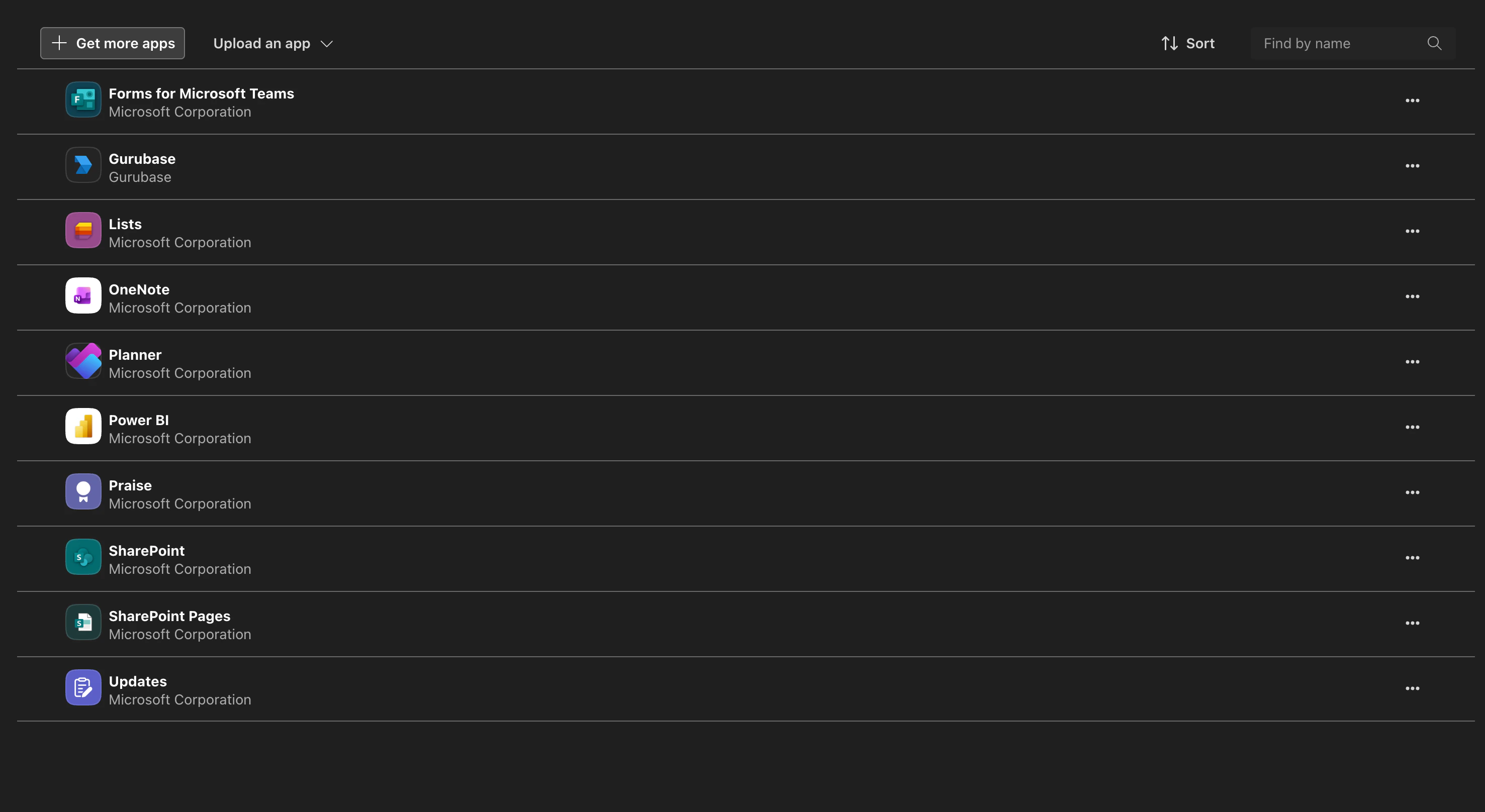
- In Teams, hover over a team in the sidebar, click the … menu next to its name, and select Manage team.
- Open the Apps tab in the team settings.
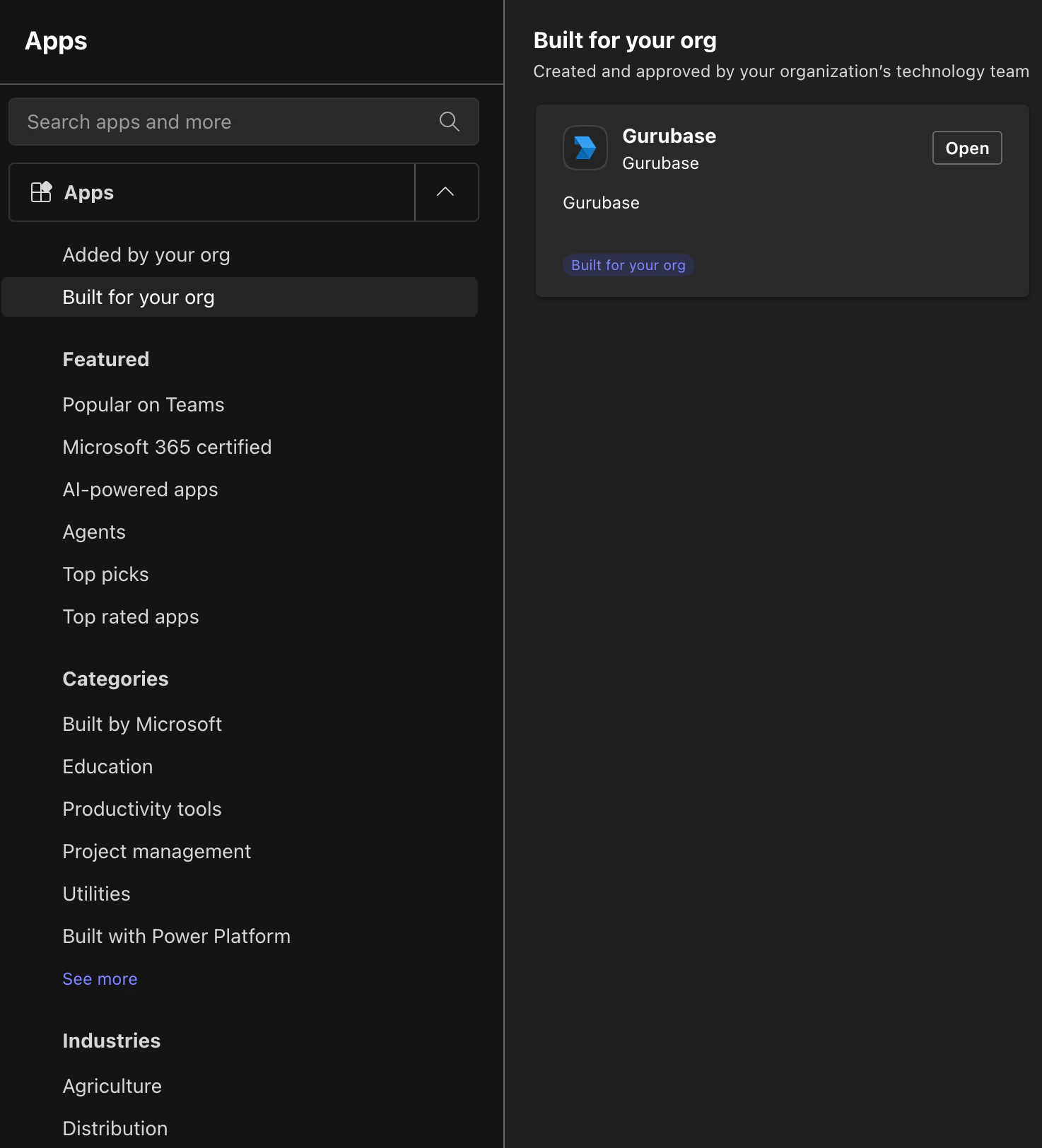
- Click Get more apps in the top-right.
- In the apps store sidebar, click Built for your org. Your Gurubase bot will appear in the panel on the right.
- Click the bot, then Add to install it into the team.
@mentioned in any channel of that team without further per-channel configuration.15
Try it
In Microsoft Teams, find your bot under Apps (sidebar, bottom-left) or simply start a new chat with the bot’s name.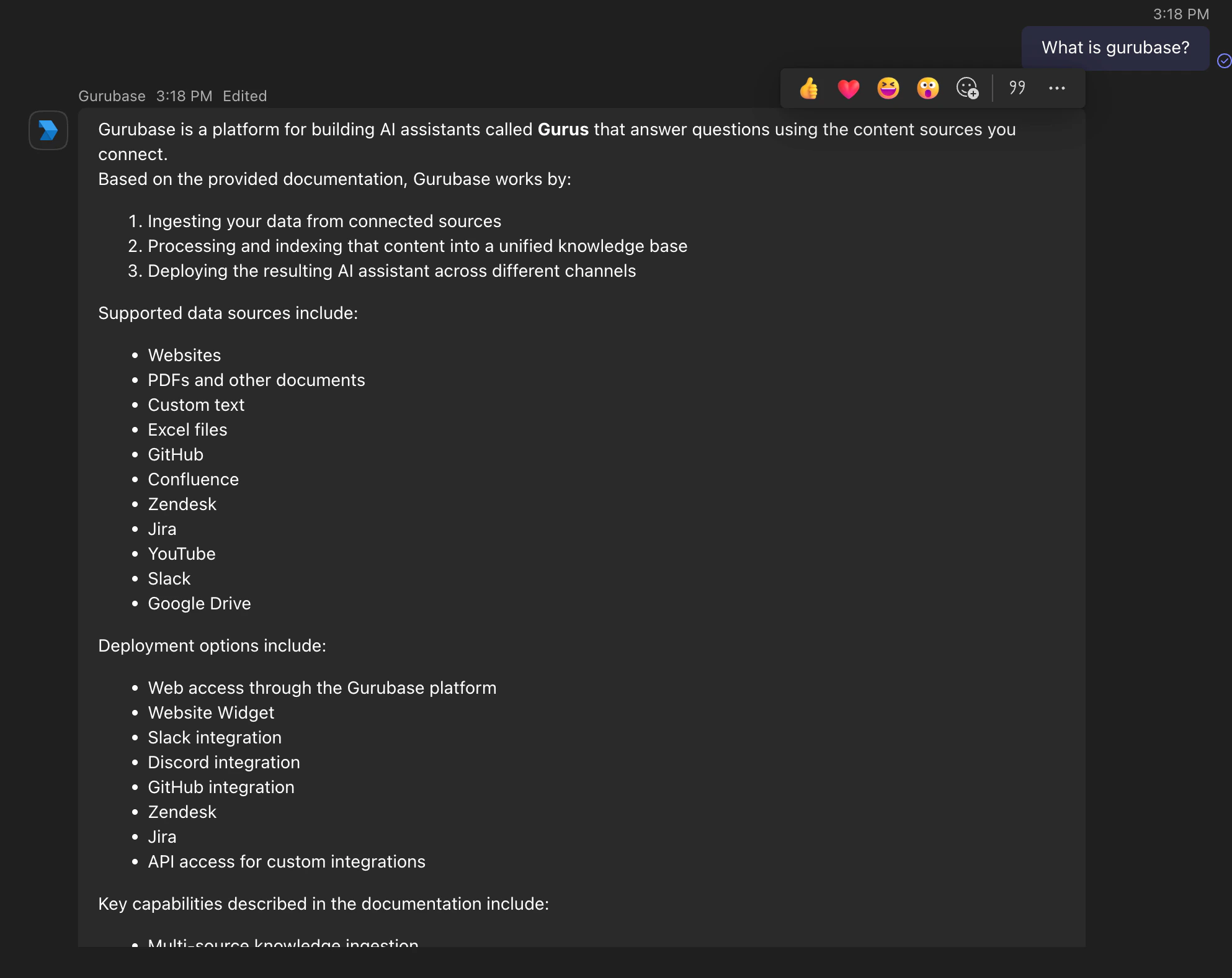
- DM: just type a question — no mention needed.
- Channel: mention the bot — Teams only forwards channel messages to bots when explicitly mentioned. To mention, type
@and pick the bot from the autocomplete dropdown. Pasting@bot-nameas plain text does not count as a mention; it’ll look right in the editor but the bot won’t receive the message.
Conversation commands
In 1-1 chats, the conversation context automatically rotates after 30 minutes of inactivity, so you usually don’t need
/clear unless you want to start fresh sooner.
In channels, each thread is its own conversation — there’s no time-based rotation, and /clear only resets the thread it was used in.
Attachments
Gurubase processes the following attachment types out of the box:Channel attachment limitation
Microsoft Teams does not forward any attachments to bots in channel messages — file uploads go to the channel’s SharePoint folder and images are referenced in a way the bot can’t fetch. Anything you want the bot to analyze must be shared in a 1-1 chat with the bot. This is a Teams platform limitation, not a Gurubase configuration option.File reuse within a conversation
Within the same 1-1 conversation context (between rotations), files you’ve already shared stay available for follow-up questions — you don’t need to re-upload a PDF every time you want to ask about it. The bot tags inherited references with a(from earlier) badge so it’s clear which sources came from previous messages.
Updating an existing bot
If you change anything in the bot’s manifest (scopes, name, icon, description, messaging endpoint registered in the manifest, etc.) after publishing, Teams won’t pick up the change until you republish:1
Bump the version
In your app on
dev.teams.microsoft.com, open Basic information and increment the Version field (e.g. 1.0.1 → 1.0.2). Teams aggressively caches manifests by version; without a bump, the change won’t propagate.2
Publish to your org
Open Publish → Publish to your org in the sidebar and click Publish your app again.
3
Re-approve in the admin center
Go to the Teams admin center → Manage apps, find your bot, and click Publish on the new pending version. It can take a couple of minutes to propagate to Teams clients.
Changing the bot’s credentials in Gurubase (rotating the client secret, switching tenants) is separate from this flow — that’s done from the Gurubase integration page, no Teams republish needed.